> ## Documentation Index
> Fetch the complete documentation index at: https://docs.intellikon.ai/llms.txt
> Use this file to discover all available pages before exploring further.
# Find your way around
> Move between products and workspaces, and find the controls at the top of every screen.
Studio looks the same wherever you are, so once you know the frame you can find your way in any product.
## The product bar
The narrow bar on the far left has an icon for each product. Select one to jump straight into it. The logo at the top takes you to your [home screen](/get-started/home). The gear at the bottom opens Studio settings; Account Admins and Users do not see it.
## Inside a product
Each product has its own sidebar listing its areas, such as **Contacts** or **Campaigns** in Pulse. Use the arrow at the top of the sidebar to collapse it when you want more room.
## Workspaces
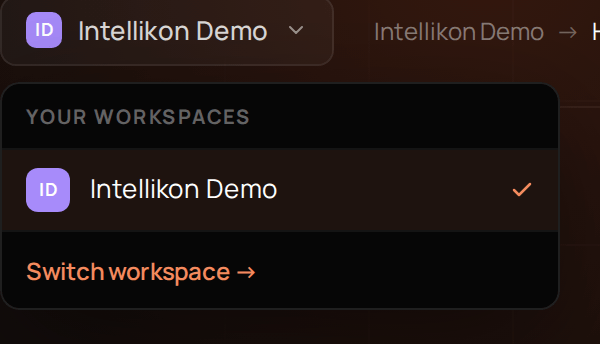 The name at the top left is the workspace you are in. If you belong to more than one, select it to see your workspaces, then select the one you want to move to.
## Where you are
Next to the workspace name, a trail shows where you are, such as **Pulse**, then **Contacts**. The trail only shows your place; use the sidebars to move. Your home screen shows your role in this workspace next to the workspace name.
## The top right
The name at the top left is the workspace you are in. If you belong to more than one, select it to see your workspaces, then select the one you want to move to.
## Where you are
Next to the workspace name, a trail shows where you are, such as **Pulse**, then **Contacts**. The trail only shows your place; use the sidebars to move. Your home screen shows your role in this workspace next to the workspace name.
## The top right
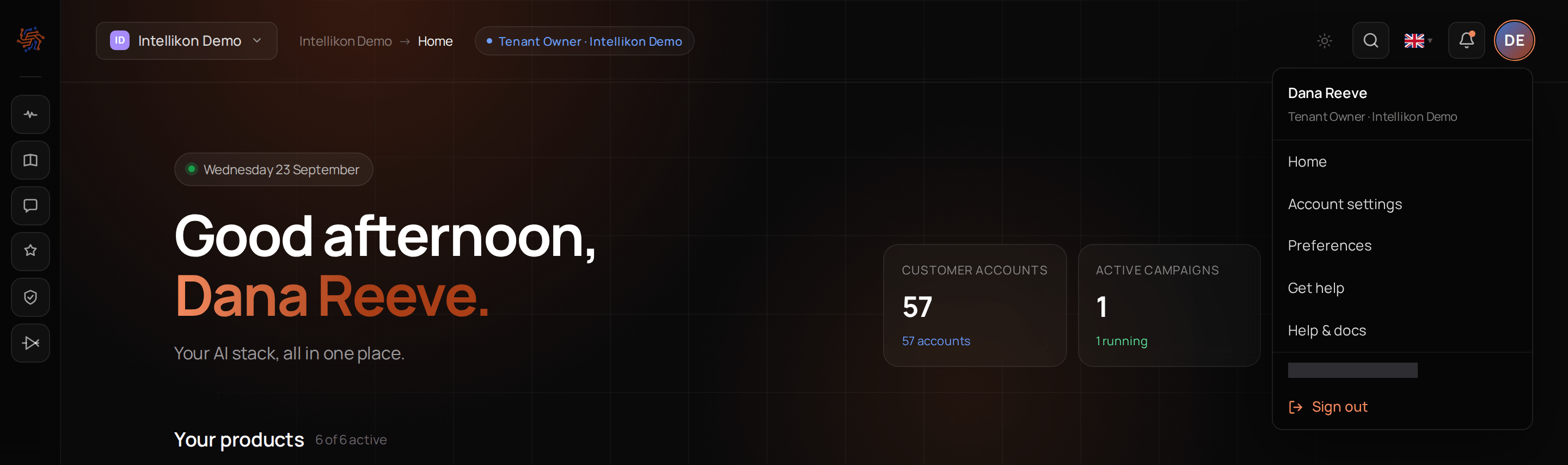 Here you can switch between light and dark, change the language Studio is shown in, and open the menu under your initials. The language you pick is the same setting as **Interface language** in your profile. The menu under your initials opens your [profile](/get-started/profile) and [help](/get-started/get-help), and has **Sign out**.
Next, [set up your profile](/get-started/profile).
Here you can switch between light and dark, change the language Studio is shown in, and open the menu under your initials. The language you pick is the same setting as **Interface language** in your profile. The menu under your initials opens your [profile](/get-started/profile) and [help](/get-started/get-help), and has **Sign out**.
Next, [set up your profile](/get-started/profile).