> ## Documentation Index
> Fetch the complete documentation index at: https://docs.intellikon.ai/llms.txt
> Use this file to discover all available pages before exploring further.
# Get help
> Find answers in this help centre, or send a request to Intellikon.
If this help centre does not answer your question, you can send a request straight to Intellikon from the menu under your initials.
## Ask Intellikon
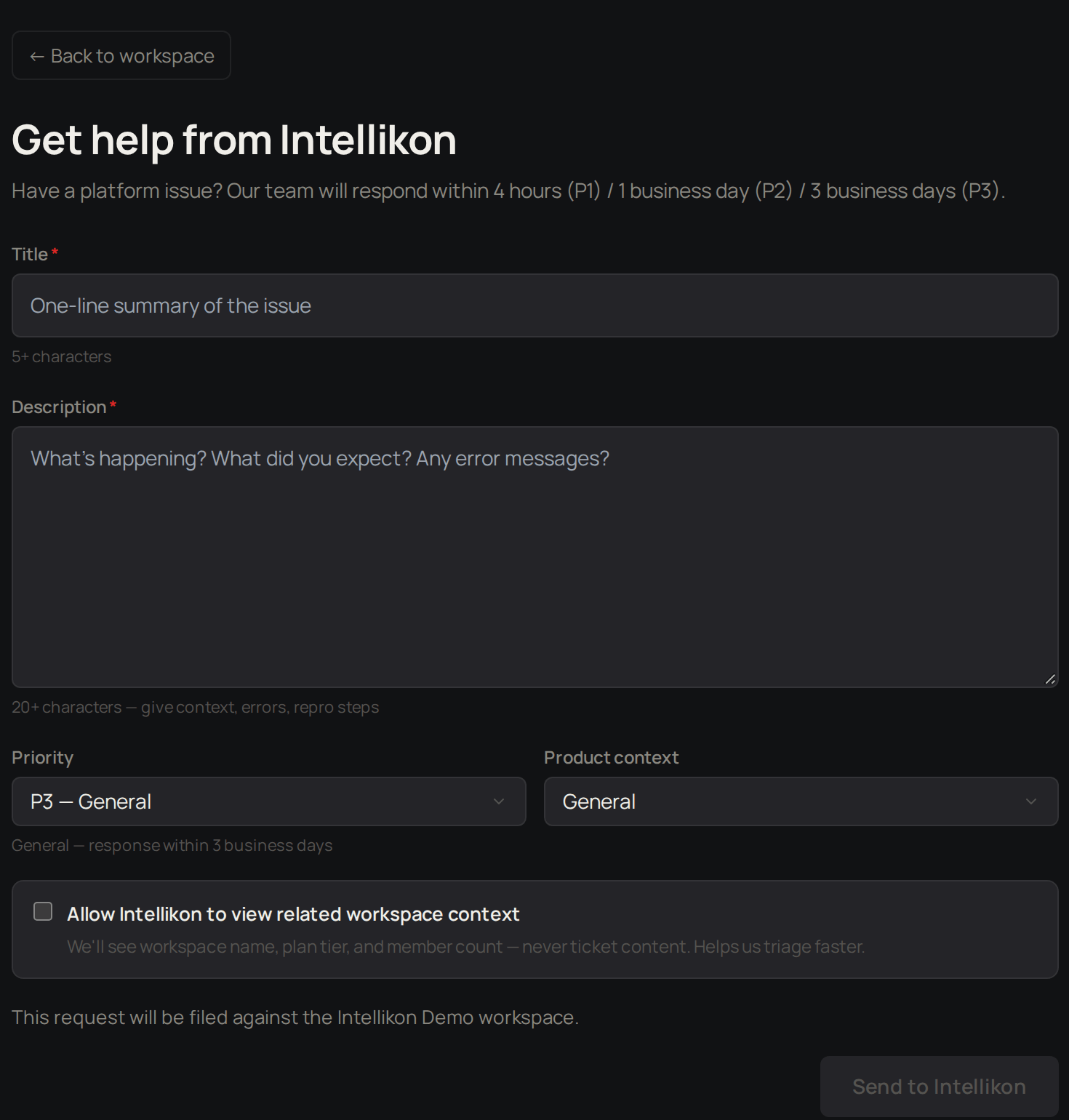 Tenant Owners, Workspace Admins and Workspace Members can send a request to Intellikon.
Select your initials, then **Get help**.
Give it a **Title**.
Give it a **Description**. Say what happened, what you expected, and any error message you saw.
Choose a **Priority**. The form shows how quickly each priority is answered.
Choose the **Product context**.
Tick **Allow Intellikon to view related workspace context** to let us see your workspace name, plan and member count. We never see your ticket content this way.
Select **Send to Intellikon**.
Studio shows **Sent to Intellikon** with a reference, and we reply by email. Your request is filed against the workspace you are in. While you wait, you can look for an answer in the [product guides](/).
## Troubleshooting
**If the form says you have used all your direct requests for today,** try again after the time it shows, or ask a Workspace Admin if it is urgent.
Tenant Owners, Workspace Admins and Workspace Members can send a request to Intellikon.
Select your initials, then **Get help**.
Give it a **Title**.
Give it a **Description**. Say what happened, what you expected, and any error message you saw.
Choose a **Priority**. The form shows how quickly each priority is answered.
Choose the **Product context**.
Tick **Allow Intellikon to view related workspace context** to let us see your workspace name, plan and member count. We never see your ticket content this way.
Select **Send to Intellikon**.
Studio shows **Sent to Intellikon** with a reference, and we reply by email. Your request is filed against the workspace you are in. While you wait, you can look for an answer in the [product guides](/).
## Troubleshooting
**If the form says you have used all your direct requests for today,** try again after the time it shows, or ask a Workspace Admin if it is urgent.