> ## Documentation Index
> Fetch the complete documentation index at: https://docs.intellikon.ai/llms.txt
> Use this file to discover all available pages before exploring further.
# Customer tickets
> Find, answer, triage and resolve the tickets your customers raise.
Every ticket a customer raises lands in your **Inbox**. Open one and you see the whole conversation, with the customer's company, their past tickets and your team's notes about them on the right. You reply to the customer from the same page, and add internal notes that only your team can read.
## Before you start
Your customers need their own sign-in to Studio, with Aegis turned on for their company. Tenant Owners and Workspace Admins do this in Studio settings under **Accounts**: open the company, turn on Aegis on its **Products** tab, and add its people on the **Users** tab with **Invite user**.
## Find a ticket
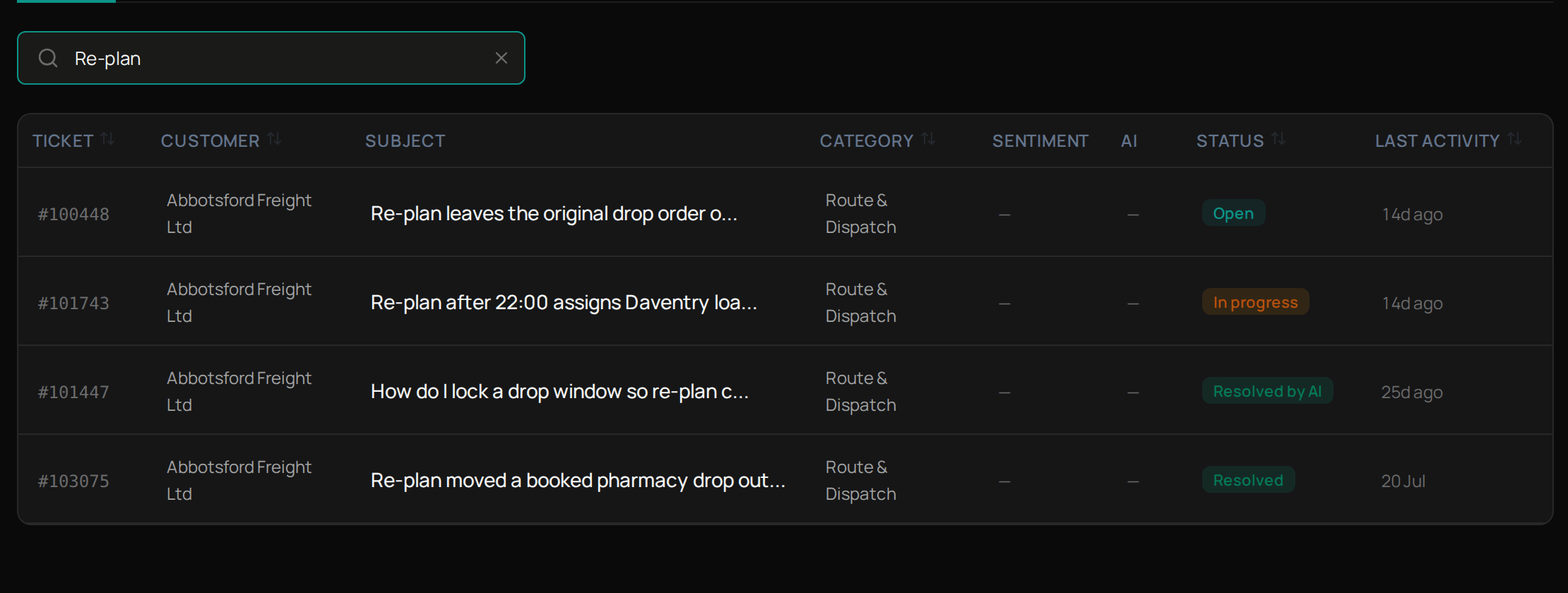 Select **Inbox**. The figures at the top show how many tickets are open and in progress, your average response time and the share of tickets Aegis resolved itself. Use the tabs to see **Open**, **In progress**, **Resolved** or **Resolved by AI** tickets, **Account** to see one company, and the search box to find a ticket by its subject.
Tickets past their reply time show **BREACHED** next to the subject. Select a ticket to open it.
Next, [reply to the customer](#reply-to-a-customer).
## Reply to a customer
Select **Inbox**. The figures at the top show how many tickets are open and in progress, your average response time and the share of tickets Aegis resolved itself. Use the tabs to see **Open**, **In progress**, **Resolved** or **Resolved by AI** tickets, **Account** to see one company, and the search box to find a ticket by its subject.
Tickets past their reply time show **BREACHED** next to the subject. Select a ticket to open it.
Next, [reply to the customer](#reply-to-a-customer).
## Reply to a customer
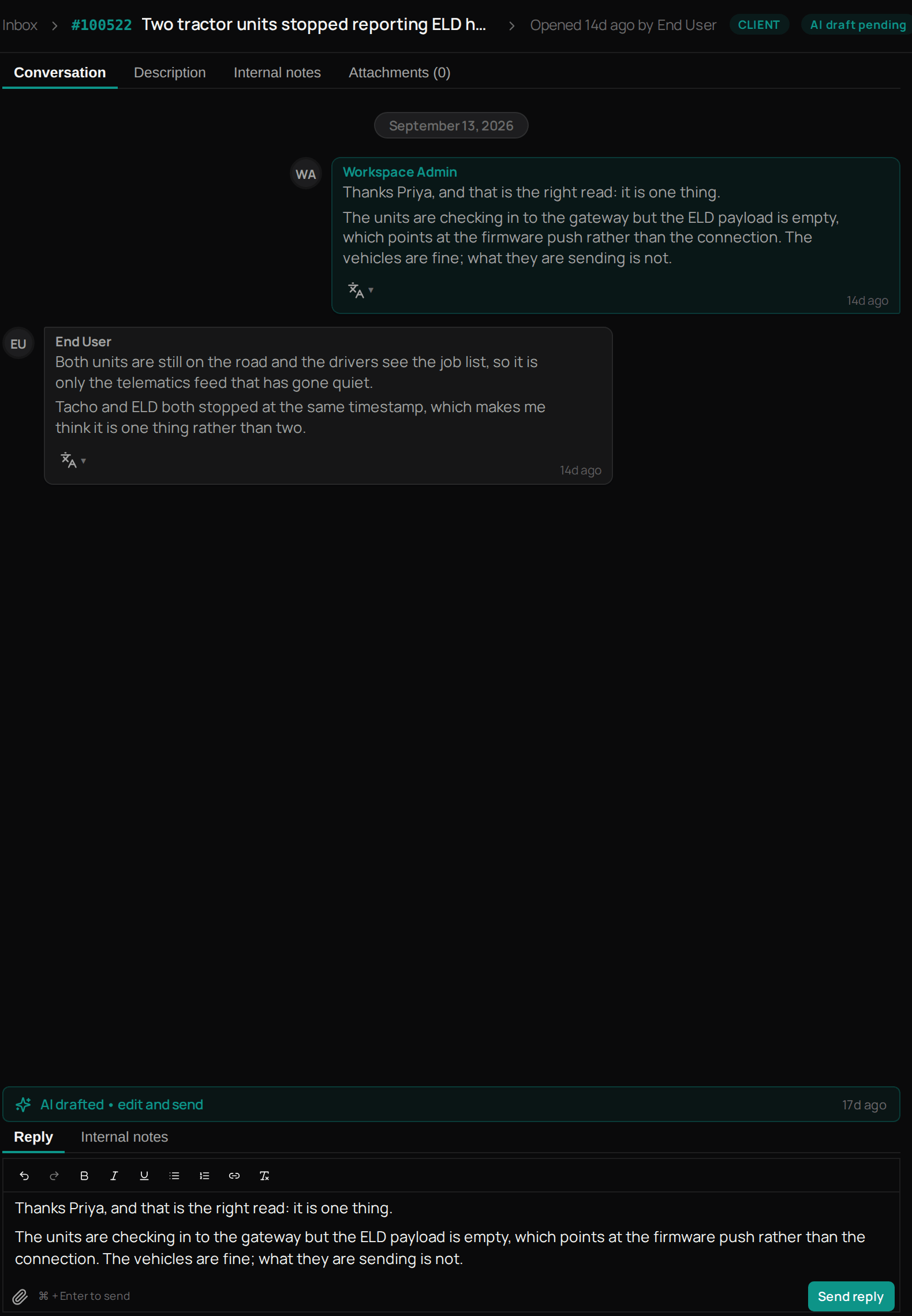 Select **Inbox**, then the ticket.
Check every message under **Conversation**, what the customer first wrote under **Description**, and any files under **Attachments**.
Under **Reply**, type your answer.
If Aegis has already suggested one, marked **AI drafted**, edit it until it says what you want.
Select **Send reply**.
Your reply now shows in the conversation, and Aegis emails it to the customer who raised the ticket. When they reply, the person assigned to the ticket gets an email. Next, [triage the ticket](#triage-a-ticket).
To read a message in another language, open the translate menu under it and choose a language. Press ? on a ticket to see its keyboard shortcuts.
## Add an internal note
Below the conversation, select **Internal notes**.
Type your note. Customers never see it.
Select **Add note**.
The note now shows under the **Internal notes** tab at the top of the ticket. Tenant Owners and Workspace Admins can write notes. Workspace Members can read them if a Tenant Owner or Workspace Admin allows it in [Aegis settings](/products/aegis/settings).
For a note about the customer rather than this ticket, type in **Notes** on the right. It saves when you stop typing and shows on every ticket from that company. Next, [triage the ticket](#triage-a-ticket).
## Triage a ticket
Select **Inbox**, then the ticket.
Check every message under **Conversation**, what the customer first wrote under **Description**, and any files under **Attachments**.
Under **Reply**, type your answer.
If Aegis has already suggested one, marked **AI drafted**, edit it until it says what you want.
Select **Send reply**.
Your reply now shows in the conversation, and Aegis emails it to the customer who raised the ticket. When they reply, the person assigned to the ticket gets an email. Next, [triage the ticket](#triage-a-ticket).
To read a message in another language, open the translate menu under it and choose a language. Press ? on a ticket to see its keyboard shortcuts.
## Add an internal note
Below the conversation, select **Internal notes**.
Type your note. Customers never see it.
Select **Add note**.
The note now shows under the **Internal notes** tab at the top of the ticket. Tenant Owners and Workspace Admins can write notes. Workspace Members can read them if a Tenant Owner or Workspace Admin allows it in [Aegis settings](/products/aegis/settings).
For a note about the customer rather than this ticket, type in **Notes** on the right. It saves when you stop typing and shows on every ticket from that company. Next, [triage the ticket](#triage-a-ticket).
## Triage a ticket
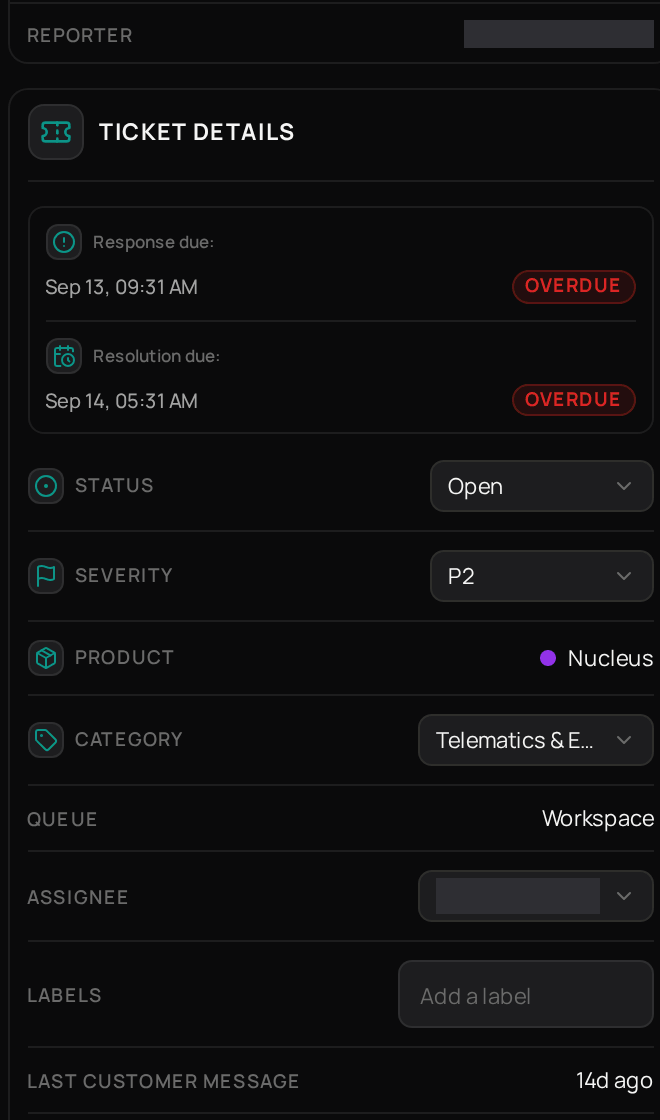 Tenant Owners and Workspace Admins can change a ticket's details on the right of its page, under **Ticket details**.
Under **Status**, choose where the ticket stands, such as **In progress**.
Under **Severity**, choose **P1**, **P2** or **P3**.
Under **Category**, pick the area the ticket is about.
Under **Assignee**, choose who should handle it.
Type in **Add a label** to tag the ticket.
Each change shows straight away. Next, [resolve the ticket](#resolve-a-ticket) when it is done.
## Resolve a ticket
When the customer has what they need, resolve the ticket.
Select **Resolve** at the top of the ticket.
Select **Resolve** again to confirm.
The ticket now shows as Resolved, and it moves to the **Resolved** tab in your Inbox. Next, see [what needs you today](/products/aegis/dashboard-and-my-work).
## Troubleshooting
Workspace Members see internal notes only when **Member access to internal notes** is on. Ask a Tenant Owner or Workspace Admin to turn it on in [Aegis settings](/products/aegis/settings).
Check that Aegis is turned on for their company in Studio settings under **Accounts**, on the **Products** tab.
Tenant Owners and Workspace Admins can change a ticket's details on the right of its page, under **Ticket details**.
Under **Status**, choose where the ticket stands, such as **In progress**.
Under **Severity**, choose **P1**, **P2** or **P3**.
Under **Category**, pick the area the ticket is about.
Under **Assignee**, choose who should handle it.
Type in **Add a label** to tag the ticket.
Each change shows straight away. Next, [resolve the ticket](#resolve-a-ticket) when it is done.
## Resolve a ticket
When the customer has what they need, resolve the ticket.
Select **Resolve** at the top of the ticket.
Select **Resolve** again to confirm.
The ticket now shows as Resolved, and it moves to the **Resolved** tab in your Inbox. Next, see [what needs you today](/products/aegis/dashboard-and-my-work).
## Troubleshooting
Workspace Members see internal notes only when **Member access to internal notes** is on. Ask a Tenant Owner or Workspace Admin to turn it on in [Aegis settings](/products/aegis/settings).
Check that Aegis is turned on for their company in Studio settings under **Accounts**, on the **Products** tab.