> ## Documentation Index
> Fetch the complete documentation index at: https://docs.intellikon.ai/llms.txt
> Use this file to discover all available pages before exploring further.
# Aegis overview
> What Aegis does, how it is laid out, and which queue to use for each kind of ticket.
Aegis is where your team handles support. Your customers raise tickets from their own sign-in to Studio, and you answer them in one place, with the customer's history beside each conversation. Aegis can suggest a reply for you to edit and send, and it can answer some questions itself. Your own team uses Aegis too, for internal work and for tickets you need Intellikon to look at.
Aegis is not a public help desk. There is no public form or email address that creates a ticket. Your customers sign in to Studio to raise and follow their tickets.
## How Aegis is laid out
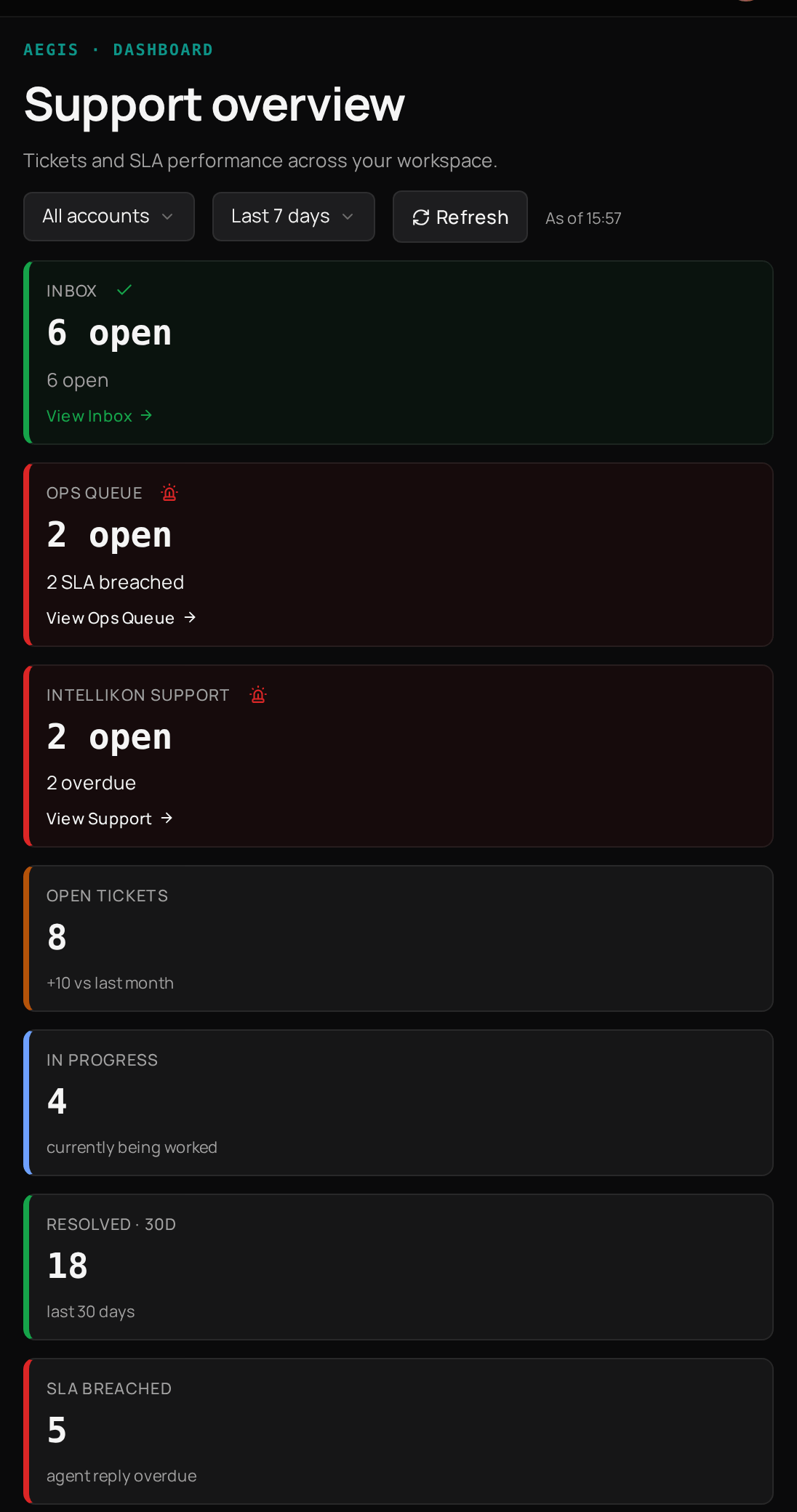 | Area | What you do there |
| --------- | --------------------------------------------------------------------------------------------------------------------- |
| Dashboard | See open tickets, overdue replies and the busiest accounts at a glance. |
| Queue | **Feed**, **My Work**, **Inbox**, **Ops Queue**, **Intellikon Support** and **Escalations**: find and answer tickets. |
| Settings | Set how quickly your team must reply, and the categories customers choose from. |
## Which queue to use
Use it to spot patterns and alerts across your tickets.
Use it to work through the tickets assigned to you.
Use it to answer the tickets your customers raise.
Use it for work your own team needs to track as a ticket.
Use it when you need Intellikon's help with Studio itself.
Use it to follow the tickets you have passed to Intellikon.
## Tickets move through statuses
Raised and waiting for your team.
Someone is working on it.
Your team has closed it.
Aegis answered it itself.
Each ticket also has a priority of **P1**, **P2** or **P3**, with P1 the most urgent. The priority sets how long your team has to reply before the ticket shows **BREACHED**.
## Who can do what
| Task | Tenant Owner | Workspace Admin | Workspace Member | Account Admin | User |
| --------------------------------------------------- | ------------ | --------------- | ---------------------- | ------------- | --------- |
| See the dashboard, Inbox, Ops Queue and Escalations | Yes | Yes | Yes | No | No |
| Reply to a ticket | Yes | Yes | Yes | Their own | Their own |
| Write internal notes | Yes | Yes | No | No | No |
| Read internal notes | Yes | Yes | If allowed in settings | No | No |
| Escalate a ticket to Intellikon | Yes | Yes | No | No | No |
| Open Intellikon Support | Yes | Yes | No | No | No |
| Change Aegis settings | Yes | Yes | View only | No | No |
| Raise a ticket as a customer | No | No | No | Yes | Yes |
| See every ticket their own company raised | No | No | No | Yes | No |
Account Admins and Users are people at your customers' companies.
## Where to start
Reply, triage and resolve the tickets in your Inbox.
Track your own work and get help from Intellikon.
See what needs you today.
Set reply times and ticket categories.
## Related products
Aegis can use a Vera chatbot to answer your team's questions before they raise a ticket.
Prism can raise tickets in your Ops Queue from what it spots.
| Area | What you do there |
| --------- | --------------------------------------------------------------------------------------------------------------------- |
| Dashboard | See open tickets, overdue replies and the busiest accounts at a glance. |
| Queue | **Feed**, **My Work**, **Inbox**, **Ops Queue**, **Intellikon Support** and **Escalations**: find and answer tickets. |
| Settings | Set how quickly your team must reply, and the categories customers choose from. |
## Which queue to use
Use it to spot patterns and alerts across your tickets.
Use it to work through the tickets assigned to you.
Use it to answer the tickets your customers raise.
Use it for work your own team needs to track as a ticket.
Use it when you need Intellikon's help with Studio itself.
Use it to follow the tickets you have passed to Intellikon.
## Tickets move through statuses
Raised and waiting for your team.
Someone is working on it.
Your team has closed it.
Aegis answered it itself.
Each ticket also has a priority of **P1**, **P2** or **P3**, with P1 the most urgent. The priority sets how long your team has to reply before the ticket shows **BREACHED**.
## Who can do what
| Task | Tenant Owner | Workspace Admin | Workspace Member | Account Admin | User |
| --------------------------------------------------- | ------------ | --------------- | ---------------------- | ------------- | --------- |
| See the dashboard, Inbox, Ops Queue and Escalations | Yes | Yes | Yes | No | No |
| Reply to a ticket | Yes | Yes | Yes | Their own | Their own |
| Write internal notes | Yes | Yes | No | No | No |
| Read internal notes | Yes | Yes | If allowed in settings | No | No |
| Escalate a ticket to Intellikon | Yes | Yes | No | No | No |
| Open Intellikon Support | Yes | Yes | No | No | No |
| Change Aegis settings | Yes | Yes | View only | No | No |
| Raise a ticket as a customer | No | No | No | Yes | Yes |
| See every ticket their own company raised | No | No | No | Yes | No |
Account Admins and Users are people at your customers' companies.
## Where to start
Reply, triage and resolve the tickets in your Inbox.
Track your own work and get help from Intellikon.
See what needs you today.
Set reply times and ticket categories.
## Related products
Aegis can use a Vera chatbot to answer your team's questions before they raise a ticket.
Prism can raise tickets in your Ops Queue from what it spots.