> ## Documentation Index
> Fetch the complete documentation index at: https://docs.intellikon.ai/llms.txt
> Use this file to discover all available pages before exploring further.
# Team tickets and Intellikon
> Track your own team's work in the Ops Queue, and get help from Intellikon when a problem is with Studio itself.
Not every ticket comes from a customer. **Ops Queue** holds the work your own team tracks as tickets, whether someone raised it by hand or Prism raised it from something it spotted. When a problem is with Studio itself, you can pass a ticket to Intellikon. **Intellikon Support** lists your tickets with Intellikon, and **Escalations** shows how each escalated ticket is progressing.
## Before you start
Tenant Owners, Workspace Admins and Workspace Members can use **Ops Queue** and **Escalations**. **Intellikon Support**, and escalating a ticket to Intellikon, are for Tenant Owners and Workspace Admins.
## Raise a ticket for your team
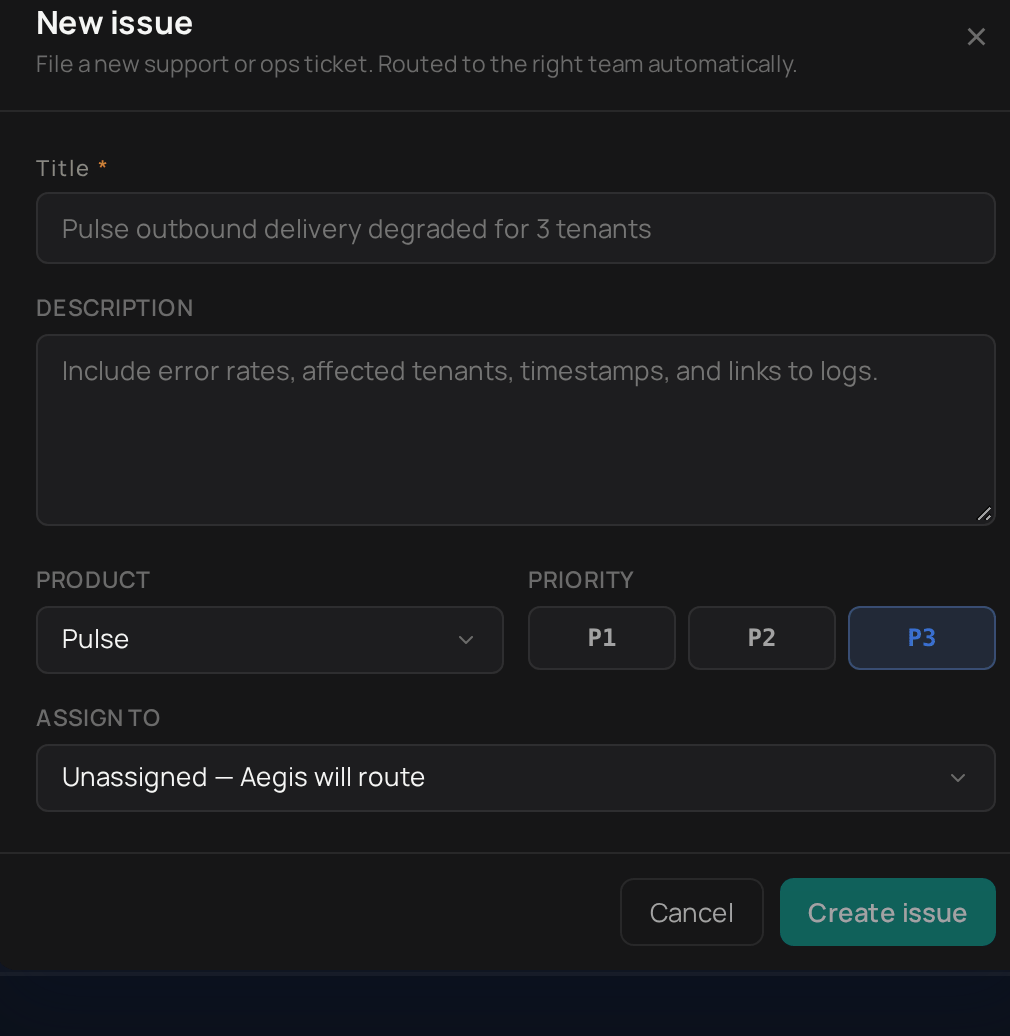 Select **Ops Queue**, then **New operational ticket**.
Enter a **Title**.
Add a **Description** with anything that helps, such as when it started.
Choose the **Product** it concerns.
Choose a **Priority** of **P1**, **P2** or **P3**.
Under **Assign to**, choose yourself, or leave it unassigned.
Select **Create issue**.
The ticket now shows in your Ops Queue with **MANUAL** in the **Source** column. You work on it the same way as a [customer ticket](/products/aegis/customer-tickets#reply-to-a-customer).
You can also raise a ticket from anywhere in Studio.
Select the lifebuoy icon at the top right, then **Raise a ticket**.
Enter a **Title**.
Add a **Description**.
Choose the **Product**.
Select **Submit**.
The ticket lands in the Ops Queue too. Next, [ask Intellikon for help](#ask-intellikon-for-help).
## Ask Intellikon for help
To raise something with Intellikon that did not start as a ticket, select **Intellikon Support**, then **Raise ticket with Intellikon**. This opens the same form as **Get help** in the menu under your initials. See [Get help](/get-started/get-help). Next, [follow your tickets with Intellikon](#follow-your-tickets-with-intellikon).
## Follow your tickets with Intellikon
Select **Ops Queue**, then **New operational ticket**.
Enter a **Title**.
Add a **Description** with anything that helps, such as when it started.
Choose the **Product** it concerns.
Choose a **Priority** of **P1**, **P2** or **P3**.
Under **Assign to**, choose yourself, or leave it unassigned.
Select **Create issue**.
The ticket now shows in your Ops Queue with **MANUAL** in the **Source** column. You work on it the same way as a [customer ticket](/products/aegis/customer-tickets#reply-to-a-customer).
You can also raise a ticket from anywhere in Studio.
Select the lifebuoy icon at the top right, then **Raise a ticket**.
Enter a **Title**.
Add a **Description**.
Choose the **Product**.
Select **Submit**.
The ticket lands in the Ops Queue too. Next, [ask Intellikon for help](#ask-intellikon-for-help).
## Ask Intellikon for help
To raise something with Intellikon that did not start as a ticket, select **Intellikon Support**, then **Raise ticket with Intellikon**. This opens the same form as **Get help** in the menu under your initials. See [Get help](/get-started/get-help). Next, [follow your tickets with Intellikon](#follow-your-tickets-with-intellikon).
## Follow your tickets with Intellikon
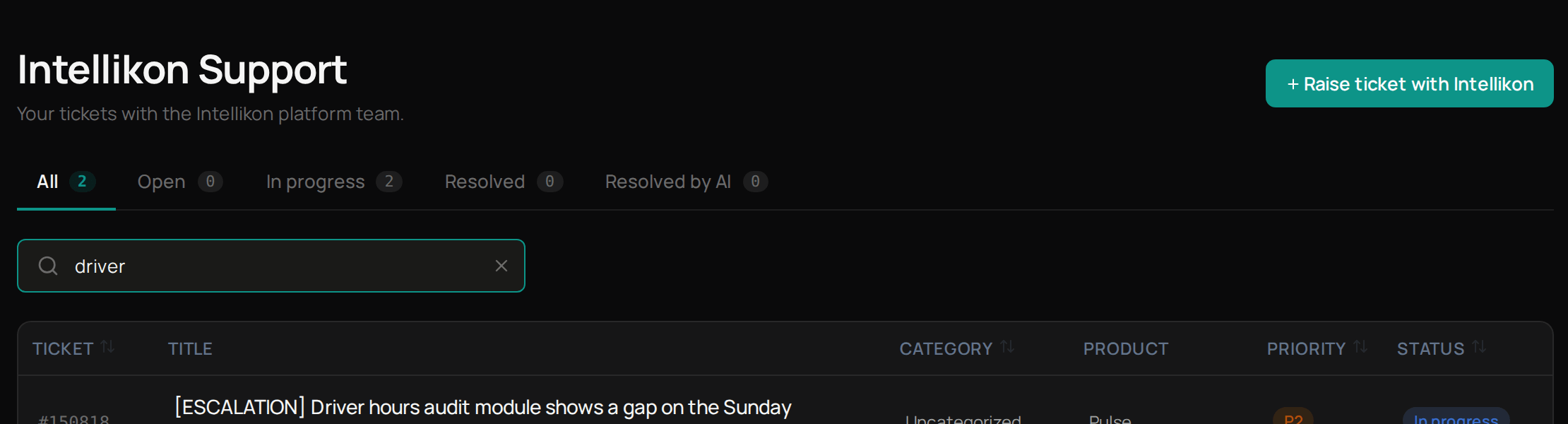 Select **Intellikon Support** to see every ticket you have raised with Intellikon, both escalations and direct requests. Use the tabs to see only **Open**, **In progress** or **Resolved** tickets.
Select a ticket to open it. **Ticket Summary** on the right shows its status, and **Timeline** shows what has happened so far. To add something, type in the reply box and select **Send reply**. Your message now shows in the conversation. Next, [follow an escalation](#follow-an-escalation).
## Follow an escalation
Select **Escalations** to see every ticket your workspace has escalated, and the requests raised directly with Intellikon. Use **Account**, **Status** and **Severity** to narrow the list.
Select an escalation to see how long it has been open. If it started as one of your tickets, select **Open the originating ticket** under **Ticket status mirror** to go back to it. Next, see [what needs you today](/products/aegis/dashboard-and-my-work).
## Troubleshooting
It shows only on tickets in the Ops Queue, and only for Tenant Owners and Workspace Admins. For anything else, [ask Intellikon for help](#ask-intellikon-for-help) directly.
Enter a **Title**. The ticket cannot be created without one.
It is for Tenant Owners and Workspace Admins. Workspace Members can still send a request with **Get help** in the menu under their initials.
Select **Intellikon Support** to see every ticket you have raised with Intellikon, both escalations and direct requests. Use the tabs to see only **Open**, **In progress** or **Resolved** tickets.
Select a ticket to open it. **Ticket Summary** on the right shows its status, and **Timeline** shows what has happened so far. To add something, type in the reply box and select **Send reply**. Your message now shows in the conversation. Next, [follow an escalation](#follow-an-escalation).
## Follow an escalation
Select **Escalations** to see every ticket your workspace has escalated, and the requests raised directly with Intellikon. Use **Account**, **Status** and **Severity** to narrow the list.
Select an escalation to see how long it has been open. If it started as one of your tickets, select **Open the originating ticket** under **Ticket status mirror** to go back to it. Next, see [what needs you today](/products/aegis/dashboard-and-my-work).
## Troubleshooting
It shows only on tickets in the Ops Queue, and only for Tenant Owners and Workspace Admins. For anything else, [ask Intellikon for help](#ask-intellikon-for-help) directly.
Enter a **Title**. The ticket cannot be created without one.
It is for Tenant Owners and Workspace Admins. Workspace Members can still send a request with **Get help** in the menu under their initials.