> ## Documentation Index
> Fetch the complete documentation index at: https://docs.intellikon.ai/llms.txt
> Use this file to discover all available pages before exploring further.
# Certificates
> Decide when learners earn a certificate, how it looks, and how long it lasts.
Lexis can issue a certificate when a learner finishes a module. You set up certificates once for the whole workspace in **Settings**, and change them for a single module only when it needs something different. A learner earns a module's certificate when they have completed every step in it that they did not skip. Once a certificate is issued, it keeps the settings it was issued with, even if you change them later.
## Before you start
Tenant Owners and Workspace Admins can change the workspace's certificate settings. Workspace Members see them as view only. Anyone who builds modules can change a module's own certificate settings.
## Set up certificates for your workspace
Select **Settings** in the Lexis sidebar and find **Certification**.
Turn on **Enable certification**.
Enter an **Issuer display name** if certificates should carry a brand other than your workspace name.
Under **Certificate validity period**, choose **Indefinite**, **6 months**, **1 year** or **2 years**.
Select **Save** at the bottom of the section.
Lexis confirms that the section is saved, and new certificates follow these settings. Next, [choose how certificates look](#choose-how-certificates-look).
## Choose how certificates look
Select **Settings** in the Lexis sidebar and find **Certification**.
Add **Default skill tags** if you want them on every certificate.
Under **Certificate template**, choose **Default**, **Formal**, **Minimal** or **Branded**.
Set a **Certificate accent colour** if you want your own.
Add a **Logo** if you want your own.
Add **Signature text** if you want it on every certificate.
Select **Save** at the bottom of the section.
Lexis confirms that the section is saved, and new certificates follow these settings. Next, [email learners their certificates](#email-learners-their-certificates).
## Email learners their certificates
Select **Settings** in the Lexis sidebar and find **Enrolment**. Check that **Email on certification** is on. It is on unless someone has turned it off. If it is off, turn it back on and select **Save**. Each learner then gets an email when they earn a certificate, with a link to check it. Next, [give a module its own certificate settings](#give-a-module-its-own-certificate-settings) if it needs them.
## Give a module its own certificate settings
 Select **Modules**, then select the module.
At the top of the module, select **Certificate**.
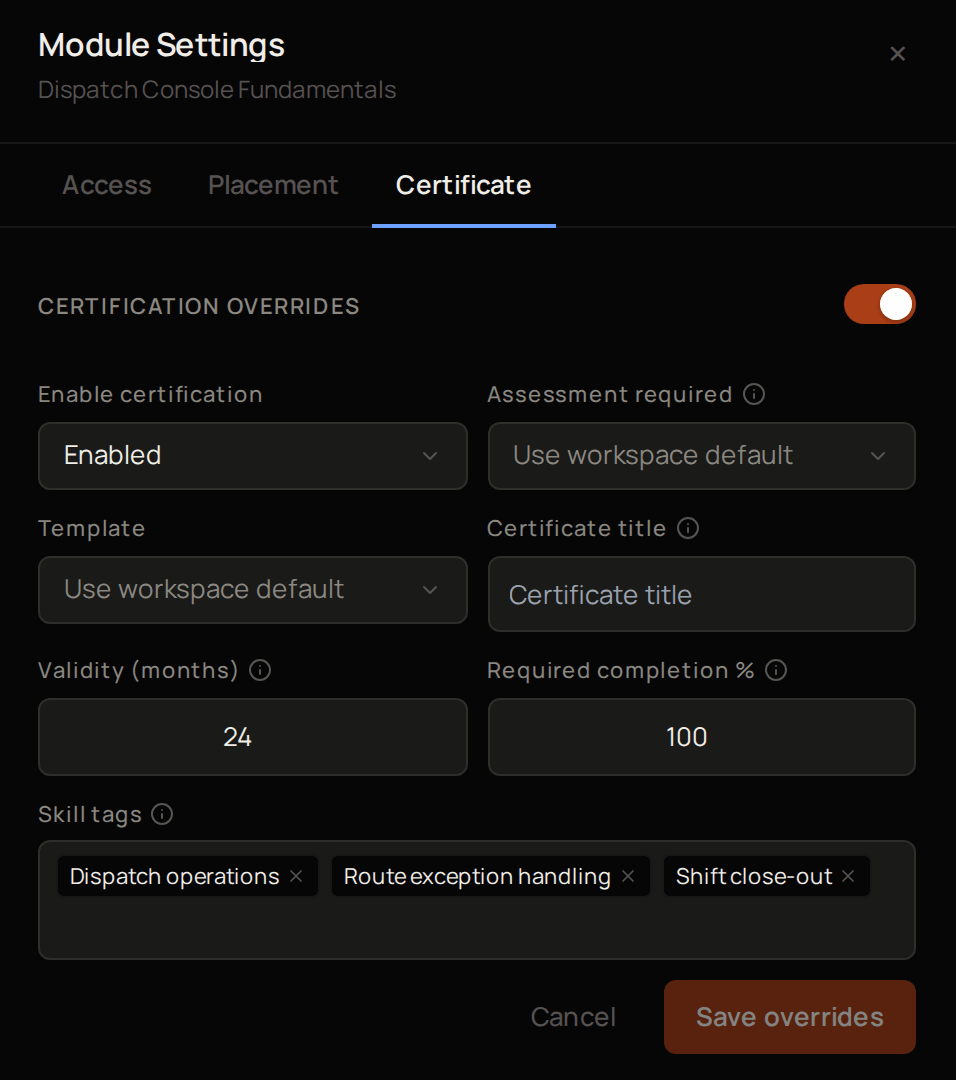
Turn on the switch next to **Certification overrides**. If it is already on, select **Edit**.
Set **Enable certification**, **Template**, **Certificate title**, **Validity (months)** or **Skill tags** for this module wherever it differs. Anything you leave at **Use workspace default** or blank follows your workspace settings.
Select **Save overrides**.
This module's certificates now use its own settings. To go back to the workspace settings, turn the switch off. The change is saved straight away. Next, [stop issuing certificates for a while](#stop-issuing-certificates-for-a-while) if you ever need to.
## Stop issuing certificates for a while
Select **Settings** in the Lexis sidebar and find **Certification**.
Turn on **Suspend all certification**.
Select **Save**.
No certificates are issued while it is on, whatever a module is set to. Certificates already issued are not affected. Turn it off again to start issuing. Next, [see issued certificates](#see-issued-certificates).
## See issued certificates
Select **Certifications** to see every certificate issued in your workspace. A certificate appears here as soon as a learner earns it. Next, see [what your customer sees](#what-your-customer-sees) when someone checks a certificate.
## What your customer sees
Every certificate carries a code and a link that anyone can use to check it. A person checking a certificate, such as the learner's employer, opens the link, or enters the code on the **Find a certificate** page and selects **Verify**.
## Troubleshooting
Check that **Suspend all certification** is off and **Enable certification** is on. Then open the module and check that its **Certification overrides** do not turn certificates off.
Enter a whole number of months from 1 to 240, or leave it blank to use your workspace setting.
Only Tenant Owners and Workspace Admins can change them. Ask one of them to make the change.
Select **Modules**, then select the module.
At the top of the module, select **Certificate**.
Turn on the switch next to **Certification overrides**. If it is already on, select **Edit**.
Set **Enable certification**, **Template**, **Certificate title**, **Validity (months)** or **Skill tags** for this module wherever it differs. Anything you leave at **Use workspace default** or blank follows your workspace settings.
Select **Save overrides**.
This module's certificates now use its own settings. To go back to the workspace settings, turn the switch off. The change is saved straight away. Next, [stop issuing certificates for a while](#stop-issuing-certificates-for-a-while) if you ever need to.
## Stop issuing certificates for a while
Select **Settings** in the Lexis sidebar and find **Certification**.
Turn on **Suspend all certification**.
Select **Save**.
No certificates are issued while it is on, whatever a module is set to. Certificates already issued are not affected. Turn it off again to start issuing. Next, [see issued certificates](#see-issued-certificates).
## See issued certificates
Select **Certifications** to see every certificate issued in your workspace. A certificate appears here as soon as a learner earns it. Next, see [what your customer sees](#what-your-customer-sees) when someone checks a certificate.
## What your customer sees
Every certificate carries a code and a link that anyone can use to check it. A person checking a certificate, such as the learner's employer, opens the link, or enters the code on the **Find a certificate** page and selects **Verify**.
## Troubleshooting
Check that **Suspend all certification** is off and **Enable certification** is on. Then open the module and check that its **Certification overrides** do not turn certificates off.
Enter a whole number of months from 1 to 240, or leave it blank to use your workspace setting.
Only Tenant Owners and Workspace Admins can change them. Ask one of them to make the change.