> ## Documentation Index
> Fetch the complete documentation index at: https://docs.intellikon.ai/llms.txt
> Use this file to discover all available pages before exploring further.
# Modules
> Build a module, fill it with steps, publish it and choose which learners can see it.
A module is training on one subject. It is made of steps, and each step is one short lesson, usually a video with written instructions. You can keep the steps in one list or group them into sections, such as Getting started. A new module starts as a draft that only your team can see, and you publish it when it is ready.
## Before you start
If a module is only for some of your customers, check that their accounts exist first. Accounts are managed in Studio settings under **Accounts**.
## Create a module
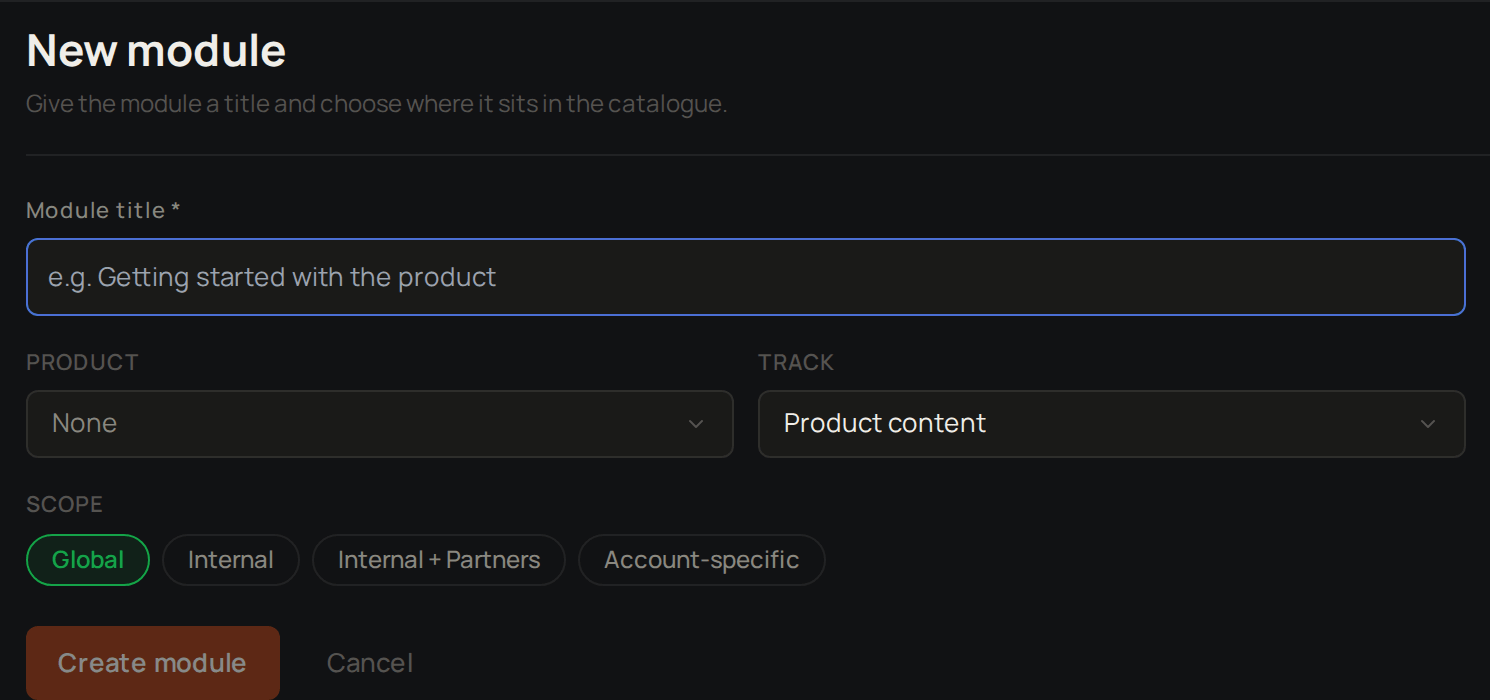 Select **Modules**, then **New module**.
Enter the **Module title**.
Choose a **Product** if the module is about one of your products.
Choose a **Track**, such as **Product content** or **Client content**. This **Track** labels the kind of content and is not the same as a Lexis [track](/products/lexis/tracks).
Under **Scope**, choose **Global**, **Internal**, **Internal + Partners** or **Account-specific**.
If you chose **Account-specific**, select **Add account…** and pick each account.
Select **Create module**.
**Scope** starts at your workspace's **Default organisation access**, which Tenant Owners and Workspace Admins set in **Settings** under **Defaults**. See [who each scope is for](/products/lexis/overview#modules-are-draft-or-published).
The module appears in the list on the left as a draft and opens. Next, [add a step](#add-a-step).
## Add a step
Select **Modules**, then **New module**.
Enter the **Module title**.
Choose a **Product** if the module is about one of your products.
Choose a **Track**, such as **Product content** or **Client content**. This **Track** labels the kind of content and is not the same as a Lexis [track](/products/lexis/tracks).
Under **Scope**, choose **Global**, **Internal**, **Internal + Partners** or **Account-specific**.
If you chose **Account-specific**, select **Add account…** and pick each account.
Select **Create module**.
**Scope** starts at your workspace's **Default organisation access**, which Tenant Owners and Workspace Admins set in **Settings** under **Defaults**. See [who each scope is for](/products/lexis/overview#modules-are-draft-or-published).
The module appears in the list on the left as a draft and opens. Next, [add a step](#add-a-step).
## Add a step
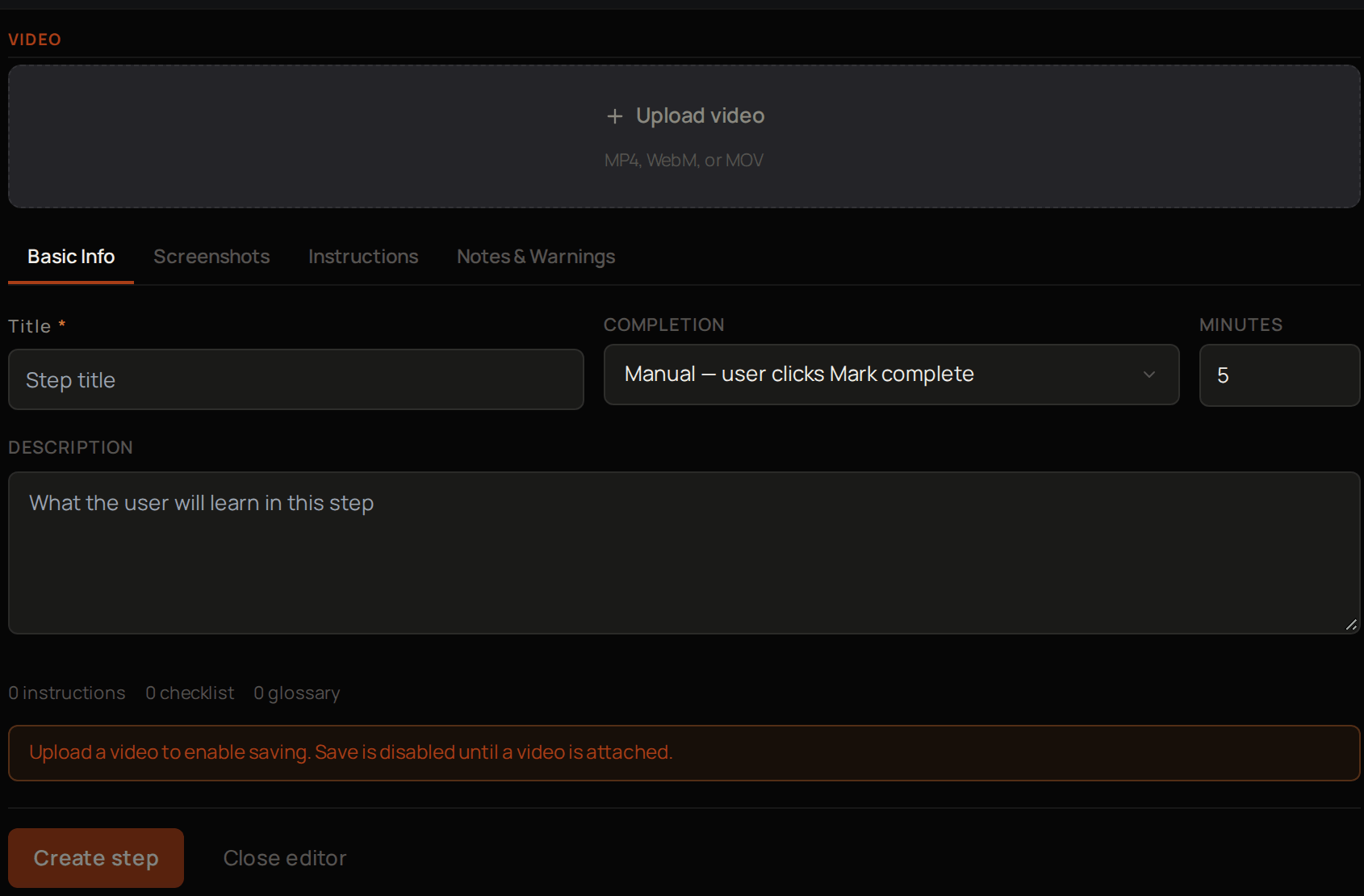 Every step needs a video, so have the file ready before you start.
Select the module in the list. Its steps are under **Sections & Steps**.
If the module has sections, open the section first.
Select **Add step**. In a module with sections, it is the **Add step** inside the section.
Select **Upload video** and choose your file.
On **Basic Info**, enter a **Title**.
Enter a **Description** of what the learner will learn.
Set **Minutes** to how long the step takes.
Under **Completion**, choose whether the learner marks the step complete, the step completes when the video ends, or the learner ticks off a checklist.
The form now has the video and the step's basics. Next, [add instructions, notes and screenshots](#add-instructions-notes-and-screenshots).
## Add instructions, notes and screenshots
Every step needs a video, so have the file ready before you start.
Select the module in the list. Its steps are under **Sections & Steps**.
If the module has sections, open the section first.
Select **Add step**. In a module with sections, it is the **Add step** inside the section.
Select **Upload video** and choose your file.
On **Basic Info**, enter a **Title**.
Enter a **Description** of what the learner will learn.
Set **Minutes** to how long the step takes.
Under **Completion**, choose whether the learner marks the step complete, the step completes when the video ends, or the learner ticks off a checklist.
The form now has the video and the step's basics. Next, [add instructions, notes and screenshots](#add-instructions-notes-and-screenshots).
## Add instructions, notes and screenshots
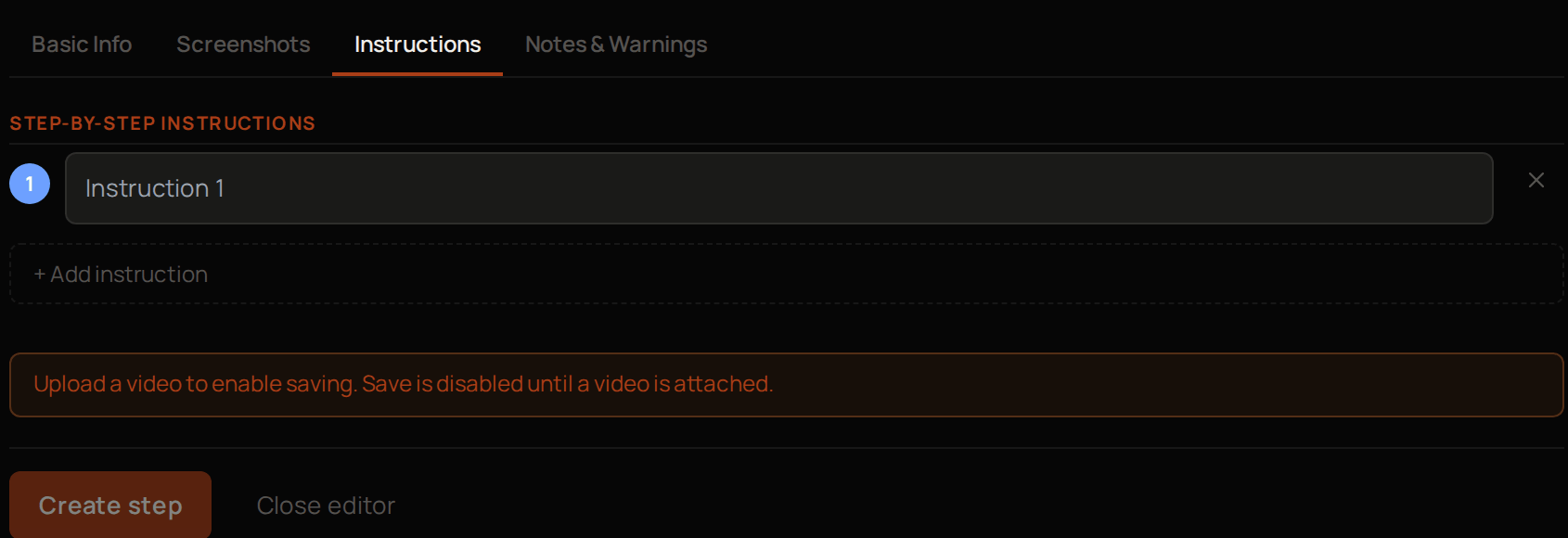 Carry on in the same form. Each part has its own tab.
On **Instructions**, select **+ Add instruction** for each thing the learner should do.
On **Notes & Warnings**, fill in **Note (blue info)** or **Warning (amber)** if the learner needs one.
On **Screenshots**, select **Add** and choose each image.
Select **Create step**.
The step appears in the module, and the video uploads.
To watch a step's video without opening the step, select the play button next to it.
To change a step later:
Select the arrow at the end of the step's row.
Make your changes on any tab.
Select **Save step**.
Drag the handle next to a step to change the order.
Next, [set the video's language](/products/lexis/videos-and-dubbing#set-the-videos-language) so Lexis can write a transcript and you can dub it.
## Organise steps into sections
Carry on in the same form. Each part has its own tab.
On **Instructions**, select **+ Add instruction** for each thing the learner should do.
On **Notes & Warnings**, fill in **Note (blue info)** or **Warning (amber)** if the learner needs one.
On **Screenshots**, select **Add** and choose each image.
Select **Create step**.
The step appears in the module, and the video uploads.
To watch a step's video without opening the step, select the play button next to it.
To change a step later:
Select the arrow at the end of the step's row.
Make your changes on any tab.
Select **Save step**.
Drag the handle next to a step to change the order.
Next, [set the video's language](/products/lexis/videos-and-dubbing#set-the-videos-language) so Lexis can write a transcript and you can dub it.
## Organise steps into sections
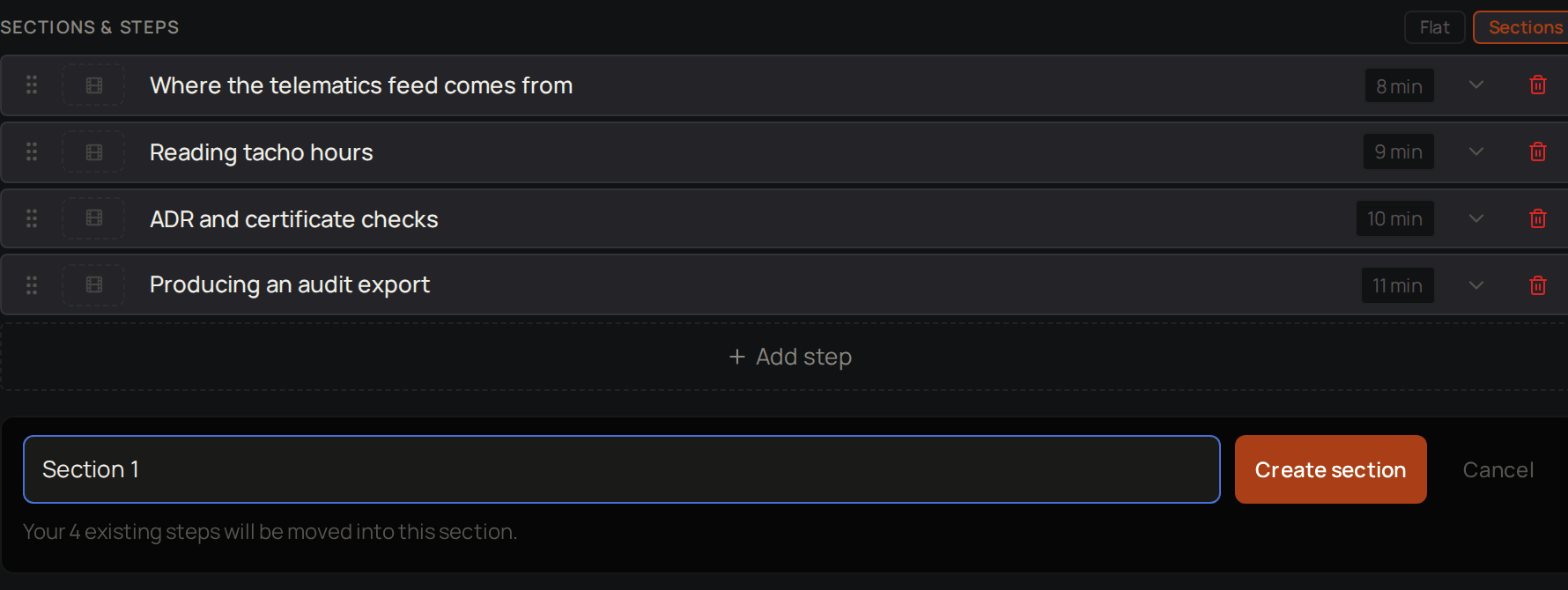 A module with only a few steps can keep them in one list. For a longer module, group them into sections.
Under **Sections & Steps**, select **Sections**.
Type a section title, such as Getting started.
Select **Create section**. The steps you already have move into it.
To add another section:
Select **Add section**.
Type the section's title.
Select **Create**.
Drag a section's handle to change the order, and double-click a title to rename it. Next, [publish the module](#publish-a-module).
## Publish a module
At the top of the module, select **Published**. Learners the module is open to can now see it and start it. Select **Draft** to take it back out of their view while you work on it.
Next, [choose who can see it](#choose-who-can-see-a-module).
## Choose who can see a module
A module with only a few steps can keep them in one list. For a longer module, group them into sections.
Under **Sections & Steps**, select **Sections**.
Type a section title, such as Getting started.
Select **Create section**. The steps you already have move into it.
To add another section:
Select **Add section**.
Type the section's title.
Select **Create**.
Drag a section's handle to change the order, and double-click a title to rename it. Next, [publish the module](#publish-a-module).
## Publish a module
At the top of the module, select **Published**. Learners the module is open to can now see it and start it. Select **Draft** to take it back out of their view while you work on it.
Next, [choose who can see it](#choose-who-can-see-a-module).
## Choose who can see a module
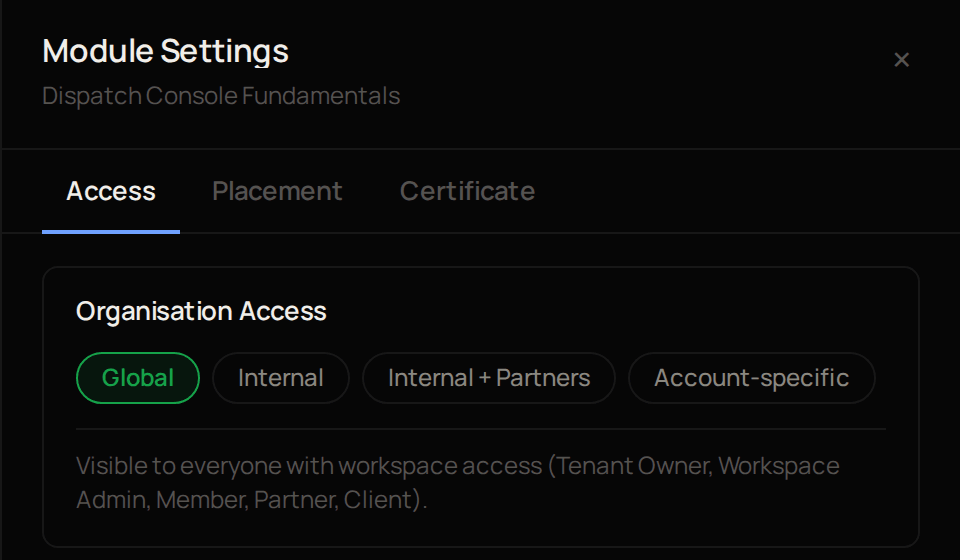 At the top of the module, select **Module Settings**.
On **Access**, under **Organisation Access**, select **Global**, **Internal**, **Internal + Partners** or **Account-specific**.
If you chose **Account-specific**, select **Add account…** and pick each account.
The change is saved straight away, and the line under the scopes says who can now see the module. To change the module's product or content label later, use the **Placement** tab.
Next, [give the module its own certificate settings](/products/lexis/certificates#give-a-module-its-own-certificate-settings) if it needs them, or [invite your learners](/products/lexis/learners-and-accounts).
## Troubleshooting
Add at least one step, then select **Published** again.
Enter a **Module title**. For an **Account-specific** module, also add at least one account.
This happens when you delete its last step. Add a step, then publish it again.
Upload the step's video first. **Create step** stays greyed out until a video is attached.
**Upload video** takes MP4, WebM and MOV files. Save the video in one of these formats, then upload it again.
A section can only be deleted when it is empty. Move its steps to another section, or delete them, first.
At the top of the module, select **Module Settings**.
On **Access**, under **Organisation Access**, select **Global**, **Internal**, **Internal + Partners** or **Account-specific**.
If you chose **Account-specific**, select **Add account…** and pick each account.
The change is saved straight away, and the line under the scopes says who can now see the module. To change the module's product or content label later, use the **Placement** tab.
Next, [give the module its own certificate settings](/products/lexis/certificates#give-a-module-its-own-certificate-settings) if it needs them, or [invite your learners](/products/lexis/learners-and-accounts).
## Troubleshooting
Add at least one step, then select **Published** again.
Enter a **Module title**. For an **Account-specific** module, also add at least one account.
This happens when you delete its last step. Add a step, then publish it again.
Upload the step's video first. **Create step** stays greyed out until a video is attached.
**Upload video** takes MP4, WebM and MOV files. Save the video in one of these formats, then upload it again.
A section can only be deleted when it is empty. Move its steps to another section, or delete them, first.