> ## Documentation Index
> Fetch the complete documentation index at: https://docs.intellikon.ai/llms.txt
> Use this file to discover all available pages before exploring further.
# Lexis overview
> What Lexis does, how it is laid out, and how modules, tracks, dubs and certificates fit together.
Lexis is where you build training for your customers and follow how they get on with it. You build each piece of training as a module of short steps, most of them built around a video you upload. You choose which customer accounts can see each module, dub its videos into other languages when you need them, and group modules into tracks. Learners work through the modules in Studio, and Lexis issues them a certificate when they finish a module, if you have certificates turned on.
Lexis does not make your videos for you. You record them and upload them to a step. Lexis dubs are created on request, one dub per language; you can request several languages at once, and nothing is dubbed automatically.
## How Lexis is laid out
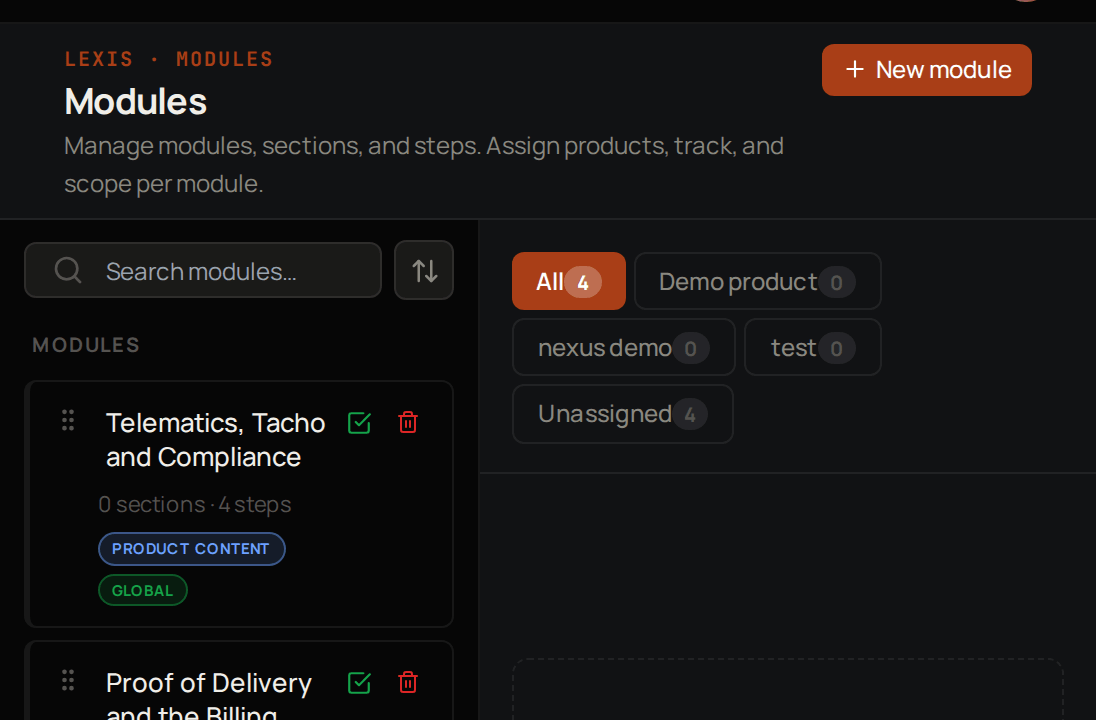 | Area | What you do there |
| -------------- | -------------------------------------------------------------------------------------------------- |
| Dashboard | See enrolment and progress across your workspace. |
| Accounts | See each customer account and its learners. |
| Learners | Invite learners and manage their enrolments. |
| Modules | Build modules, sections and steps, and choose who can see each module. |
| Tracks | Group modules into a learning path. |
| Videos | See every uploaded video and its dubbed languages. |
| Analytics | Look at progress by learner, step and module, and at step ratings. |
| Certifications | See every certificate issued in your workspace. |
| Settings | Set the defaults for new modules, and set up certificates and transcripts for the whole workspace. |
| My Learning | Take the modules and tracks that are open to you. |
## Key concepts
Training on one subject, made of steps and optionally grouped into sections.
One lesson in a module, usually a video with instructions.
A set of modules that learners enrol in together.
A copy of a step's video in another language.
Proof that a learner finished a module.
## Modules are Draft or Published
Only your team can see it while you build it.
Learners it is open to can see it and start it.
A published module is open to people according to its **Organisation Access**:
Everyone in your workspace, including every learner in every customer account.
Tenant Owners, Workspace Admins and Workspace Members only. Learners never see it.
Your own team and your partners. Learners never see it.
Learners in the accounts you pick, plus Tenant Owners and Workspace Admins.
## Who can do what
| Task | Tenant Owner | Workspace Admin | Workspace Member | Account Admin | User |
| -------------------------------------- | ------------ | --------------- | ---------------- | ------------- | ---- |
| Build modules and tracks | Yes | Yes | Yes | No | No |
| Invite and enrol learners | Yes | Yes | Yes | No | No |
| Open Videos and Analytics | Yes | Yes | No | No | No |
| Change Lexis settings | Yes | Yes | View only | No | No |
| Preview what an account's learners see | Yes | Yes | Yes | No | No |
| Take modules and tracks | Yes | Yes | Yes | Yes | Yes |
Learners are the people in your customer accounts, with the role User or Account Admin. They see Lexis from the learner's side, not the screens described on these pages. Your own team takes training in **My Learning**.
## Where to start
Create a module and add its first steps.
Give a step's video another language.
Bring your customers in and enrol them.
Decide when learners earn a certificate.
## Related products
The customers you sell to are the accounts your learners belong to.
Support for your customers when they need help.
Chatbots that answer from your own knowledge.
See what is happening across your products.
| Area | What you do there |
| -------------- | -------------------------------------------------------------------------------------------------- |
| Dashboard | See enrolment and progress across your workspace. |
| Accounts | See each customer account and its learners. |
| Learners | Invite learners and manage their enrolments. |
| Modules | Build modules, sections and steps, and choose who can see each module. |
| Tracks | Group modules into a learning path. |
| Videos | See every uploaded video and its dubbed languages. |
| Analytics | Look at progress by learner, step and module, and at step ratings. |
| Certifications | See every certificate issued in your workspace. |
| Settings | Set the defaults for new modules, and set up certificates and transcripts for the whole workspace. |
| My Learning | Take the modules and tracks that are open to you. |
## Key concepts
Training on one subject, made of steps and optionally grouped into sections.
One lesson in a module, usually a video with instructions.
A set of modules that learners enrol in together.
A copy of a step's video in another language.
Proof that a learner finished a module.
## Modules are Draft or Published
Only your team can see it while you build it.
Learners it is open to can see it and start it.
A published module is open to people according to its **Organisation Access**:
Everyone in your workspace, including every learner in every customer account.
Tenant Owners, Workspace Admins and Workspace Members only. Learners never see it.
Your own team and your partners. Learners never see it.
Learners in the accounts you pick, plus Tenant Owners and Workspace Admins.
## Who can do what
| Task | Tenant Owner | Workspace Admin | Workspace Member | Account Admin | User |
| -------------------------------------- | ------------ | --------------- | ---------------- | ------------- | ---- |
| Build modules and tracks | Yes | Yes | Yes | No | No |
| Invite and enrol learners | Yes | Yes | Yes | No | No |
| Open Videos and Analytics | Yes | Yes | No | No | No |
| Change Lexis settings | Yes | Yes | View only | No | No |
| Preview what an account's learners see | Yes | Yes | Yes | No | No |
| Take modules and tracks | Yes | Yes | Yes | Yes | Yes |
Learners are the people in your customer accounts, with the role User or Account Admin. They see Lexis from the learner's side, not the screens described on these pages. Your own team takes training in **My Learning**.
## Where to start
Create a module and add its first steps.
Give a step's video another language.
Bring your customers in and enrol them.
Decide when learners earn a certificate.
## Related products
The customers you sell to are the accounts your learners belong to.
Support for your customers when they need help.
Chatbots that answer from your own knowledge.
See what is happening across your products.