> ## Documentation Index
> Fetch the complete documentation index at: https://docs.intellikon.ai/llms.txt
> Use this file to discover all available pages before exploring further.
# Videos and dubbing
> Set a video's language, dub it into other languages, and keep track of each dub.
Each step can hold one video. Once you tell Lexis the language the video is spoken in, Lexis writes a transcript of it, which learners can use as subtitles. You can then dub the video into other languages when you ask. You can request several languages at once, and each language becomes its own dub. Nothing is dubbed automatically. Learners choose the language they want to hear while they watch. **Videos** lists every video in your workspace with the languages it has.
## Before you start
The video must already be uploaded to a step. See [add a step](/products/lexis/modules#add-a-step). Tenant Owners and Workspace Admins can open **Videos**. Anyone who builds modules can set a video's language and dub it from the step itself.
## Set the video's language
In **Modules**, open the module and select the arrow at the end of the step's row.
Select **Language & Translations**.
Under **Source language & transcript**, choose the language spoken in the video as the **Source language**. It is saved straight away.
Unless transcripts are [turned off](#turn-transcripts-on-or-off), choosing a source language starts a paid transcription. The status next to **Source transcript** shows **Ready** when it has finished. Next, [dub the video](#dub-a-video).
## Dub a video
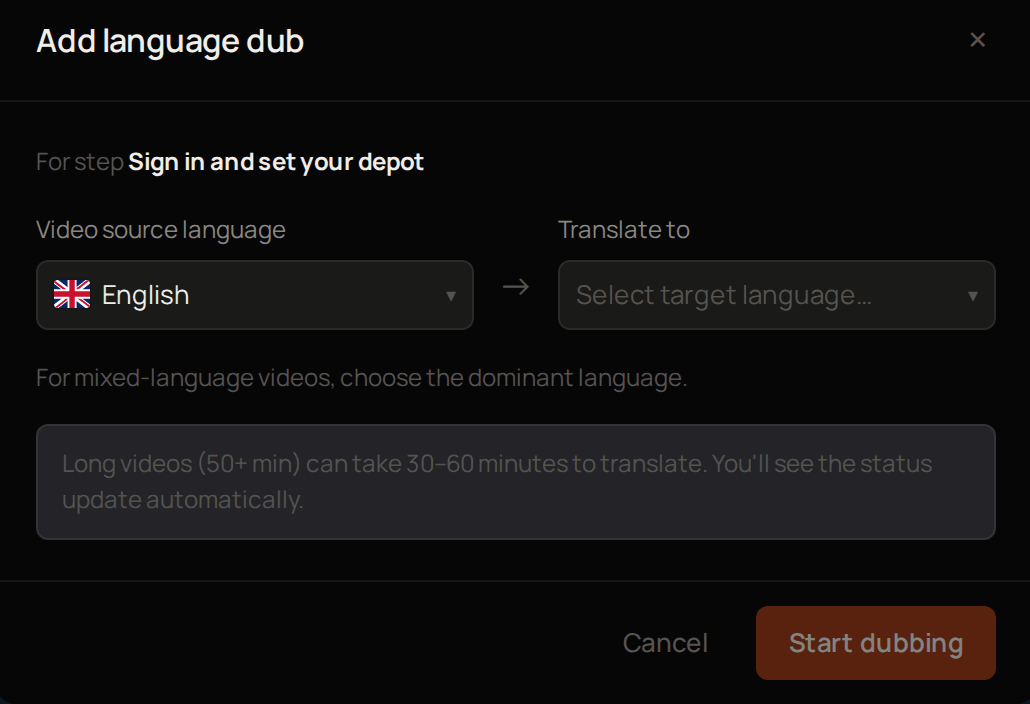 Select **Videos**, then select the video to show its languages.
Select **+ Add language dub**.
Make sure **Video source language** is the language spoken in the video.
If the video is in more than one language, choose the main one as the **Video source language**.
Under **Translate to**, choose the language you want.
Select **Start dubbing**.
The new language appears under the video and its status updates on its own until it shows **Ready**. Longer videos take longer. Repeat for each language you need.
To dub into several languages at once:
In **Modules**, open the module and select the arrow at the end of the step's row.
Select **Language & Translations**.
Under **Translations**, select **Add language**.
Under **Available languages**, tick each language. Use **Search languages…** to find one quickly.
Select **Submit**.
Each language becomes its own dub. Next, [follow your dubs](#follow-your-dubs).
## Follow your dubs
Select **Videos**, then select the video to show its languages.
Select **+ Add language dub**.
Make sure **Video source language** is the language spoken in the video.
If the video is in more than one language, choose the main one as the **Video source language**.
Under **Translate to**, choose the language you want.
Select **Start dubbing**.
The new language appears under the video and its status updates on its own until it shows **Ready**. Longer videos take longer. Repeat for each language you need.
To dub into several languages at once:
In **Modules**, open the module and select the arrow at the end of the step's row.
Select **Language & Translations**.
Under **Translations**, select **Add language**.
Under **Available languages**, tick each language. Use **Search languages…** to find one quickly.
Select **Submit**.
Each language becomes its own dub. Next, [follow your dubs](#follow-your-dubs).
## Follow your dubs
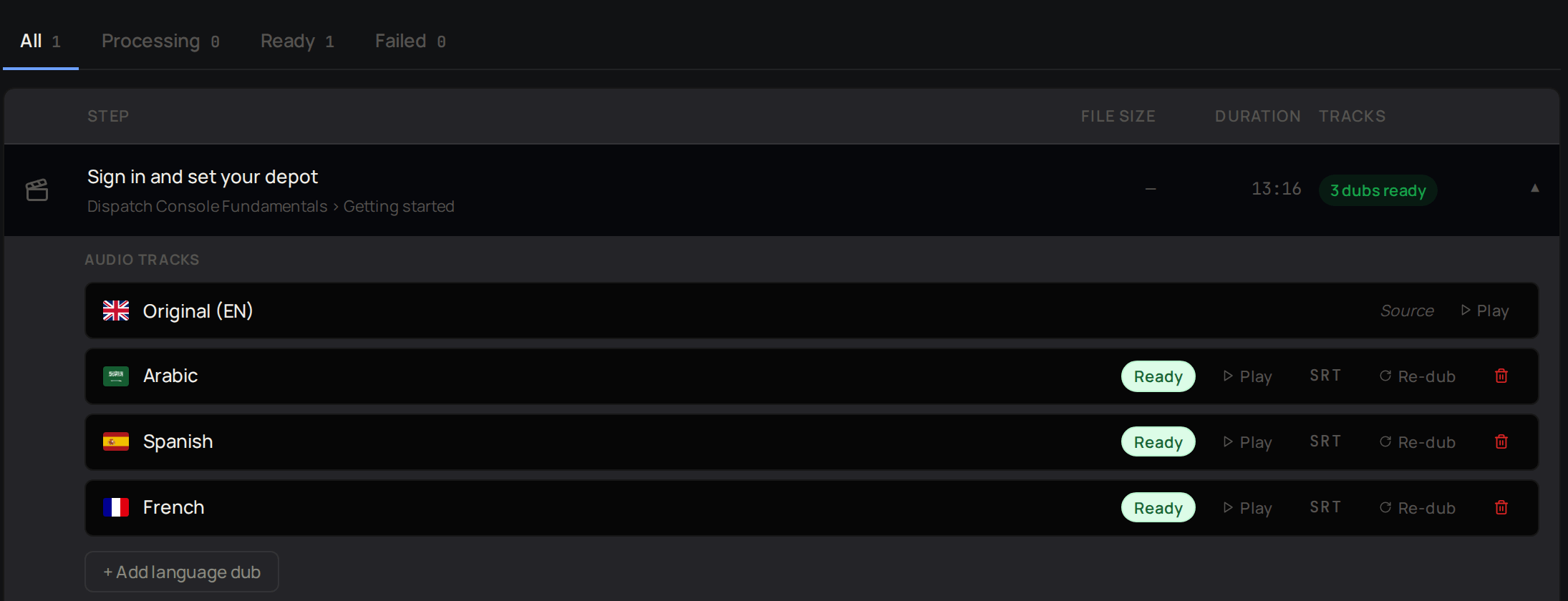 Select **Videos**. Select **Processing**, **Ready** or **Failed** to show only videos that have a dub in that state. **Failed** also shows dubs that were cancelled.
Select a video to see each language and its status. Select **Play** to listen to a language, or **SRT** to see its subtitles.
The same languages show under **Translations** on the step's **Language & Translations** tab. Next, [re-dub or remove a language](#re-dub-or-remove-a-language) if one needs changing.
## Re-dub or remove a language
Select **Re-dub** next to a language to make it again from the start. To remove a language, select the bin next to it. Learners can no longer choose that language.
Removing a language deletes its dubbed audio and subtitles. To get them back, you have to dub the video again.
Next, [turn transcripts on or off](#turn-transcripts-on-or-off) for your workspace.
## Turn transcripts on or off
Tenant Owners and Workspace Admins can choose whether steps capture a transcript by default.
Select **Settings** in the Lexis sidebar and find **Dubbing & Languages**.
Turn **Capture source transcript by default** on or off.
Select **Save**.
The setting now applies whenever you choose a source language on a step that has no transcript setting of its own. Next, [invite your learners](/products/lexis/learners-and-accounts).
## Troubleshooting
[Ask Intellikon](/get-started/get-help) for help, and say which module and step it is.
Open the video on **Videos** and select **Re-dub** next to that language.
Only steps with a video appear on **Videos**. [Add a video to a step](/products/lexis/modules#add-a-step) first.
Lexis waits until the transcript has finished before it lets you change the language. Try again once the status has changed.
Select **Videos**. Select **Processing**, **Ready** or **Failed** to show only videos that have a dub in that state. **Failed** also shows dubs that were cancelled.
Select a video to see each language and its status. Select **Play** to listen to a language, or **SRT** to see its subtitles.
The same languages show under **Translations** on the step's **Language & Translations** tab. Next, [re-dub or remove a language](#re-dub-or-remove-a-language) if one needs changing.
## Re-dub or remove a language
Select **Re-dub** next to a language to make it again from the start. To remove a language, select the bin next to it. Learners can no longer choose that language.
Removing a language deletes its dubbed audio and subtitles. To get them back, you have to dub the video again.
Next, [turn transcripts on or off](#turn-transcripts-on-or-off) for your workspace.
## Turn transcripts on or off
Tenant Owners and Workspace Admins can choose whether steps capture a transcript by default.
Select **Settings** in the Lexis sidebar and find **Dubbing & Languages**.
Turn **Capture source transcript by default** on or off.
Select **Save**.
The setting now applies whenever you choose a source language on a step that has no transcript setting of its own. Next, [invite your learners](/products/lexis/learners-and-accounts).
## Troubleshooting
[Ask Intellikon](/get-started/get-help) for help, and say which module and step it is.
Open the video on **Videos** and select **Re-dub** next to that language.
Only steps with a video appear on **Videos**. [Add a video to a step](/products/lexis/modules#add-a-step) first.
Lexis waits until the transcript has finished before it lets you change the language. Try again once the status has changed.