> ## Documentation Index
> Fetch the complete documentation index at: https://docs.intellikon.ai/llms.txt
> Use this file to discover all available pages before exploring further.
# API keys
> Create a key that lets your own software use your released prompts, with a limit and an end date.
An API key lets software your company builds use the prompts you release in Nucleus. You give each key a name, and you can limit how often it is used, when it stops working and which products' prompts it can reach. How your software uses the key is for your developers; this page covers creating the key in Nucleus.
## Before you start
Tenant Owners and Workspace Admins can open **API Keys** and create keys.
## Create a key
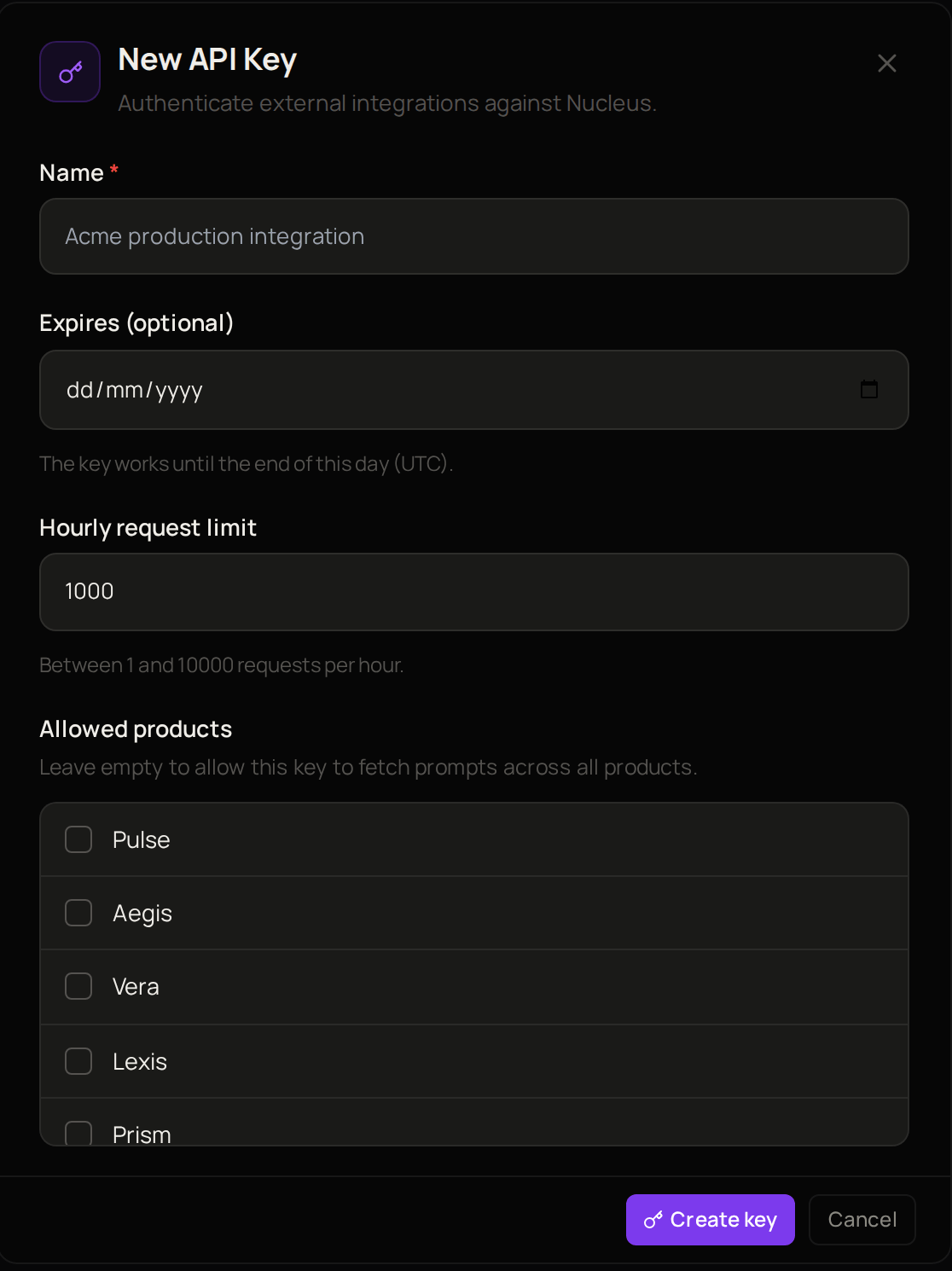 Select **API Keys**, then **New key**.
Enter a **Name** that says what the key is for, such as the system that will use it.
Under **Expires (optional)**, choose the last day the key should work. Leave it empty for a key that does not expire.
Change the **Hourly request limit** if the key needs more or fewer requests an hour than the one filled in.
Under **Allowed products**, tick the products whose prompts the key can reach. Leave them all unticked to allow every product.
Select **Create key**.
Nucleus shows the full key once, straight after you create it. Copy it and give it to your developers then, because you cannot see it again. The key now appears in the list on **API Keys**. Next, [set up your products and types](/products/nucleus/settings).
## Troubleshooting
Only Tenant Owners and Workspace Admins can open **API Keys**. Ask one of them to create the key.
Enter a number between 1 and 10000.
Select **API Keys**, then **New key**.
Enter a **Name** that says what the key is for, such as the system that will use it.
Under **Expires (optional)**, choose the last day the key should work. Leave it empty for a key that does not expire.
Change the **Hourly request limit** if the key needs more or fewer requests an hour than the one filled in.
Under **Allowed products**, tick the products whose prompts the key can reach. Leave them all unticked to allow every product.
Select **Create key**.
Nucleus shows the full key once, straight after you create it. Copy it and give it to your developers then, because you cannot see it again. The key now appears in the list on **API Keys**. Next, [set up your products and types](/products/nucleus/settings).
## Troubleshooting
Only Tenant Owners and Workspace Admins can open **API Keys**. Ask one of them to create the key.
Enter a number between 1 and 10000.