> ## Documentation Index
> Fetch the complete documentation index at: https://docs.intellikon.ai/llms.txt
> Use this file to discover all available pages before exploring further.
# Nucleus overview
> What Nucleus does, who uses it, how it is laid out, and how a prompt goes from a first draft to production.
Nucleus is where your team writes and looks after your workspace's AI prompts. A prompt is the instruction an AI model works from, such as "read this ticket and give it a category and a priority". In Nucleus you keep every version of a prompt, try a change before anyone relies on it, test versions against sample inputs, and release the version you trust. You can then see how each prompt performs and what it costs.
Nucleus holds your workspace's own prompts. It does not change the built-in prompts behind Studio's own features. It is also not where you decide which AI models your workspace may use: Tenant Owners and Workspace Admins do that in Studio settings, under **AI Models**.
Nucleus is for the people who build and look after your AI. Tenant Owners and Workspace Admins can do everything in it. Workspace Members work on prompts, datasets and evaluations day to day.
## How Nucleus is laid out
 | Area | What you do there |
| ----------------- | ------------------------------------------------------------------------------------ |
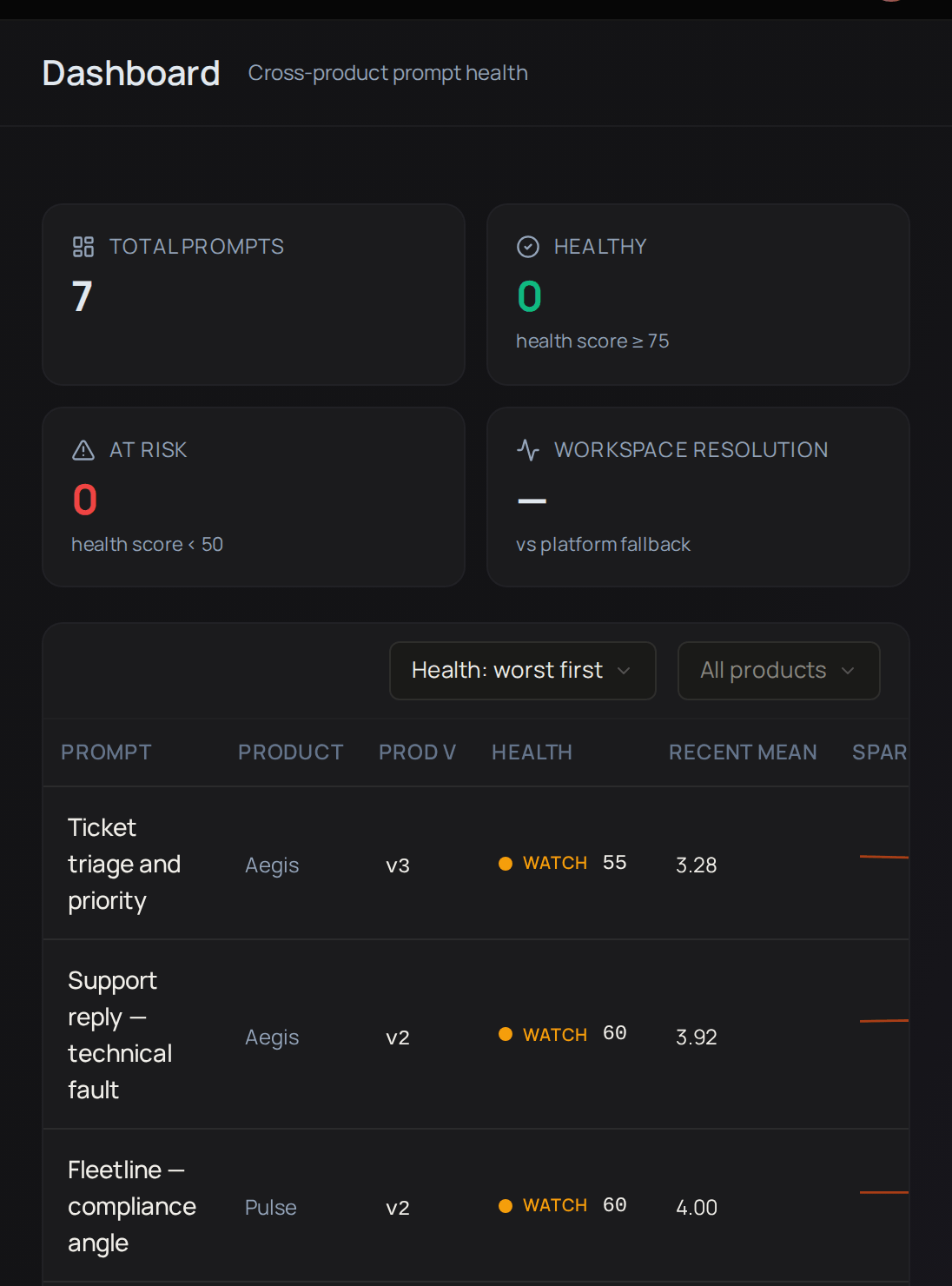
| **Dashboard** | See a health score for each of your active prompts. |
| **Prompts** | Write prompts, save versions and release them. |
| **Datasets** | Keep sets of sample inputs to test prompts with. |
| **Evaluations** | Run prompts against inputs and score the answers. |
| **Analytics** | See runs, tokens and cost from the playground and evaluations over the last 30 days. |
| **Health** | Get alerts when a prompt's scores start to slip. |
| **Observability** | Look at individual AI requests, with the model, time taken and cost. |
| **API Keys** | Create keys that let your own software use your released prompts. |
| **Inbox** | Read notifications about your prompts. |
| **Settings** | Set up the products and types you file prompts under. |
## Key ideas
An instruction for an AI model, filed under a product and a type.
Each save that changes the prompt, model or settings adds a version, and the versions before it stay in the history.
**dev**, **staging** or **production**, each holding one version of a prompt at a time.
A set of sample inputs to test prompts against.
A run of a prompt against inputs, with the answers scored by any scorers you add.
The marking guide an AI judge uses to score an answer.
## From draft to production
You write a prompt and save a new version each time you improve it. When a version is ready, you promote it to an environment. Before it moves, Nucleus checks the version's latest automatic evaluation. A version that passed goes straight through. Otherwise, what happens depends on the prompt's quality gate: Nucleus lets it through, asks you to say why it should go ahead, or stops it unless a Tenant Owner or Workspace Admin gives a reason.
## Who can do what
| Task | Tenant Owner | Workspace Admin | Workspace Member |
| ------------------------------------------------------------------------------------------------ | ------------ | --------------- | ---------------- |
| Open **Dashboard**, **Prompts**, **Datasets**, **Evaluations**, **Health** and **Observability** | Yes | Yes | Yes |
| Create a prompt | Yes | Yes | No |
| Edit a prompt and save versions | Yes | Yes | Yes |
| Go back to an earlier version, or turn a prompt off and on | Yes | Yes | No |
| Promote a version to **dev** or **staging** | Yes | Yes | Yes |
| Promote a version to **production** | Yes | Yes | No |
| Set a prompt's release policy | Yes | Yes | No |
| Create datasets and run evaluations | Yes | Yes | Yes |
| Create and change scorers | Yes | Yes | No |
| Open **Analytics** | Yes | Yes | No |
| Change **Settings** | Yes | Yes | No |
| Create API keys | Yes | Yes | No |
| Open **Inbox** | Yes | Yes | Yes |
## Where to start
Create a prompt, try it and save new versions.
Promote a version to dev, staging or production.
Build datasets, run evaluations and score the answers.
Check health scores, alerts, requests and cost.
Tenant Owners and Workspace Admins set up the products and types prompts are filed under in [Nucleus settings](/products/nucleus/settings).
## Related products
Chatbots that answer from your own knowledge.
Move between products and find Studio settings.
| Area | What you do there |
| ----------------- | ------------------------------------------------------------------------------------ |
| **Dashboard** | See a health score for each of your active prompts. |
| **Prompts** | Write prompts, save versions and release them. |
| **Datasets** | Keep sets of sample inputs to test prompts with. |
| **Evaluations** | Run prompts against inputs and score the answers. |
| **Analytics** | See runs, tokens and cost from the playground and evaluations over the last 30 days. |
| **Health** | Get alerts when a prompt's scores start to slip. |
| **Observability** | Look at individual AI requests, with the model, time taken and cost. |
| **API Keys** | Create keys that let your own software use your released prompts. |
| **Inbox** | Read notifications about your prompts. |
| **Settings** | Set up the products and types you file prompts under. |
## Key ideas
An instruction for an AI model, filed under a product and a type.
Each save that changes the prompt, model or settings adds a version, and the versions before it stay in the history.
**dev**, **staging** or **production**, each holding one version of a prompt at a time.
A set of sample inputs to test prompts against.
A run of a prompt against inputs, with the answers scored by any scorers you add.
The marking guide an AI judge uses to score an answer.
## From draft to production
You write a prompt and save a new version each time you improve it. When a version is ready, you promote it to an environment. Before it moves, Nucleus checks the version's latest automatic evaluation. A version that passed goes straight through. Otherwise, what happens depends on the prompt's quality gate: Nucleus lets it through, asks you to say why it should go ahead, or stops it unless a Tenant Owner or Workspace Admin gives a reason.
## Who can do what
| Task | Tenant Owner | Workspace Admin | Workspace Member |
| ------------------------------------------------------------------------------------------------ | ------------ | --------------- | ---------------- |
| Open **Dashboard**, **Prompts**, **Datasets**, **Evaluations**, **Health** and **Observability** | Yes | Yes | Yes |
| Create a prompt | Yes | Yes | No |
| Edit a prompt and save versions | Yes | Yes | Yes |
| Go back to an earlier version, or turn a prompt off and on | Yes | Yes | No |
| Promote a version to **dev** or **staging** | Yes | Yes | Yes |
| Promote a version to **production** | Yes | Yes | No |
| Set a prompt's release policy | Yes | Yes | No |
| Create datasets and run evaluations | Yes | Yes | Yes |
| Create and change scorers | Yes | Yes | No |
| Open **Analytics** | Yes | Yes | No |
| Change **Settings** | Yes | Yes | No |
| Create API keys | Yes | Yes | No |
| Open **Inbox** | Yes | Yes | Yes |
## Where to start
Create a prompt, try it and save new versions.
Promote a version to dev, staging or production.
Build datasets, run evaluations and score the answers.
Check health scores, alerts, requests and cost.
Tenant Owners and Workspace Admins set up the products and types prompts are filed under in [Nucleus settings](/products/nucleus/settings).
## Related products
Chatbots that answer from your own knowledge.
Move between products and find Studio settings.