> ## Documentation Index
> Fetch the complete documentation index at: https://docs.intellikon.ai/llms.txt
> Use this file to discover all available pages before exploring further.
# Release a prompt
> Promote a version of a prompt to dev, staging or production, and see past promotions.
Saving a prompt adds a version. A version reaches an environment when you promote it. Nucleus has three environments: **dev** and **staging** for trying and checking a version, and **production** for the one you are ready to rely on. Each environment holds one version of a prompt at a time, and **Version history** shows which version holds which. When you promote, Nucleus first checks the version's latest automatic evaluation, and each prompt's release policy says what happens when that check fails.
## Before you start
Tenant Owners, Workspace Admins and Workspace Members can promote to **dev** and **staging**. Only Tenant Owners and Workspace Admins can promote to **production**.
Promotion goes most smoothly when the version has passed an automatic evaluation. To have every new version evaluated when you save it, [turn on automatic evaluation](/products/nucleus/datasets-and-evaluations#evaluate-every-new-version-automatically).
## Promote a version
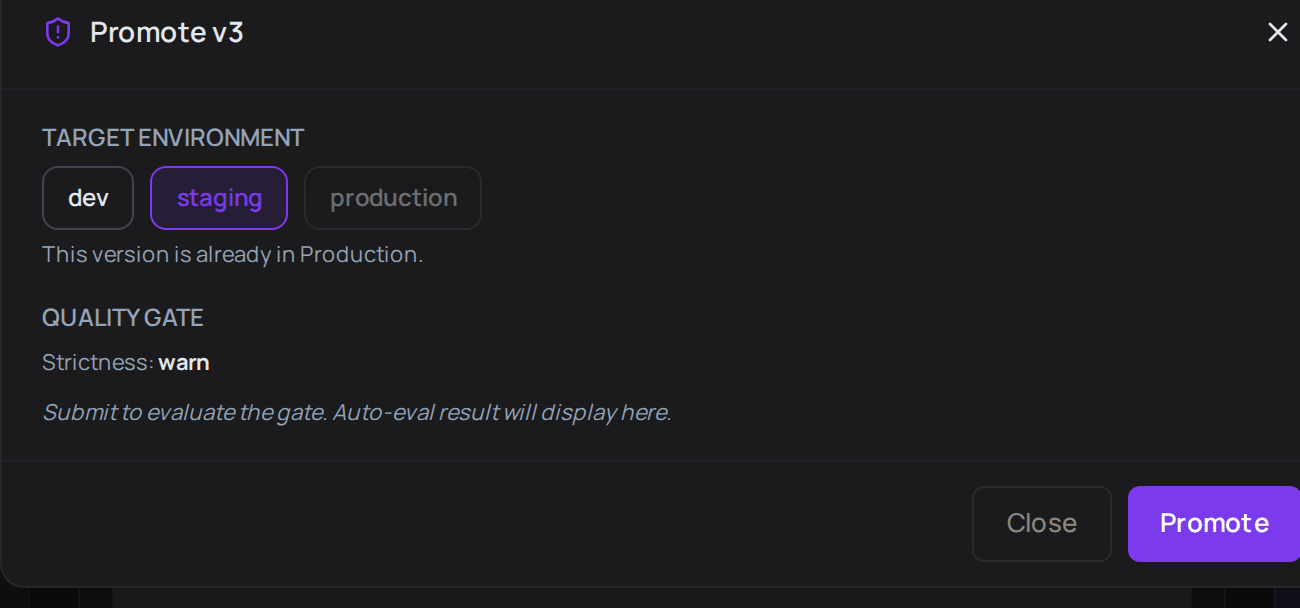 Select **Prompts**, then the prompt. **Promote** works on the newest version.
Select **Promote**.
Under **Target environment**, choose **dev**, **staging** or **production**.
Select **Promote**.
If an **Override reason** box appears, the version has no passing automatic evaluation. Write why it should go ahead anyway.
If you gave a reason, select **Promote** again.
When the dialog shows **Promoted to** and the environment, select **Close**.
In **Version history**, the version now carries the environment's label. The version that held that environment before no longer does. Next, [check the promotion history](#see-past-promotions).
## See past promotions
On the prompt, select the **Promotions** tab. It lists promotions of this prompt, with when it happened, the version, the change of environment, who asked for it and any notes. **Status** shows **Auto-approved** when the version passed its evaluation, and **Override (warn)** when someone gave a reason instead.
Next, [set the prompt's release policy](#set-a-prompts-release-policy).
## Set a prompt's release policy
Select **Prompts**, then the prompt. **Promote** works on the newest version.
Select **Promote**.
Under **Target environment**, choose **dev**, **staging** or **production**.
Select **Promote**.
If an **Override reason** box appears, the version has no passing automatic evaluation. Write why it should go ahead anyway.
If you gave a reason, select **Promote** again.
When the dialog shows **Promoted to** and the environment, select **Close**.
In **Version history**, the version now carries the environment's label. The version that held that environment before no longer does. Next, [check the promotion history](#see-past-promotions).
## See past promotions
On the prompt, select the **Promotions** tab. It lists promotions of this prompt, with when it happened, the version, the change of environment, who asked for it and any notes. **Status** shows **Auto-approved** when the version passed its evaluation, and **Override (warn)** when someone gave a reason instead.
Next, [set the prompt's release policy](#set-a-prompts-release-policy).
## Set a prompt's release policy
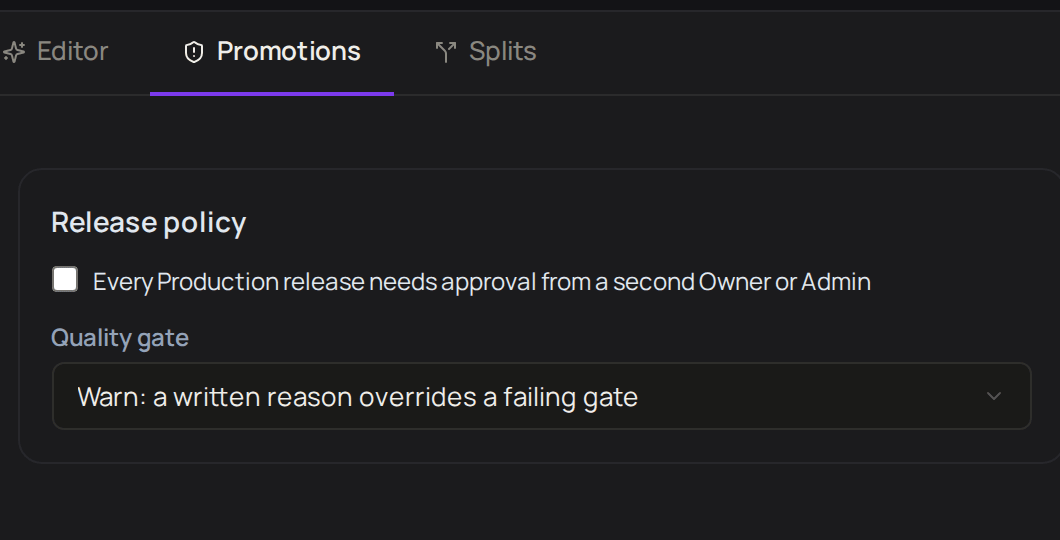 Tenant Owners and Workspace Admins can decide how strict the check before a promotion is, and whether a **production** release needs a second person.
On the prompt, select the **Promotions** tab. **Release policy** is at the top.
Tick **Every Production release needs approval from a second Owner or Admin**.
Under **Quality gate**, choose **Off**, **Warn** or **Block**.
* **Off** never stops a release.
* **Warn** lets a version that has not passed go ahead once someone writes a reason.
* **Block** stops it unless a Tenant Owner or Workspace Admin writes a reason.
Each change is saved straight away, and Nucleus shows **Release policy saved**. Next, [watch how the prompt performs](/products/nucleus/monitoring).
## Troubleshooting
If the dialog says **This version is already in Production**, there is nothing to promote. Save a new version and promote that. Otherwise, only Tenant Owners and Workspace Admins can promote to **production**, so ask one of them.
Give an **Override reason**, or [turn on automatic evaluation](/products/nucleus/datasets-and-evaluations#evaluate-every-new-version-automatically) and save a new version so it is evaluated first.
You are looking at an older version. Select the newest version in **Version history**, then select **Promote**.
Tenant Owners and Workspace Admins can decide how strict the check before a promotion is, and whether a **production** release needs a second person.
On the prompt, select the **Promotions** tab. **Release policy** is at the top.
Tick **Every Production release needs approval from a second Owner or Admin**.
Under **Quality gate**, choose **Off**, **Warn** or **Block**.
* **Off** never stops a release.
* **Warn** lets a version that has not passed go ahead once someone writes a reason.
* **Block** stops it unless a Tenant Owner or Workspace Admin writes a reason.
Each change is saved straight away, and Nucleus shows **Release policy saved**. Next, [watch how the prompt performs](/products/nucleus/monitoring).
## Troubleshooting
If the dialog says **This version is already in Production**, there is nothing to promote. Save a new version and promote that. Otherwise, only Tenant Owners and Workspace Admins can promote to **production**, so ask one of them.
Give an **Override reason**, or [turn on automatic evaluation](/products/nucleus/datasets-and-evaluations#evaluate-every-new-version-automatically) and save a new version so it is evaluated first.
You are looking at an older version. Select the newest version in **Version history**, then select **Promote**.