> ## Documentation Index
> Fetch the complete documentation index at: https://docs.intellikon.ai/llms.txt
> Use this file to discover all available pages before exploring further.
# Campaigns
> Send a sequence of messages to a group of contacts, starting with a first message you approve.
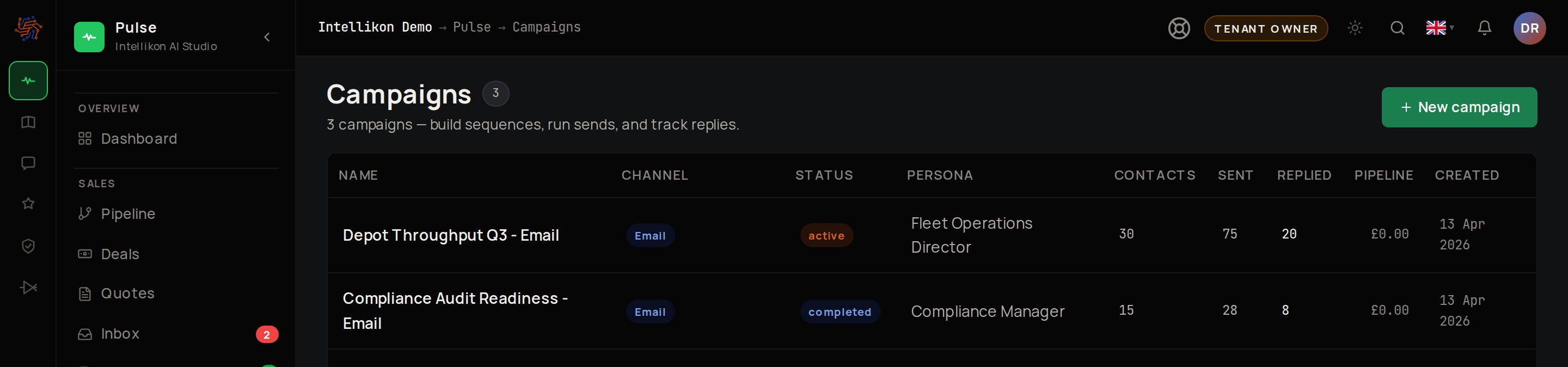
A campaign sends a sequence of messages to the contacts you enrol, written for one persona from one template. You ask Pulse to write the first message to each contact, check it and send it. Pulse then writes and sends the later steps on schedule. Replies arrive in your inbox.
 ## Before you start
You need at least one [persona and one template](/products/pulse/personas-and-templates), and the [contacts](/products/pulse/contacts-and-accounts) you want to reach.
Campaign emails go out through your Gmail, so [connect Gmail](/get-started/profile#connect-gmail) under **Account settings** first. Turn on **Enable reply detection** there too, so replies reach your inbox and **Stop on reply** can work.
## Create a campaign
## Before you start
You need at least one [persona and one template](/products/pulse/personas-and-templates), and the [contacts](/products/pulse/contacts-and-accounts) you want to reach.
Campaign emails go out through your Gmail, so [connect Gmail](/get-started/profile#connect-gmail) under **Account settings** first. Turn on **Enable reply detection** there too, so replies reach your inbox and **Stop on reply** can work.
## Create a campaign
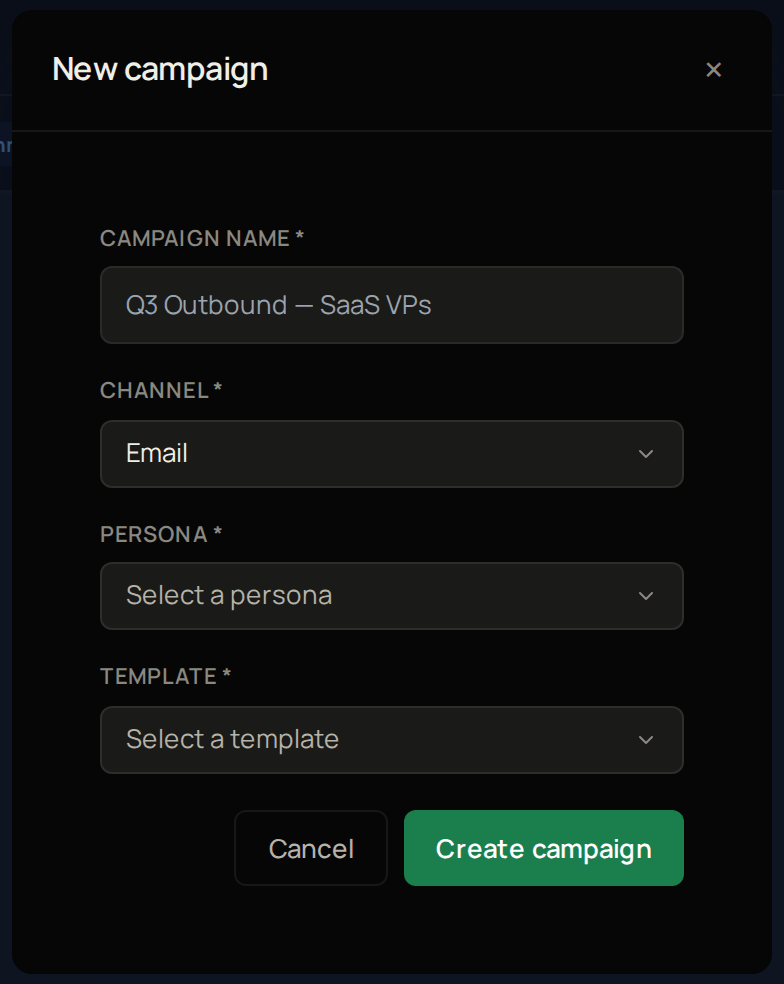 Select **Campaigns**, then **New campaign**.
Enter a **Campaign name**.
Leave **Channel** at **Email**.
Pick the **Persona**.
Pick the **Template**.
Select **Create campaign**.
The campaign now appears in your list. Select it to open the campaign page, then [enrol contacts](#enrol-contacts).
## Enrol contacts
Select **Campaigns**, then **New campaign**.
Enter a **Campaign name**.
Leave **Channel** at **Email**.
Pick the **Persona**.
Pick the **Template**.
Select **Create campaign**.
The campaign now appears in your list. Select it to open the campaign page, then [enrol contacts](#enrol-contacts).
## Enrol contacts
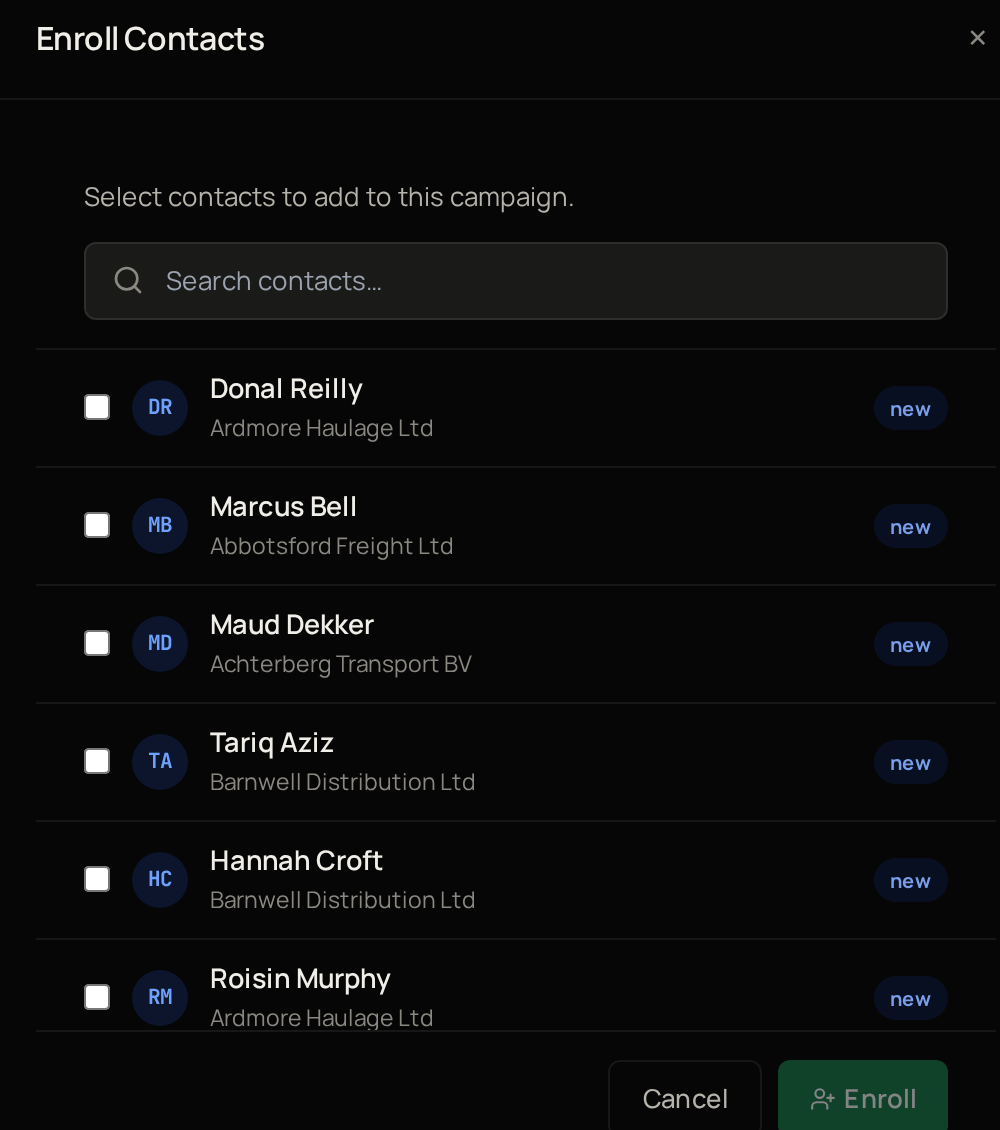 On the campaign page, select **Enroll Contacts**.
Search for contacts.
Tick the ones to add.
Select **Enroll**.
The campaign page now shows how many enrolled contacts have no message yet. Next, [plan the sequence](#plan-the-sequence).
## Plan the sequence
On the campaign page, select **Enroll Contacts**.
Search for contacts.
Tick the ones to add.
Select **Enroll**.
The campaign page now shows how many enrolled contacts have no message yet. Next, [plan the sequence](#plan-the-sequence).
## Plan the sequence
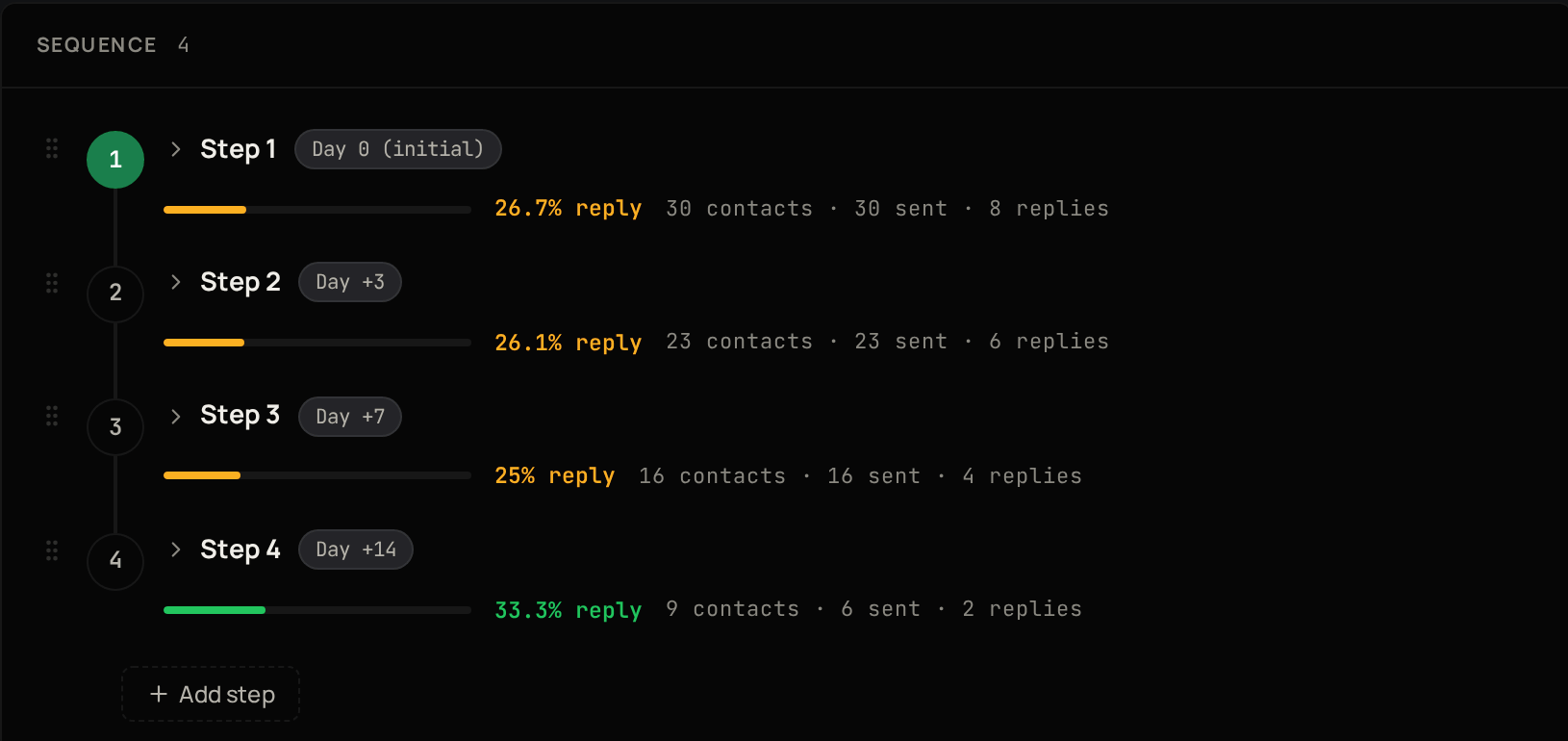 A campaign is a series of steps. The first step goes out when you send it. Each later step waits the number of days shown next to it, such as Day +3, after the step before.
Select **Add step** to add another.
Set its **Delay (days)**.
Select **Save changes**.
With **Stop on reply** on, a contact who replies gets no further steps. It is on for new campaigns, and you can change it under **Campaign settings**.
The sequence now lists each step with its day. Next, [write and send the first message](#write-and-send-the-first-message).
## Write and send the first message
If your workspace translates outgoing messages, [translate each draft](/products/pulse/inbox-and-drafts#send-a-message-in-another-language) and check it before you approve or send.
Under **Generate message** on the right of the campaign page, choose the contact.
Select **Generate**.
When the page shows drafts waiting for approval, select **Review**.
Read the draft.
If you want to change anything, select **Edit**.
If you do not want the draft, select **Discard**.
Select **Approve**.
Select **Send**.
The message now shows as Sent, and the contact moves to Contacted. If you generate a message again for the same contact, the new draft replaces the old one. Next, [follow the results](#follow-the-results).
## Follow the results
The **Performance** panel follows your contacts from enrolled to replied, with your reply rate and a weekly chart of sends and replies. The **Messages** list below shows every message; filter it to see drafts, sent messages or replies. When a campaign has run its course, you can [delete it](#delete-a-campaign).
## Delete a campaign
Under **Danger zone**, select **Delete campaign**.
Select **Yes, delete**.
The campaign leaves your list. Next, go back to the [Pulse overview](/products/pulse/overview).
Deleting a campaign also deletes all its messages. You cannot get them back.
A campaign is a series of steps. The first step goes out when you send it. Each later step waits the number of days shown next to it, such as Day +3, after the step before.
Select **Add step** to add another.
Set its **Delay (days)**.
Select **Save changes**.
With **Stop on reply** on, a contact who replies gets no further steps. It is on for new campaigns, and you can change it under **Campaign settings**.
The sequence now lists each step with its day. Next, [write and send the first message](#write-and-send-the-first-message).
## Write and send the first message
If your workspace translates outgoing messages, [translate each draft](/products/pulse/inbox-and-drafts#send-a-message-in-another-language) and check it before you approve or send.
Under **Generate message** on the right of the campaign page, choose the contact.
Select **Generate**.
When the page shows drafts waiting for approval, select **Review**.
Read the draft.
If you want to change anything, select **Edit**.
If you do not want the draft, select **Discard**.
Select **Approve**.
Select **Send**.
The message now shows as Sent, and the contact moves to Contacted. If you generate a message again for the same contact, the new draft replaces the old one. Next, [follow the results](#follow-the-results).
## Follow the results
The **Performance** panel follows your contacts from enrolled to replied, with your reply rate and a weekly chart of sends and replies. The **Messages** list below shows every message; filter it to see drafts, sent messages or replies. When a campaign has run its course, you can [delete it](#delete-a-campaign).
## Delete a campaign
Under **Danger zone**, select **Delete campaign**.
Select **Yes, delete**.
The campaign leaves your list. Next, go back to the [Pulse overview](/products/pulse/overview).
Deleting a campaign also deletes all its messages. You cannot get them back.