> ## Documentation Index
> Fetch the complete documentation index at: https://docs.intellikon.ai/llms.txt
> Use this file to discover all available pages before exploring further.
# Personas and templates
> Describe the customers you write to, and shape the messages Pulse writes for them.
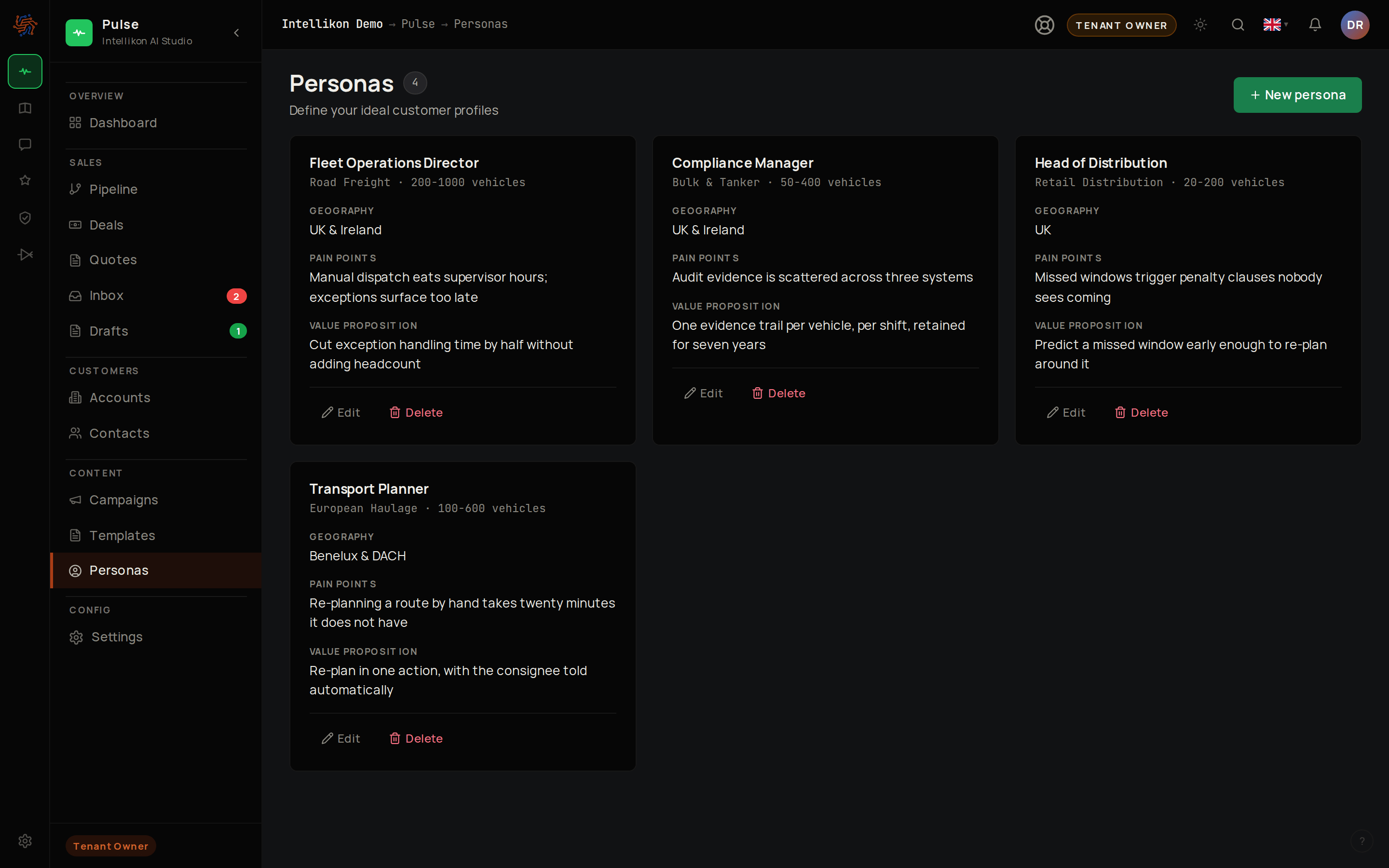
A persona describes a type of person you sell to: their market, their problems and why your product helps. A template is the shape of a message. When Pulse writes a campaign message, it combines the campaign's template and persona with the contact's own details, so each message reads as if it was written for that person.
 ## Create a persona
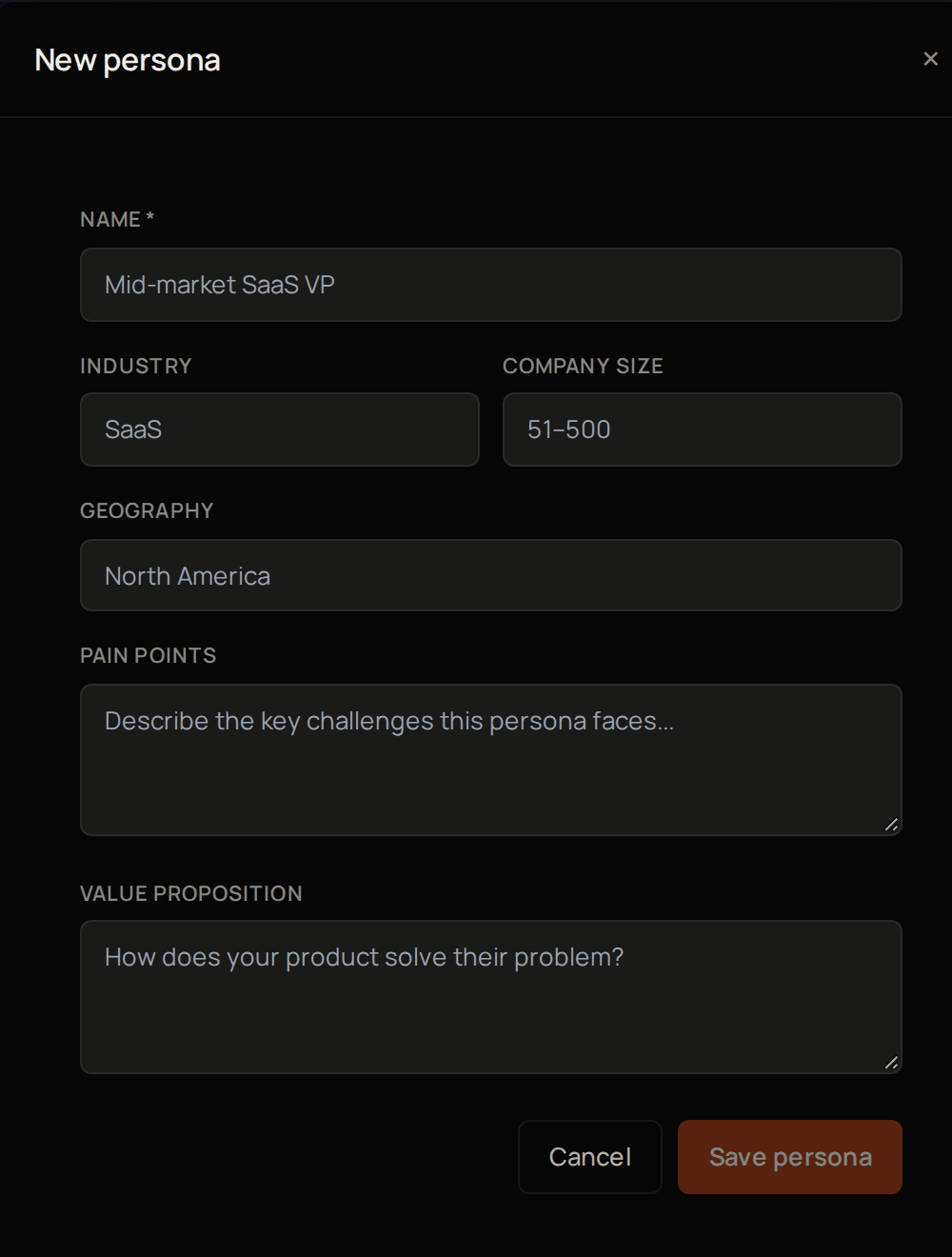 Select **Personas**, then **New persona**.
Use a **Name** your team will recognise, such as the job title you are targeting.
Fill in **Industry**.
Fill in **Company size**.
Fill in **Geography**.
Under **Pain points**, describe their problems in their own words.
Under **Value proposition**, say how you solve them.
Select **Save persona**.
The persona now appears in your list. Pulse writes from everything in it except the name, which is only for your team. A specific sentence under **Pain points** or **Value proposition** gives it more to work with than a list of keywords. Next, [create a template](#create-a-template).
## Channel
A subject line and a full message.
## Create a template
Select **Personas**, then **New persona**.
Use a **Name** your team will recognise, such as the job title you are targeting.
Fill in **Industry**.
Fill in **Company size**.
Fill in **Geography**.
Under **Pain points**, describe their problems in their own words.
Under **Value proposition**, say how you solve them.
Select **Save persona**.
The persona now appears in your list. Pulse writes from everything in it except the name, which is only for your team. A specific sentence under **Pain points** or **Value proposition** gives it more to work with than a list of keywords. Next, [create a template](#create-a-template).
## Channel
A subject line and a full message.
## Create a template
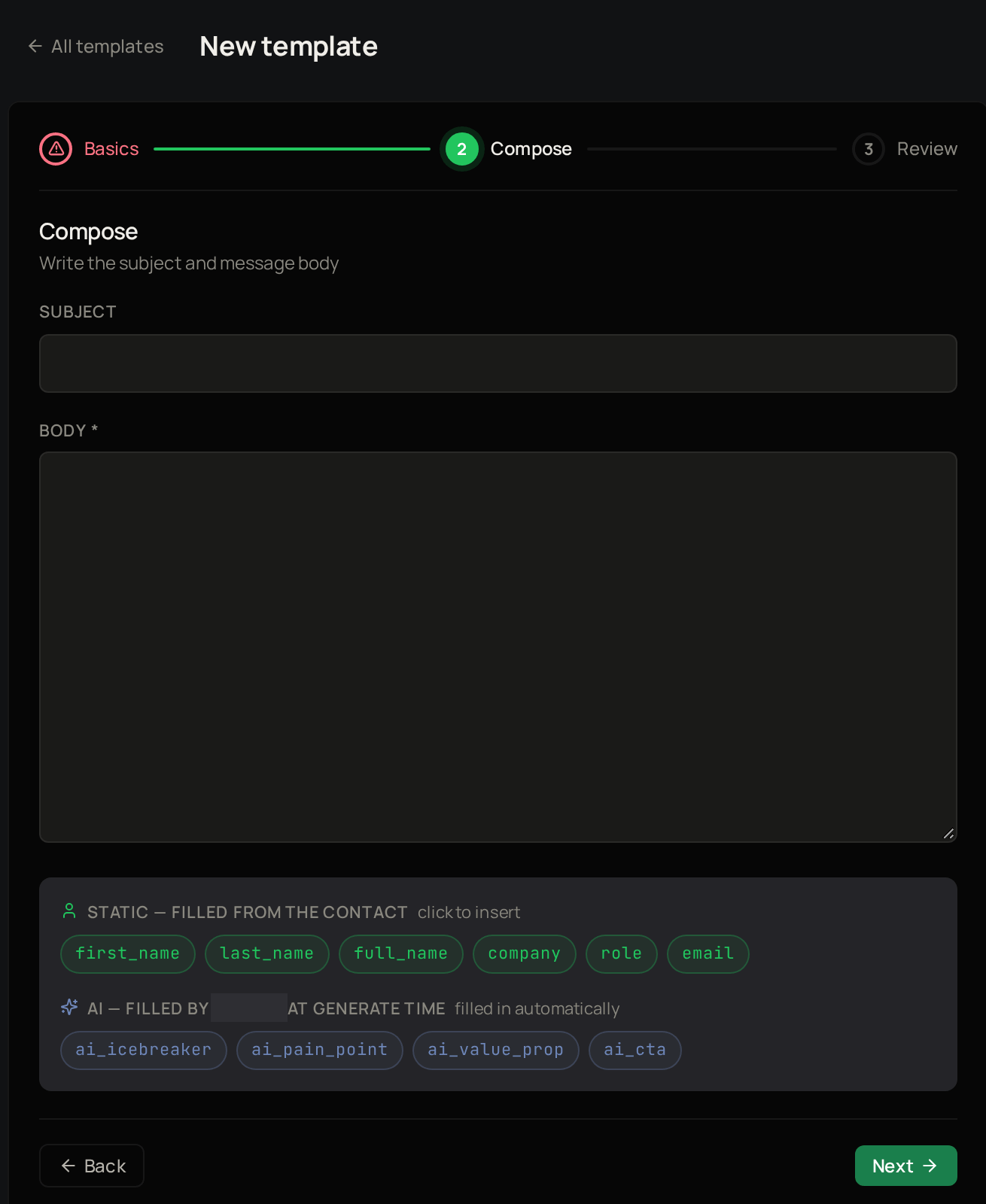 Select **Templates**, then **New template**.
Give it a **Name**.
Leave **Channel** at **Email**.
If you want a **Default persona**, pick one.
Select **Next**.
Enter a **Subject**.
Enter the **Body**.
Click a contact variable below the editor to insert it.
Your subject and body are now in the editor. Next, [preview the template and create it](#preview-the-template-and-create-it).
## Preview the template and create it
Select **Templates**, then **New template**.
Give it a **Name**.
Leave **Channel** at **Email**.
If you want a **Default persona**, pick one.
Select **Next**.
Enter a **Subject**.
Enter the **Body**.
Click a contact variable below the editor to insert it.
Your subject and body are now in the editor. Next, [preview the template and create it](#preview-the-template-and-create-it).
## Preview the template and create it
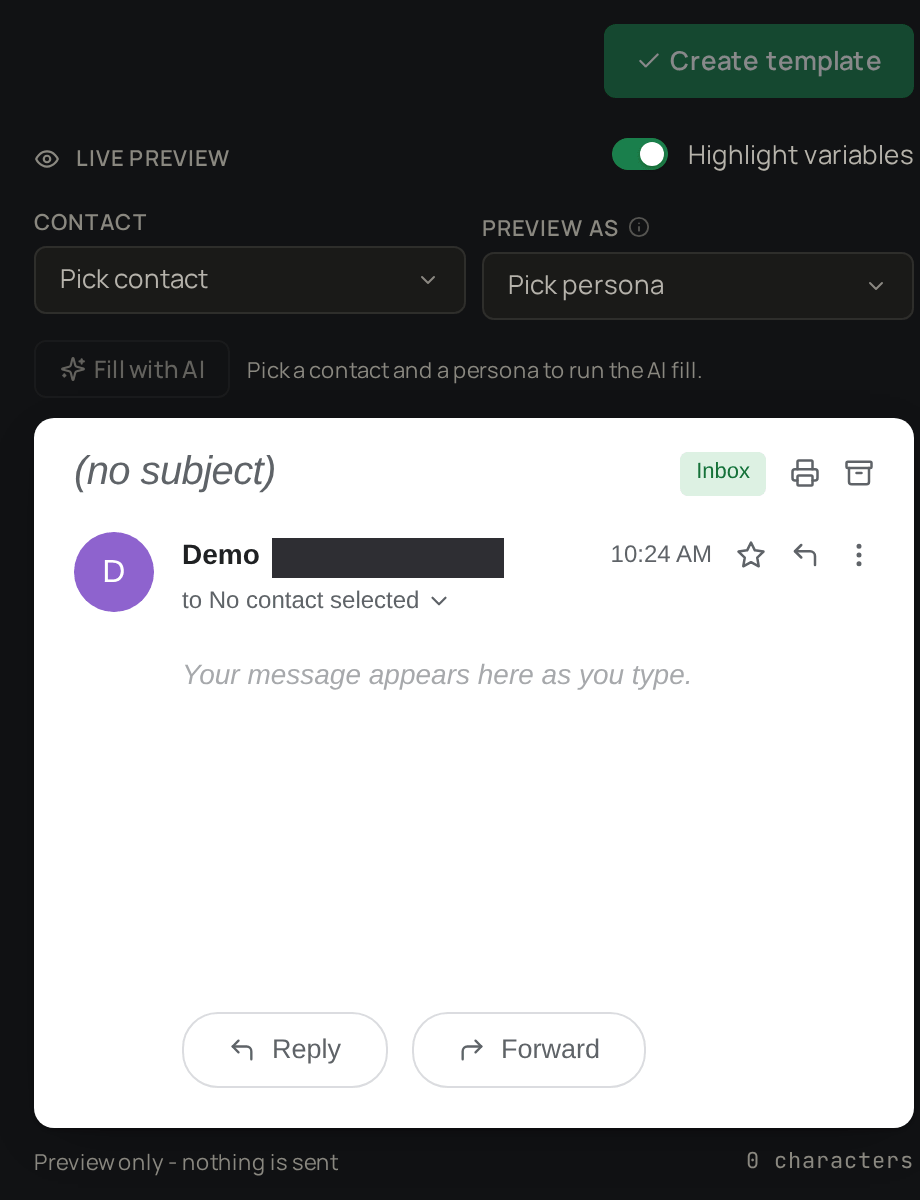 Carry on from where you wrote the message.
Under **Live preview**, pick a contact.
Pick a persona to see the message filled in.
Select **Fill with AI** to see what Pulse would write. Nothing is sent from the preview.
Check the **Review** step.
Select **Create template**.
The template now appears in your list. Next, [run a campaign](/products/pulse/campaigns) with it.
## Variables
Contact details are filled in from the contact's record: `{{first_name}}`, `{{last_name}}`, `{{full_name}}`, `{{company}}`, `{{role}}` and `{{email}}`.
AI variables are written fresh for each contact when their message is drafted: `{{ai_icebreaker}}` for an opening line, `{{ai_pain_point}}` for the problem you are addressing, `{{ai_value_prop}}` for how you help, and `{{ai_cta}}` for the ask at the end. Type these into the body yourself; only contact variables can be clicked in.
## Troubleshooting
**If Pulse shows "Pick a contact and a persona to run the AI fill",** choose both under **Live preview**, then select **Fill with AI** again.
**If Pulse warns "Unknown variables will send as raw text",** check the spelling of each variable it lists against the ones above.
Carry on from where you wrote the message.
Under **Live preview**, pick a contact.
Pick a persona to see the message filled in.
Select **Fill with AI** to see what Pulse would write. Nothing is sent from the preview.
Check the **Review** step.
Select **Create template**.
The template now appears in your list. Next, [run a campaign](/products/pulse/campaigns) with it.
## Variables
Contact details are filled in from the contact's record: `{{first_name}}`, `{{last_name}}`, `{{full_name}}`, `{{company}}`, `{{role}}` and `{{email}}`.
AI variables are written fresh for each contact when their message is drafted: `{{ai_icebreaker}}` for an opening line, `{{ai_pain_point}}` for the problem you are addressing, `{{ai_value_prop}}` for how you help, and `{{ai_cta}}` for the ask at the end. Type these into the body yourself; only contact variables can be clicked in.
## Troubleshooting
**If Pulse shows "Pick a contact and a persona to run the AI fill",** choose both under **Live preview**, then select **Fill with AI** again.
**If Pulse warns "Unknown variables will send as raw text",** check the spelling of each variable it lists against the ones above.