> ## Documentation Index
> Fetch the complete documentation index at: https://docs.intellikon.ai/llms.txt
> Use this file to discover all available pages before exploring further.
# Pipeline and deals
> See where every contact stands, and track the revenue opportunities that come out of your conversations.
**Pipeline** shows your contacts as cards on a board, one column per stage, so you can see at a glance who is new, who has been contacted and who has replied. **Deals** does the same for revenue opportunities, with the value of each deal and a forecast weighted by stage.
## Read the pipeline
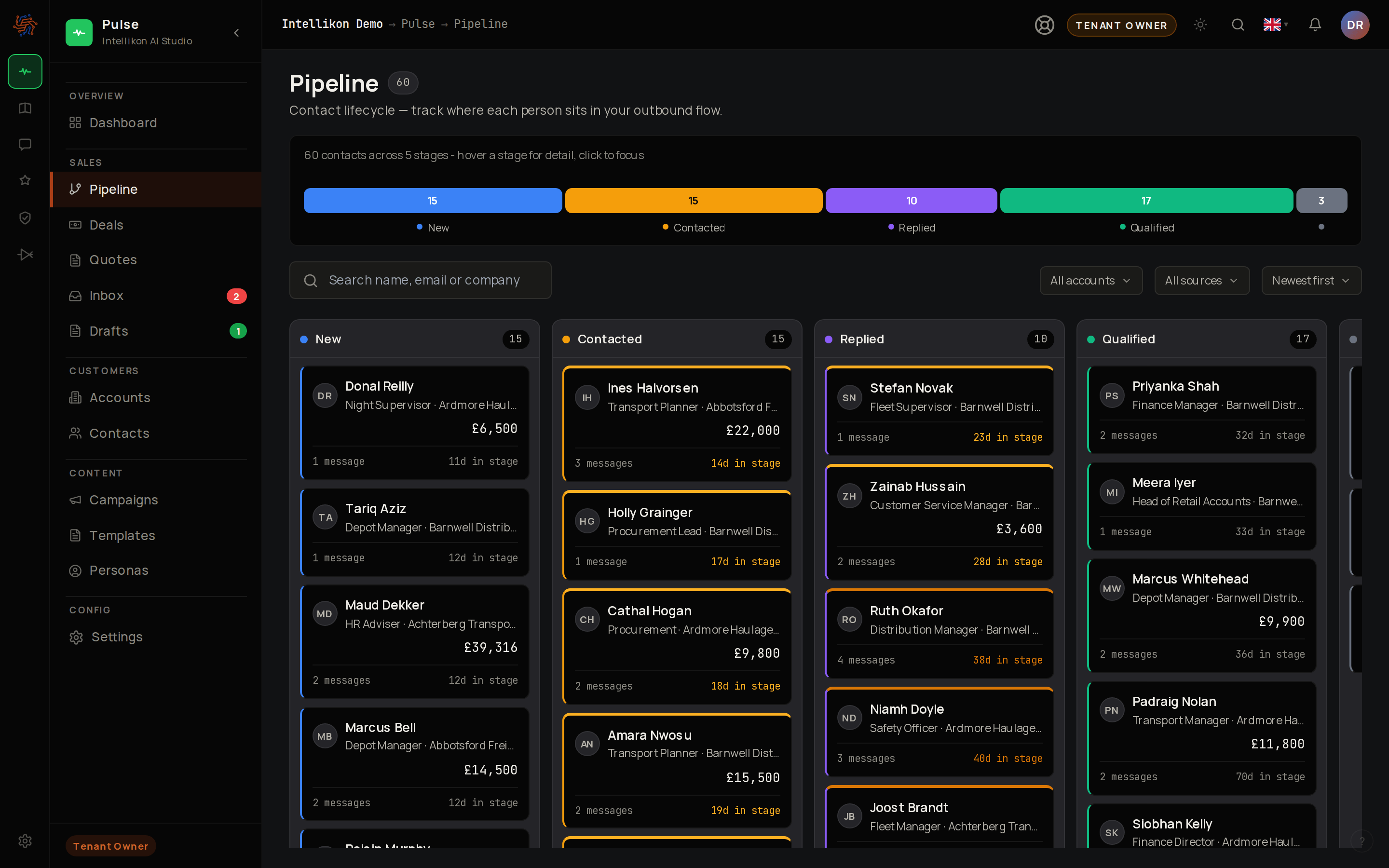 Select **Pipeline**. Each column is a stage and each card is a contact, with their company and how long they have been in that stage. Use the search box and filters to narrow the board. To move a contact to another stage, drag their card to that column.
The card now sits in its new column. Next, [create a deal](#create-a-deal) for a contact worth pursuing.
## Create a deal
Select **Pipeline**. Each column is a stage and each card is a contact, with their company and how long they have been in that stage. Use the search box and filters to narrow the board. To move a contact to another stage, drag their card to that column.
The card now sits in its new column. Next, [create a deal](#create-a-deal) for a contact worth pursuing.
## Create a deal
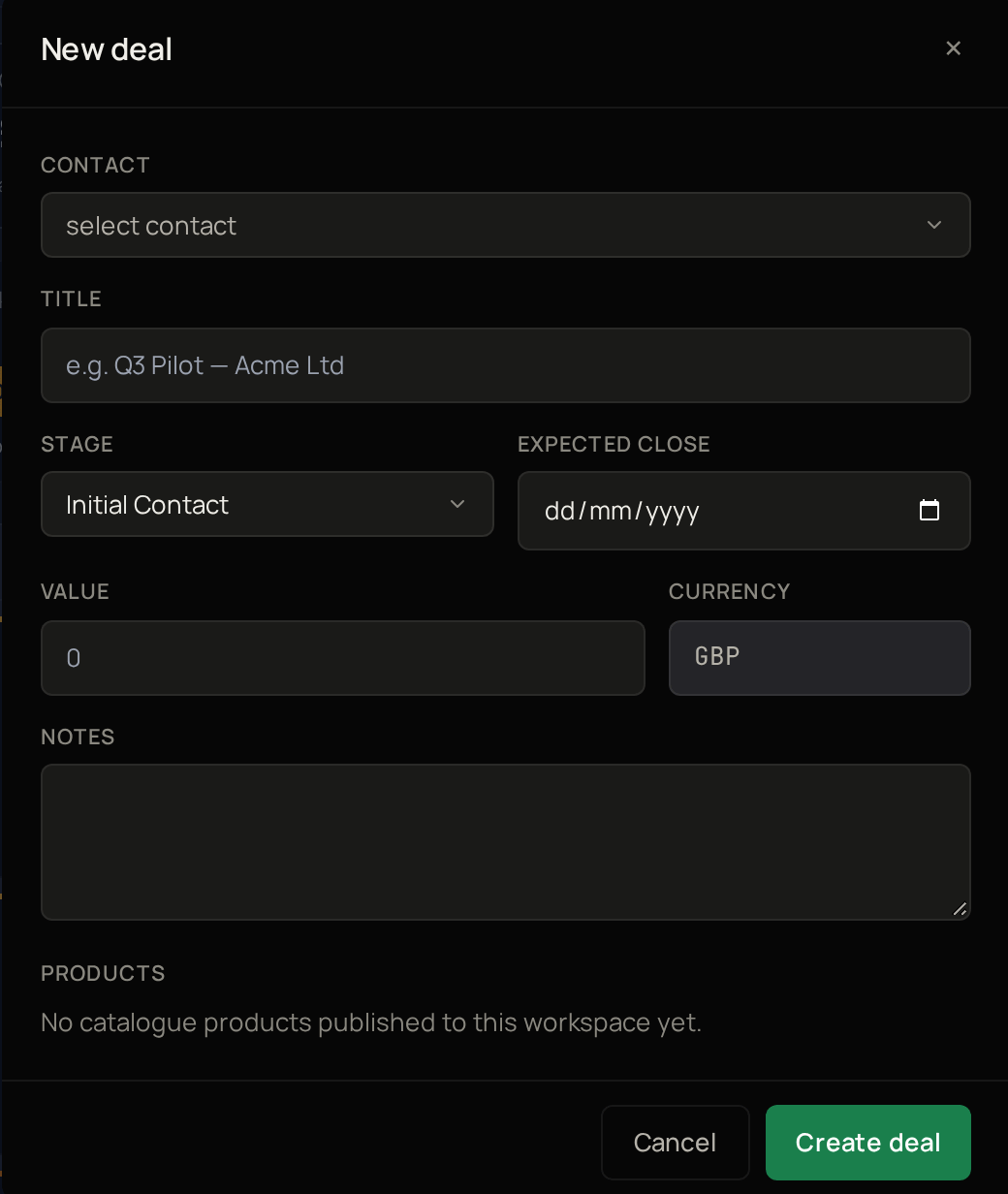 Select **Deals**, then **New deal**.
Choose the **Contact**.
Give the deal a **Title**.
Choose the **Stage**.
Choose the **Expected close** date.
Enter the **Value**.
Select **Create deal**.
The deal appears on the board in the stage you chose. To move it on, drag it to another column. Next, [send a quote](/products/pulse/quotes).
## See a deal's quotes
Select a deal to open it, then select **Quotes**. The tab lists every quote attached to the deal. Select **Create quote** to start a new quote with this deal already attached. Next, [read the numbers](#read-the-numbers).
## Read the numbers
Select **Deals**, then **New deal**.
Choose the **Contact**.
Give the deal a **Title**.
Choose the **Stage**.
Choose the **Expected close** date.
Enter the **Value**.
Select **Create deal**.
The deal appears on the board in the stage you chose. To move it on, drag it to another column. Next, [send a quote](/products/pulse/quotes).
## See a deal's quotes
Select a deal to open it, then select **Quotes**. The tab lists every quote attached to the deal. Select **Create quote** to start a new quote with this deal already attached. Next, [read the numbers](#read-the-numbers).
## Read the numbers
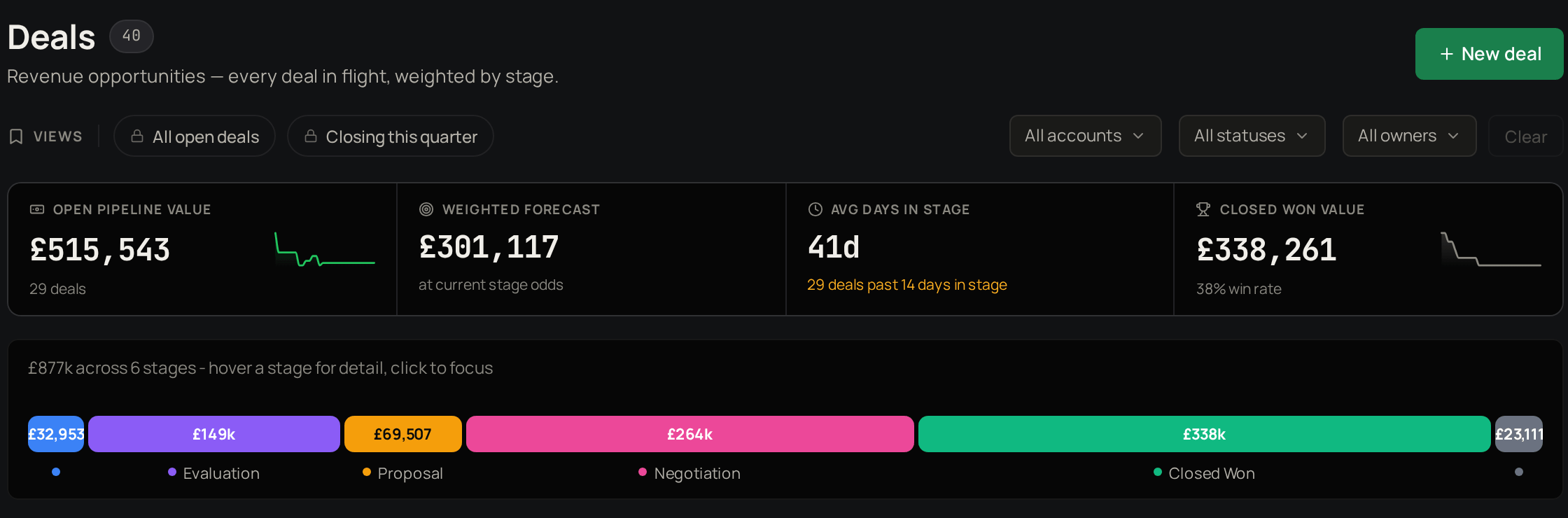 The figures above the board show your **Open pipeline value**, a **Weighted forecast** that counts each deal at its stage's probability, the **Avg days in stage**, and your **Closed won value** with win rate. Use **All open deals** or **Closing this quarter** to switch views, and the filters to narrow by account, status or owner. Next, [send a quote](/products/pulse/quotes).