> ## Documentation Index
> Fetch the complete documentation index at: https://docs.intellikon.ai/llms.txt
> Use this file to discover all available pages before exploring further.
# Quotes
> Price a deal, send it to your customer, and see it accepted.
A quote starts as a draft that only your team can see. When you send it, the status changes to Sent, and when your customer accepts it, to Accepted. You can attach a quote to a deal so it shows on that deal too.
## Before you start
Each quote needs an account and a contact. If either is not in Pulse yet, you can create it from the quote form. A workspace also needs a quote template before quotes can be sent; Tenant Owners and Workspace Admins set these up in Studio settings under **Quote Templates**. Tenant Owners, Workspace Admins and Workspace Members can build a quote. Only Tenant Owners and Workspace Admins can send it.
## Create a quote
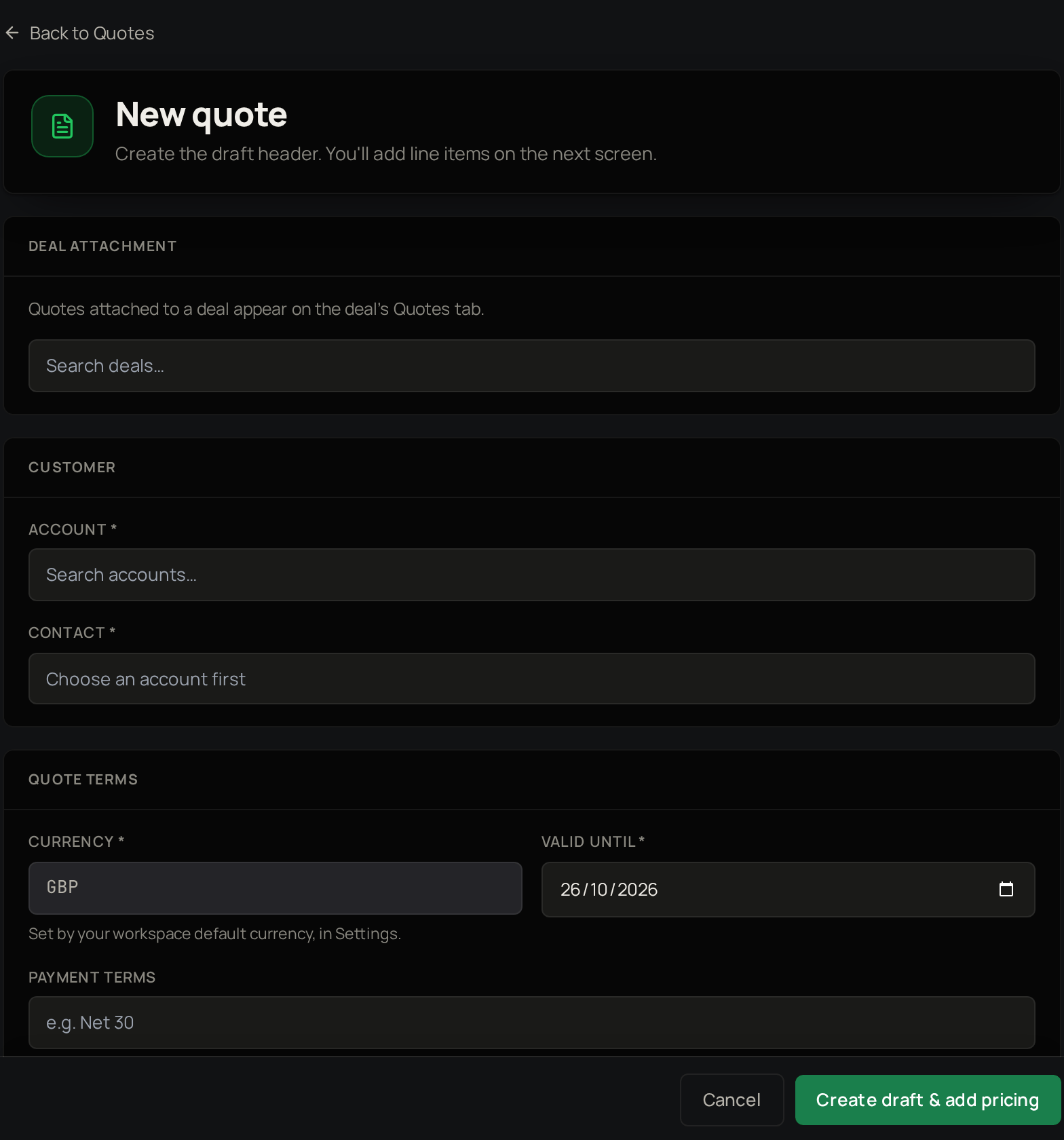 Select **Quotes**, then **New Quote**.
If the quote belongs to a deal, find it under **Deal attachment**.
Select the **Account**.
Select the **Contact**.
**Valid until** is filled in from your Pulse settings; change it if you need to. The currency is your workspace default.
Select **Create draft & add pricing**.
The draft quote now opens. Next, [add line items](#add-line-items).
## Add line items
Select **Quotes**, then **New Quote**.
If the quote belongs to a deal, find it under **Deal attachment**.
Select the **Account**.
Select the **Contact**.
**Valid until** is filled in from your Pulse settings; change it if you need to. The currency is your workspace default.
Select **Create draft & add pricing**.
The draft quote now opens. Next, [add line items](#add-line-items).
## Add line items
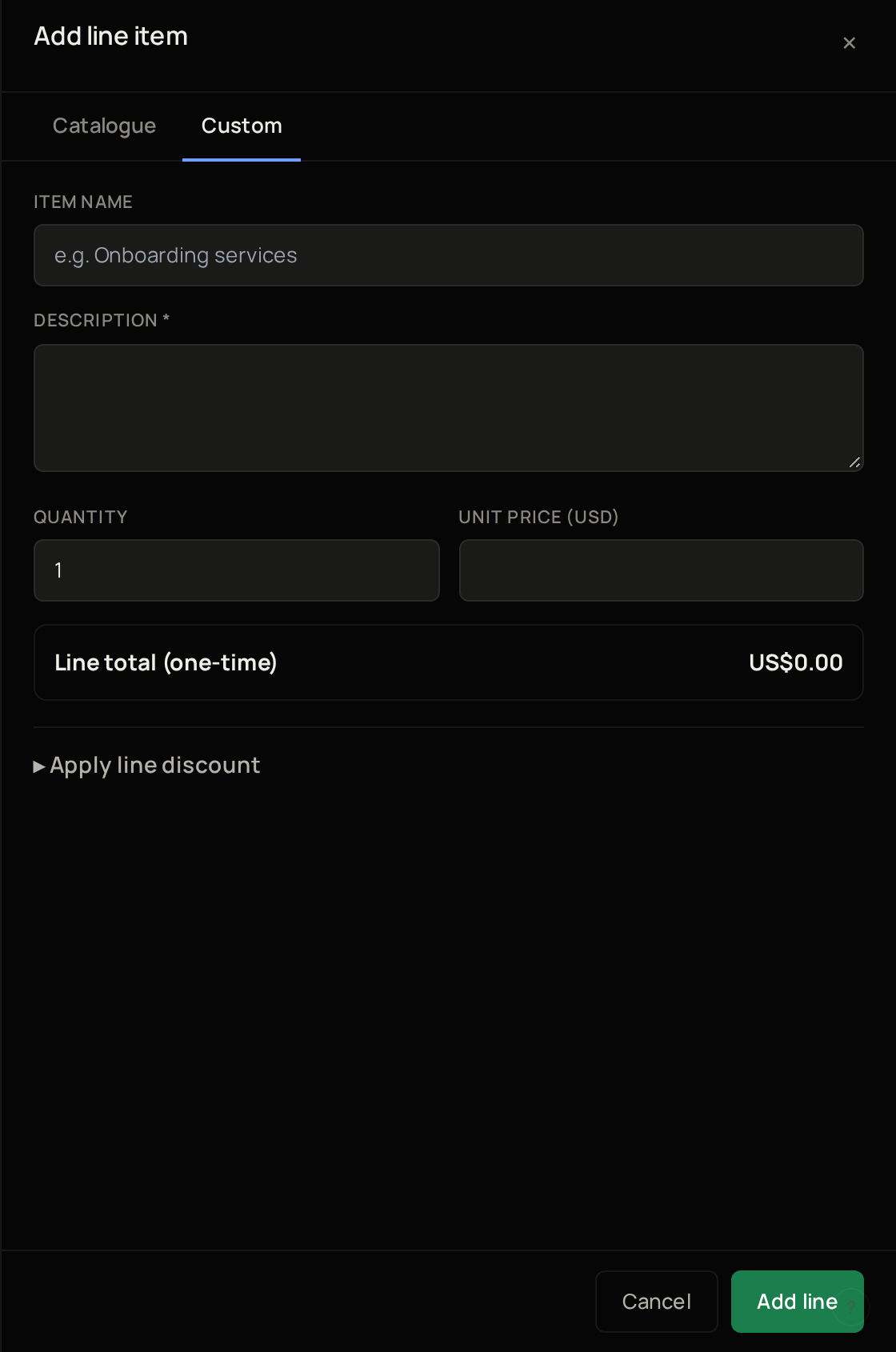 On the draft, select **Add line item**.
On **Catalogue**, choose a product.
Open **Apply line discount** to reduce this line only.
Select **Add line**.
The line appears on the draft and the **Grand total** updates. Next, [add a custom line item](#add-a-custom-line-item) if you need one.
## Add a custom line item
On the draft, select **Add line item**.
Select **Custom**.
Enter an **Item name**.
Enter a **Description**.
Enter the **Quantity**.
Enter the **Unit price**.
Open **Apply line discount** to reduce this line only.
Select **Add line**.
The line appears on the draft and the **Grand total** updates. When the lines are in, [send it](#send-it).
## Discount the whole quote
Under **Quote-level discount**, choose **Percentage** or **Fixed amount**.
Enter the value.
The totals update when you stop typing. Next, [check it before it goes](#check-it-before-it-goes).
## Check it before it goes
On the draft, select **Add line item**.
On **Catalogue**, choose a product.
Open **Apply line discount** to reduce this line only.
Select **Add line**.
The line appears on the draft and the **Grand total** updates. Next, [add a custom line item](#add-a-custom-line-item) if you need one.
## Add a custom line item
On the draft, select **Add line item**.
Select **Custom**.
Enter an **Item name**.
Enter a **Description**.
Enter the **Quantity**.
Enter the **Unit price**.
Open **Apply line discount** to reduce this line only.
Select **Add line**.
The line appears on the draft and the **Grand total** updates. When the lines are in, [send it](#send-it).
## Discount the whole quote
Under **Quote-level discount**, choose **Percentage** or **Fixed amount**.
Enter the value.
The totals update when you stop typing. Next, [check it before it goes](#check-it-before-it-goes).
## Check it before it goes
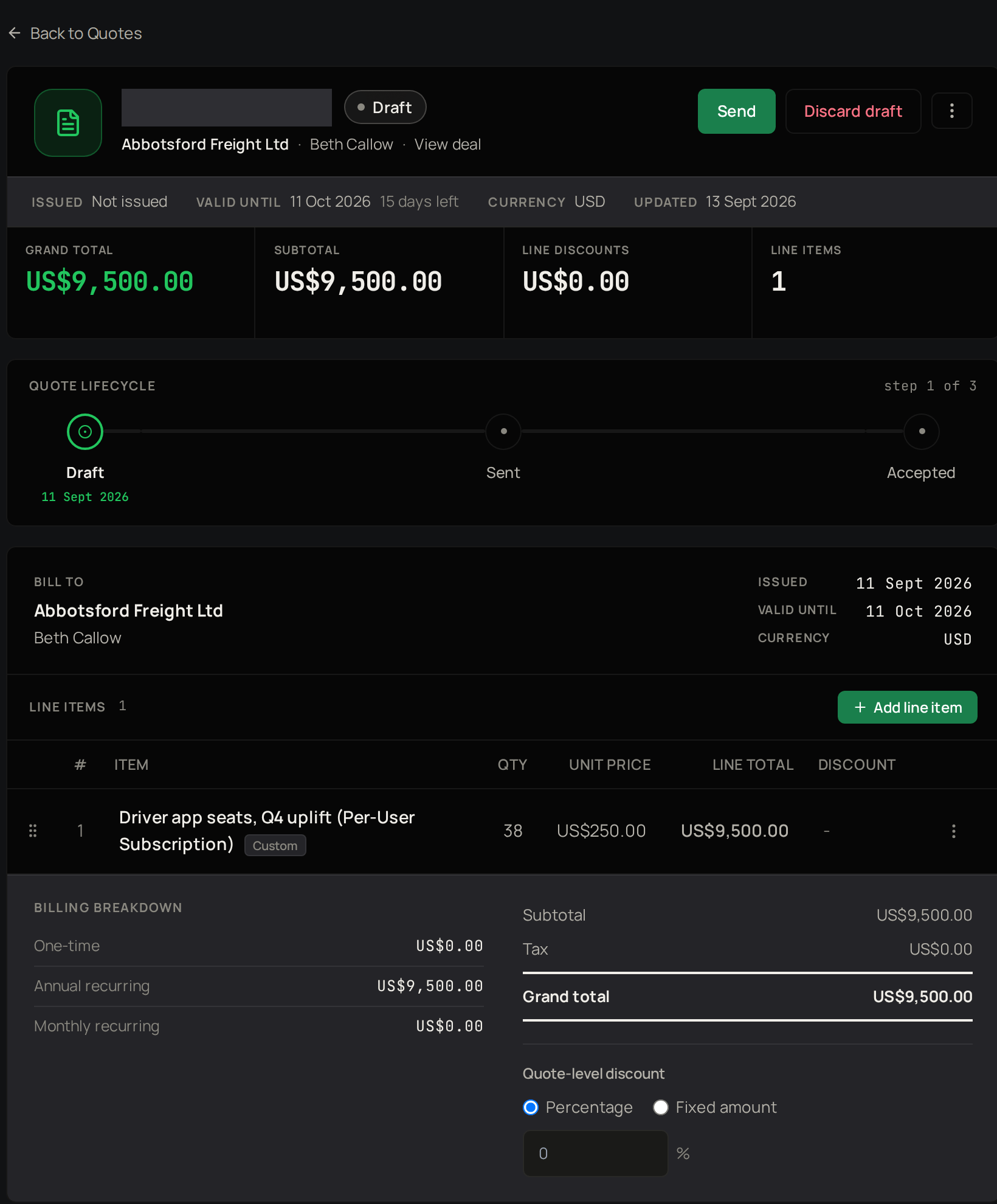 Open the menu next to **Discard draft** and select **Open preview** to see the quote as your customer will, or **Download PDF** for a copy. When it looks right, [send it](#send-it).
**Discard draft** deletes the draft. You cannot get it back.
## Send it
Select **Send**.
Choose **Manual** to send the PDF yourself, or **Hosted link** to share a secure link.
If you chose **Manual**, download the PDF.
If you chose **Manual**, send the PDF yourself.
If you chose **Manual**, tick the box to confirm you have sent it.
Select **Send quote**.
If you chose **Hosted link**, copy it from the quote page straight away, because Pulse shows the link only once.
If you chose **Hosted link**, send it to your customer.
The quote now shows as Sent. If the quote belongs to a deal, you can [find it on the deal](/products/pulse/pipeline-and-deals) next.
## Troubleshooting
**If sending fails with "No quote template configured for this product/workspace",** ask a Tenant Owner or Workspace Admin to add a quote template in Studio settings under **Quote Templates**, then send again.
**If Pulse shows "Before sending" and a list,** add what it names, such as a line item, then select **Send** again.
**If a discount shows "Discount exceeds discountable base",** lower it to the amount shown or less.
Open the menu next to **Discard draft** and select **Open preview** to see the quote as your customer will, or **Download PDF** for a copy. When it looks right, [send it](#send-it).
**Discard draft** deletes the draft. You cannot get it back.
## Send it
Select **Send**.
Choose **Manual** to send the PDF yourself, or **Hosted link** to share a secure link.
If you chose **Manual**, download the PDF.
If you chose **Manual**, send the PDF yourself.
If you chose **Manual**, tick the box to confirm you have sent it.
Select **Send quote**.
If you chose **Hosted link**, copy it from the quote page straight away, because Pulse shows the link only once.
If you chose **Hosted link**, send it to your customer.
The quote now shows as Sent. If the quote belongs to a deal, you can [find it on the deal](/products/pulse/pipeline-and-deals) next.
## Troubleshooting
**If sending fails with "No quote template configured for this product/workspace",** ask a Tenant Owner or Workspace Admin to add a quote template in Studio settings under **Quote Templates**, then send again.
**If Pulse shows "Before sending" and a list,** add what it names, such as a line item, then select **Send** again.
**If a discount shows "Discount exceeds discountable base",** lower it to the amount shown or less.