> ## Documentation Index
> Fetch the complete documentation index at: https://docs.intellikon.ai/llms.txt
> Use this file to discover all available pages before exploring further.
# Pulse settings
> Set your currency and quote defaults, and shape the stages contacts and deals move through.
Pulse settings control the defaults for quotes and the stages your contacts and deals move through. Open them from **Settings** at the bottom of the Pulse sidebar. Tenant Owners, Workspace Admins and Workspace Members can see them; only Tenant Owners and Workspace Admins can change them.
## General
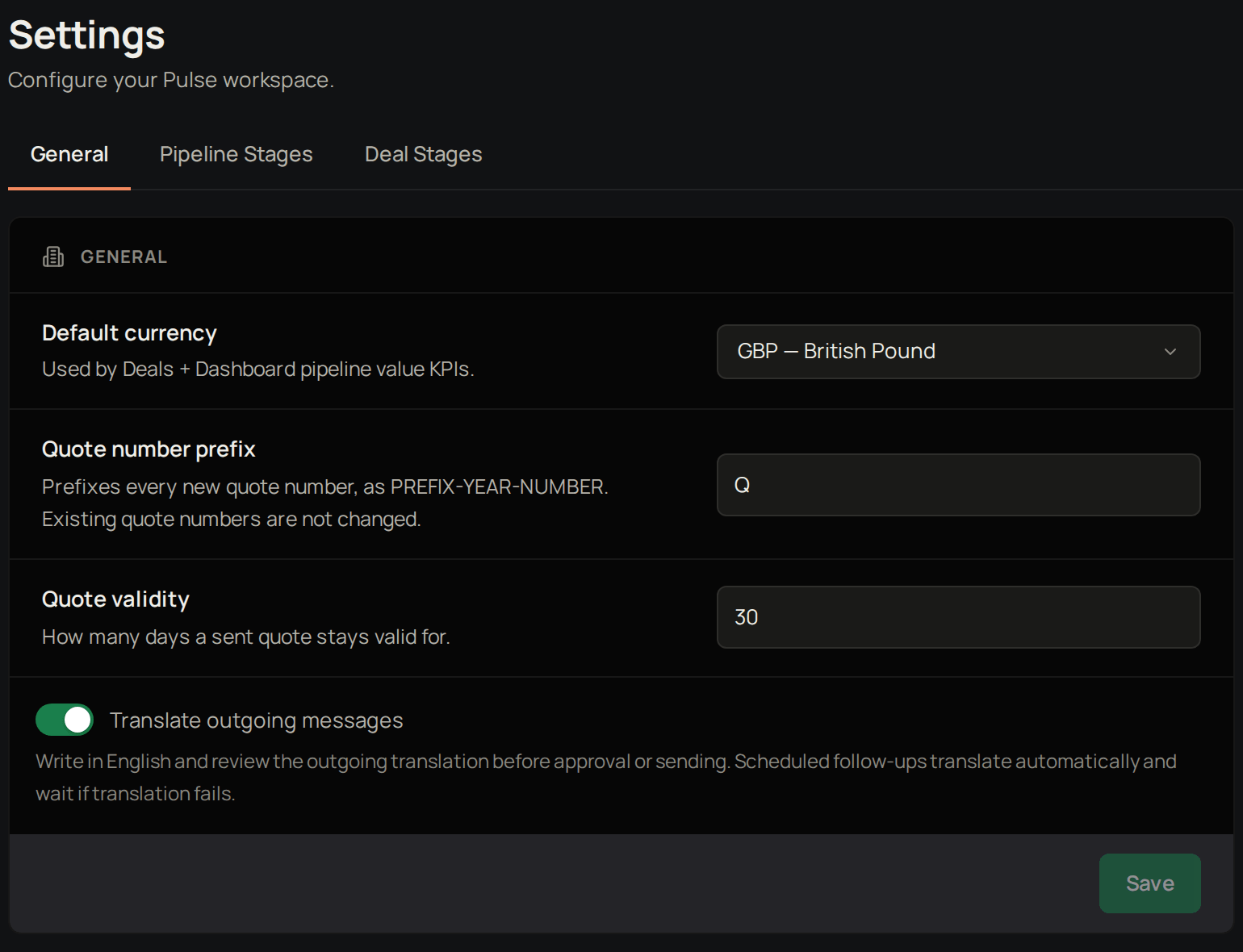 **Default currency** is used for deals and pipeline value. **Quote number prefix** is added to every new quote number; existing quotes keep their numbers. **Quote validity** sets how many days a quote stays valid, and fills in **Valid until** on new quotes. **Translate outgoing messages** turns on translation for the emails you send from Pulse. You write in English and check the translation before you approve or send, and scheduled follow-ups are translated automatically and wait if translation fails. With it on, you can set an [Email language](/products/pulse/contacts-and-accounts#choose-the-language-you-write-to-a-contact-in) for a contact.
Change **Default currency**, **Quote number prefix**, **Quote validity** or **Translate outgoing messages**.
Select **Save**.
Pulse shows **Settings saved**. Next, [set up your pipeline stages](#pipeline-stages).
## Pipeline stages
**Default currency** is used for deals and pipeline value. **Quote number prefix** is added to every new quote number; existing quotes keep their numbers. **Quote validity** sets how many days a quote stays valid, and fills in **Valid until** on new quotes. **Translate outgoing messages** turns on translation for the emails you send from Pulse. You write in English and check the translation before you approve or send, and scheduled follow-ups are translated automatically and wait if translation fails. With it on, you can set an [Email language](/products/pulse/contacts-and-accounts#choose-the-language-you-write-to-a-contact-in) for a contact.
Change **Default currency**, **Quote number prefix**, **Quote validity** or **Translate outgoing messages**.
Select **Save**.
Pulse shows **Settings saved**. Next, [set up your pipeline stages](#pipeline-stages).
## Pipeline stages
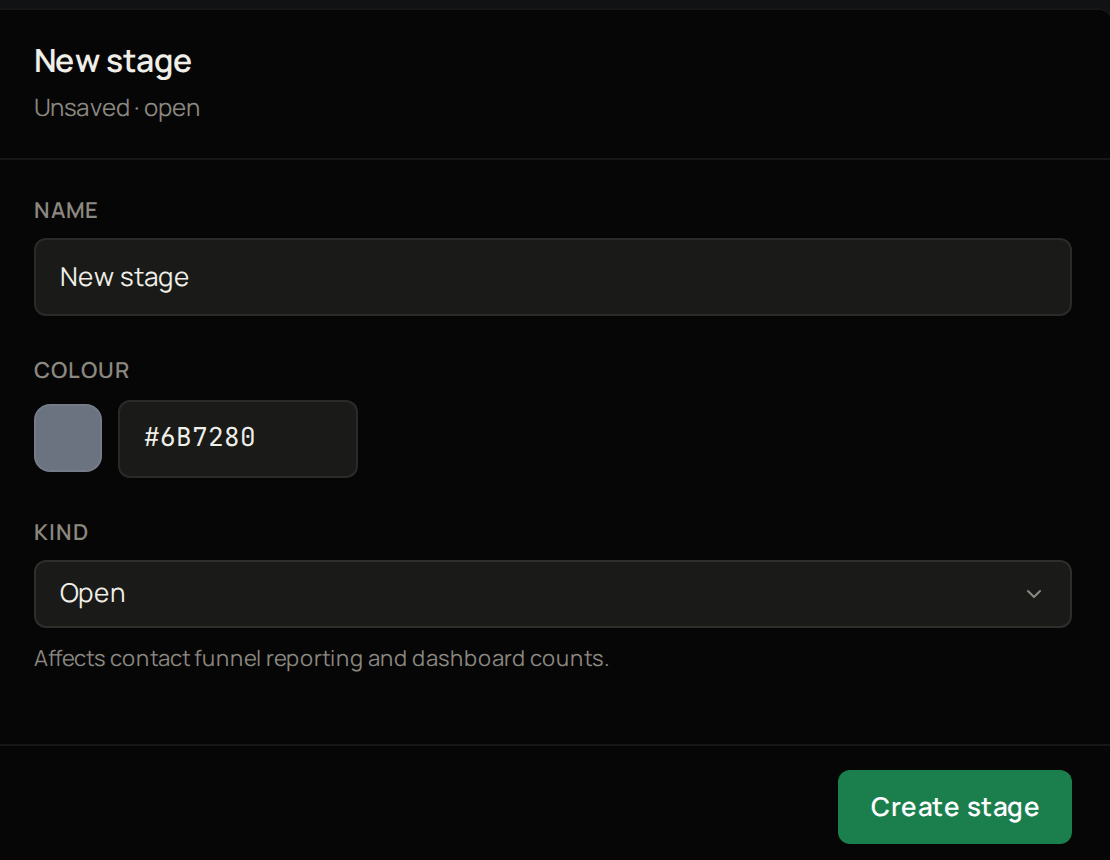 These are the stages contacts move through. Stages marked **System** keep their kind and cannot be archived, but you can change their name and colour. To add your own:
Select **Add stage**.
Give it a name.
Give it a colour.
Choose whether it is **Open**, **Won** or **Lost**.
Select **Create stage**.
Pulse shows **Stage created** and the new stage appears in the list. Next, [set up your deal stages](#deal-stages).
## Deal stages
These work the same way. **Probability %** is how likely a deal at this stage is to close, and feeds your weighted forecast. Next, [create a deal](/products/pulse/pipeline-and-deals#create-a-deal).
## Troubleshooting
**If Quote number prefix shows "Use 1 to 10 uppercase letters or digits",** remove any spaces, symbols or lower-case letters.
**If Quote validity shows "Enter a whole number of days between 1 and 365",** enter a number of days in that range.
These are the stages contacts move through. Stages marked **System** keep their kind and cannot be archived, but you can change their name and colour. To add your own:
Select **Add stage**.
Give it a name.
Give it a colour.
Choose whether it is **Open**, **Won** or **Lost**.
Select **Create stage**.
Pulse shows **Stage created** and the new stage appears in the list. Next, [set up your deal stages](#deal-stages).
## Deal stages
These work the same way. **Probability %** is how likely a deal at this stage is to close, and feeds your weighted forecast. Next, [create a deal](/products/pulse/pipeline-and-deals#create-a-deal).
## Troubleshooting
**If Quote number prefix shows "Use 1 to 10 uppercase letters or digits",** remove any spaces, symbols or lower-case letters.
**If Quote validity shows "Enter a whole number of days between 1 and 365",** enter a number of days in that range.