> ## Documentation Index
> Fetch the complete documentation index at: https://docs.intellikon.ai/llms.txt
> Use this file to discover all available pages before exploring further.
# Chatbots
> Create a chatbot, turn it on, try it out and change how it answers.
Each chatbot has its own knowledge, settings and conversations. A new chatbot starts as a draft. You give it knowledge, turn it on, and try it in **Live Preview** before anyone else relies on it. **Chatbots** lists every chatbot in your workspace. Choose **All**, **Active**, **Inactive** or **Draft** under **Status** to filter the list, and switch between grid and table view with the icons above it. In table view, select **Name** or **Updated** to sort the list, or select a row to open the chatbot.
## Before you start
Tenant Owners, Workspace Admins and Workspace Members can create chatbots and change them. The models you can choose from are the ones your workspace allows; Tenant Owners and Workspace Admins manage these in Studio settings under **AI Models**.
## Create a chatbot
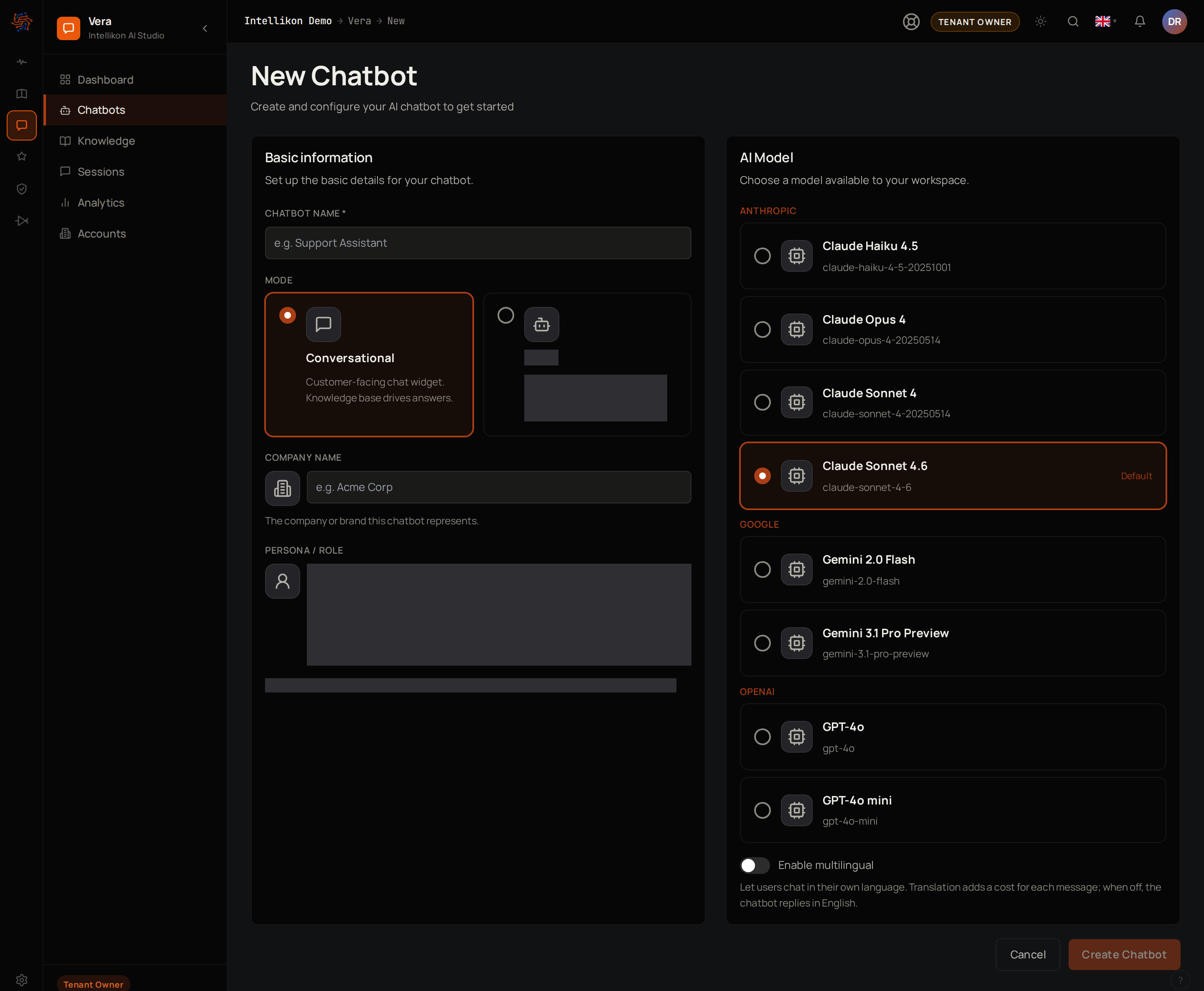 Select **Chatbots**, then **New chatbot**.
Enter a **Chatbot Name**. This is the name people see when they chat with it.
Under **Company Name**, enter the company or brand the chatbot represents.
Under **AI Model**, pick one, or keep the one marked **Default**.
Turn on **Enable multilingual** if people will ask questions in other languages. When it is off, the chatbot replies in English.
Select **Create Chatbot**.
The chatbot's page opens, and the chatbot shows as **Draft**. Next, [give it knowledge](/products/vera/knowledge).
## Turn it on
People can start a conversation with a chatbot only when it is active.
Select **Chatbots**, then **Open** on the chatbot.
Select **Activate**.
The chatbot now shows as **Active**, and **Live Preview** starts a conversation. Next, [try it out](#try-it-in-live-preview).
## Try it in Live Preview
**Live Preview** on the chatbot's page lets you talk to the chatbot as anyone else would.
Type a question in the message box at the bottom and press Enter, or select one of the suggested questions. Read the reply, and open **Sources** under it to see which knowledge it came from. Select **↺ Reset session** for a new conversation.
If the chatbot has **Enable multilingual** turned on, choose a language at the top of **Live Preview** to try it in that language.
Each preview conversation is saved like any other and appears under **Sessions**. If the answer is wrong or incomplete, see [improve answers](/products/vera/training). Next, [change how it answers](#change-how-it-answers).
## Change how it answers
On the chatbot's page, select **Settings**.
If you want a new name, change the **Chatbot Name**.
If it now speaks for another company or brand, change the **Company Name**.
If you want another model, change the **AI Model**.
If you want to change its languages, turn **Enable multilingual** on or off.
Select **Save Changes**.
Vera shows "Changes saved successfully." Select **View chatbot** to go back and try it. Next, [suggest questions and offer a way to reach you](#suggest-questions-and-offer-a-way-to-reach-you).
## Suggest questions and offer a way to reach you
On the chatbot's page, select **Settings**.
Under **Conversation Starters**, select **Add starter question**.
Type a question people often ask.
To change the order, drag the handles.
Under **Escalation URL**, enter the address of your contact or support page.
Select **Save Changes**.
Vera shows "Changes saved successfully." Conversation starters appear as buttons before the first question. When nothing in its knowledge matches a question, its reply in **Live Preview** offers a **Talk to a human →** link to your escalation address. Select **View chatbot** to go back and try it. Next, [add more knowledge](/products/vera/knowledge).
## Turn a chatbot off
On the chatbot's page, select **Deactivate**. You can also do this from **Chatbots**: in grid view, open the menu on the chatbot's card and select **Deactivate**; in table view, select the power icon on its row.
The chatbot shows as **Inactive**, and no one can start a new conversation with it. Its knowledge, settings and conversations are kept. Select **Activate** on its page or its card to turn it on again. Next, go back to the [Vera overview](/products/vera/overview).
## Troubleshooting
Enter a **Chatbot Name** and make sure a model is selected under **AI Model**.
Ask a Tenant Owner to approve and allow at least one model in Studio settings under **AI Models**.
The chatbot is a draft or inactive. Select **Activate** on its page.
A chatbot can have up to four conversation starters. Remove one with its bin icon to add another.
It could not find the answer in its knowledge. [Add a source](/products/vera/knowledge) that covers the question, or [write a curated answer](/products/vera/training#add-a-curated-answer).
Select **Chatbots**, then **New chatbot**.
Enter a **Chatbot Name**. This is the name people see when they chat with it.
Under **Company Name**, enter the company or brand the chatbot represents.
Under **AI Model**, pick one, or keep the one marked **Default**.
Turn on **Enable multilingual** if people will ask questions in other languages. When it is off, the chatbot replies in English.
Select **Create Chatbot**.
The chatbot's page opens, and the chatbot shows as **Draft**. Next, [give it knowledge](/products/vera/knowledge).
## Turn it on
People can start a conversation with a chatbot only when it is active.
Select **Chatbots**, then **Open** on the chatbot.
Select **Activate**.
The chatbot now shows as **Active**, and **Live Preview** starts a conversation. Next, [try it out](#try-it-in-live-preview).
## Try it in Live Preview
**Live Preview** on the chatbot's page lets you talk to the chatbot as anyone else would.
Type a question in the message box at the bottom and press Enter, or select one of the suggested questions. Read the reply, and open **Sources** under it to see which knowledge it came from. Select **↺ Reset session** for a new conversation.
If the chatbot has **Enable multilingual** turned on, choose a language at the top of **Live Preview** to try it in that language.
Each preview conversation is saved like any other and appears under **Sessions**. If the answer is wrong or incomplete, see [improve answers](/products/vera/training). Next, [change how it answers](#change-how-it-answers).
## Change how it answers
On the chatbot's page, select **Settings**.
If you want a new name, change the **Chatbot Name**.
If it now speaks for another company or brand, change the **Company Name**.
If you want another model, change the **AI Model**.
If you want to change its languages, turn **Enable multilingual** on or off.
Select **Save Changes**.
Vera shows "Changes saved successfully." Select **View chatbot** to go back and try it. Next, [suggest questions and offer a way to reach you](#suggest-questions-and-offer-a-way-to-reach-you).
## Suggest questions and offer a way to reach you
On the chatbot's page, select **Settings**.
Under **Conversation Starters**, select **Add starter question**.
Type a question people often ask.
To change the order, drag the handles.
Under **Escalation URL**, enter the address of your contact or support page.
Select **Save Changes**.
Vera shows "Changes saved successfully." Conversation starters appear as buttons before the first question. When nothing in its knowledge matches a question, its reply in **Live Preview** offers a **Talk to a human →** link to your escalation address. Select **View chatbot** to go back and try it. Next, [add more knowledge](/products/vera/knowledge).
## Turn a chatbot off
On the chatbot's page, select **Deactivate**. You can also do this from **Chatbots**: in grid view, open the menu on the chatbot's card and select **Deactivate**; in table view, select the power icon on its row.
The chatbot shows as **Inactive**, and no one can start a new conversation with it. Its knowledge, settings and conversations are kept. Select **Activate** on its page or its card to turn it on again. Next, go back to the [Vera overview](/products/vera/overview).
## Troubleshooting
Enter a **Chatbot Name** and make sure a model is selected under **AI Model**.
Ask a Tenant Owner to approve and allow at least one model in Studio settings under **AI Models**.
The chatbot is a draft or inactive. Select **Activate** on its page.
A chatbot can have up to four conversation starters. Remove one with its bin icon to add another.
It could not find the answer in its knowledge. [Add a source](/products/vera/knowledge) that covers the question, or [write a curated answer](/products/vera/training#add-a-curated-answer).