> ## Documentation Index
> Fetch the complete documentation index at: https://docs.intellikon.ai/llms.txt
> Use this file to discover all available pages before exploring further.
# Knowledge sources
> Give a chatbot the files, web pages and videos it answers from, and keep them up to date.
A chatbot answers only from its knowledge sources. A source can be a document, a spreadsheet, a slide deck, a web page or a YouTube video. Each source belongs to one chatbot. When you add one, Vera reads it and the chatbot can answer from it once it shows as **Ready**. You can manage one chatbot's sources from its page, or every source in the workspace under **Knowledge**.
## Before you start
You need a [chatbot](/products/vera/chatbots). Tenant Owners, Workspace Admins and Workspace Members can add and remove sources.
## Add a file
Select **Chatbots**, open the chatbot, then select **Manage Sources →**.
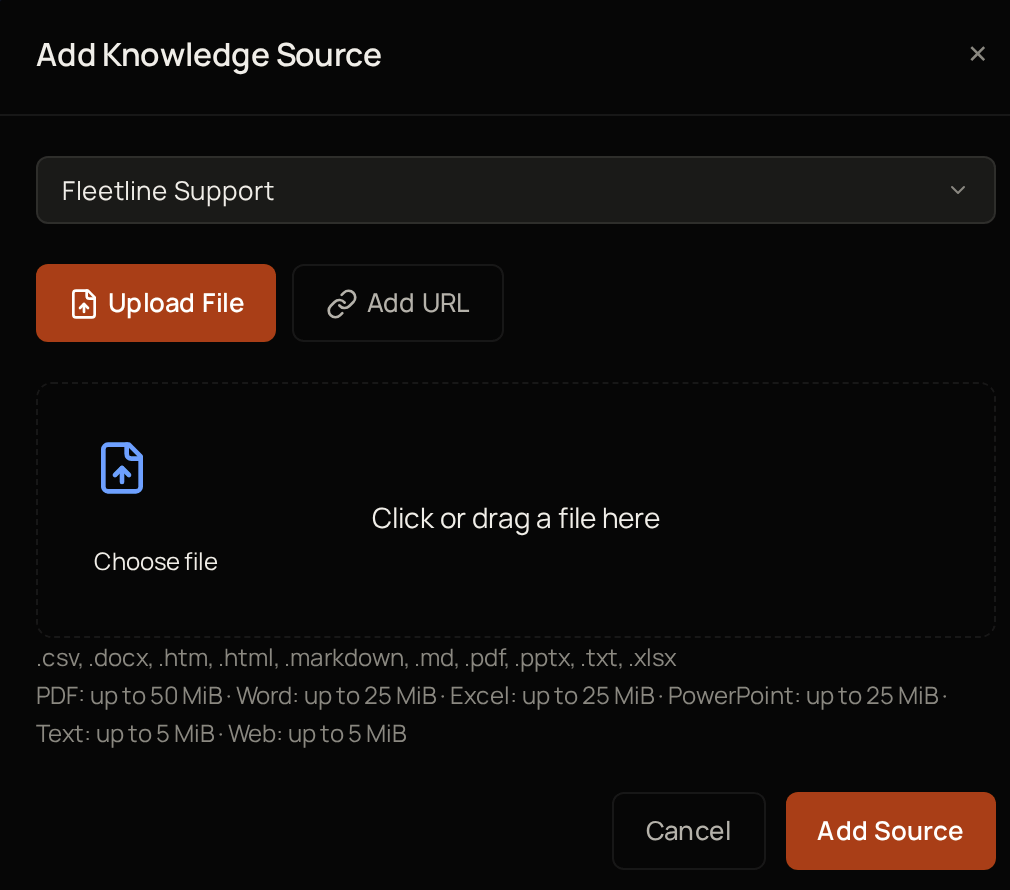
Select **Add Source**, then **Upload File**.
Drag the file into the window. The accepted file types and sizes are listed below **Choose file**.
To pick the file without dragging, select **Choose file** instead.
Select **Add Source**.
The file appears in the list as **Pending**, then **Processing**, and then **Ready** once Vera has read it. The list updates by itself while Vera reads it. Next, [try the chatbot](/products/vera/chatbots#try-it-in-live-preview) with a question the file answers.
## Add a web page or video
 Select **Chatbots**, open the chatbot, then select **Manage Sources →**.
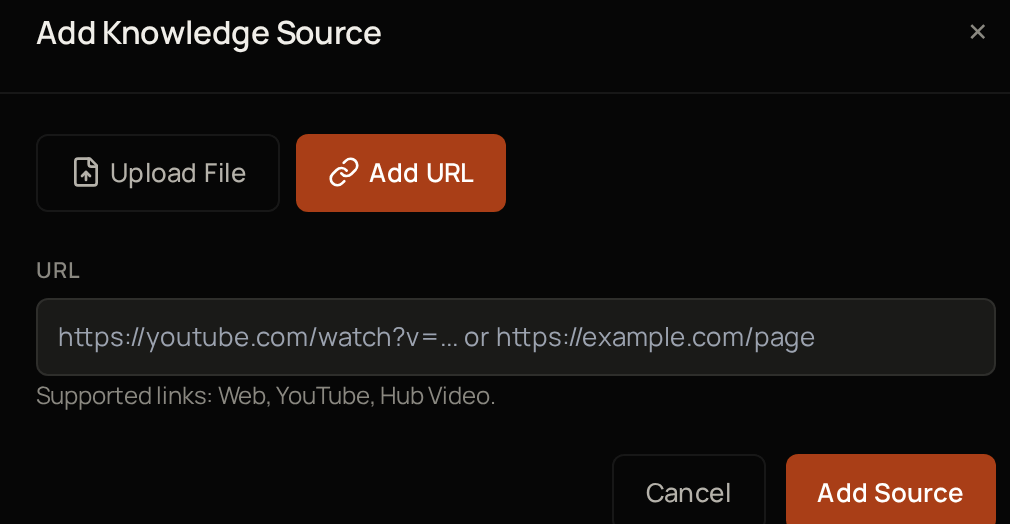
Select **Add Source**, then **Add URL**.
Under **URL**, paste the address of a web page or a YouTube video.
Select **Add Source**.
The page or video appears in the list and moves to **Ready** once Vera has read it. Vera reads one page per address, so add each page you need. It reads web pages again every seven days, so the chatbot keeps up with changes to them. Next, [see all your sources](#see-all-your-sources).
## Add a source from Knowledge
Select **Chatbots**, open the chatbot, then select **Manage Sources →**.
Select **Add Source**, then **Add URL**.
Under **URL**, paste the address of a web page or a YouTube video.
Select **Add Source**.
The page or video appears in the list and moves to **Ready** once Vera has read it. Vera reads one page per address, so add each page you need. It reads web pages again every seven days, so the chatbot keeps up with changes to them. Next, [see all your sources](#see-all-your-sources).
## Add a source from Knowledge
 You can also add a source without opening the chatbot first.
Select **Knowledge**, then **Add Resource**.
Under **Choose a chatbot**, pick the chatbot it is for.
Carry on as in [add a file](#add-a-file) or [add a web page or video](#add-a-web-page-or-video).
Next, [see all your sources](#see-all-your-sources).
## See all your sources
**Knowledge** lists the sources of every chatbot in the workspace. The figures at the top count all your sources, whenever they were added. Choose an account under **Account** to narrow the figures and the list to that account.
* Select a chatbot's name above the list to see only its sources, or **All** to see every source. Each button shows how many sources it covers.
* Use **Search sources…**, the type, status and freshness filters, and the sort to find a source.
* The list shows the sources added during the **Reporting period** at the top of the page. Choose a longer period, or **Custom**, to see older ones.
A source marked **Stale** has not been read again for more than 90 days. Its content may be out of date. Next, [keep your sources up to date](#keep-sources-up-to-date).
## Keep sources up to date
Each source in a list has buttons for what you can do with it next:
| Button | When it shows | What it does |
| -------------- | -------------------------- | ---------------------------------------------- |
| **Retry** | The source has **Failed**. | Vera tries to read it again. |
| **Re-ingest** | The source is **Stale**. | Vera reads it again, so it is no longer stale. |
| **Re-process** | The source is **Ready**. | Vera reads it again. |
Select the eye icon on a web page or video to open the original. Next, [remove a source](#remove-a-source) you no longer need.
## Remove a source
Removing a source deletes it and everything Vera read from it. You cannot get it back. To use it again, add it again.
Select **Remove** next to the source.
Confirm that you want to remove it.
The source leaves the list and the chatbot stops answering from it. Next, go back to the [Vera overview](/products/vera/overview).
## Troubleshooting
Save the file as one of the types listed in the window, such as PDF, Word or plain text, then add it again.
Each file type has its own limit, shown in the window: 50 MiB for PDF, 25 MiB for Word, Excel and PowerPoint, and 5 MiB for text and web files. Split the file into smaller parts and add each one.
Paste the full address, starting with https\://.
A chatbot can have up to 100 sources. Remove one you no longer need, then add the new one.
Select **Retry**. If it fails again, check that the file opens on your computer, or that the web page opens in your browser.
You can also add a source without opening the chatbot first.
Select **Knowledge**, then **Add Resource**.
Under **Choose a chatbot**, pick the chatbot it is for.
Carry on as in [add a file](#add-a-file) or [add a web page or video](#add-a-web-page-or-video).
Next, [see all your sources](#see-all-your-sources).
## See all your sources
**Knowledge** lists the sources of every chatbot in the workspace. The figures at the top count all your sources, whenever they were added. Choose an account under **Account** to narrow the figures and the list to that account.
* Select a chatbot's name above the list to see only its sources, or **All** to see every source. Each button shows how many sources it covers.
* Use **Search sources…**, the type, status and freshness filters, and the sort to find a source.
* The list shows the sources added during the **Reporting period** at the top of the page. Choose a longer period, or **Custom**, to see older ones.
A source marked **Stale** has not been read again for more than 90 days. Its content may be out of date. Next, [keep your sources up to date](#keep-sources-up-to-date).
## Keep sources up to date
Each source in a list has buttons for what you can do with it next:
| Button | When it shows | What it does |
| -------------- | -------------------------- | ---------------------------------------------- |
| **Retry** | The source has **Failed**. | Vera tries to read it again. |
| **Re-ingest** | The source is **Stale**. | Vera reads it again, so it is no longer stale. |
| **Re-process** | The source is **Ready**. | Vera reads it again. |
Select the eye icon on a web page or video to open the original. Next, [remove a source](#remove-a-source) you no longer need.
## Remove a source
Removing a source deletes it and everything Vera read from it. You cannot get it back. To use it again, add it again.
Select **Remove** next to the source.
Confirm that you want to remove it.
The source leaves the list and the chatbot stops answering from it. Next, go back to the [Vera overview](/products/vera/overview).
## Troubleshooting
Save the file as one of the types listed in the window, such as PDF, Word or plain text, then add it again.
Each file type has its own limit, shown in the window: 50 MiB for PDF, 25 MiB for Word, Excel and PowerPoint, and 5 MiB for text and web files. Split the file into smaller parts and add each one.
Paste the full address, starting with https\://.
A chatbot can have up to 100 sources. Remove one you no longer need, then add the new one.
Select **Retry**. If it fails again, check that the file opens on your computer, or that the web page opens in your browser.