> ## Documentation Index
> Fetch the complete documentation index at: https://docs.intellikon.ai/llms.txt
> Use this file to discover all available pages before exploring further.
# Vera overview
> What Vera does, how it is laid out, and who can do what.
Vera lets you build chatbots that answer questions from your own material. You give each chatbot its knowledge: documents, web pages and videos. When someone asks a question, the chatbot looks for the answer in that knowledge and replies with the sources it used. Vera keeps every conversation, shows you which questions went unanswered, and lets you fix answers so the next person gets a better one.
Vera does not search the internet or answer from general knowledge. A chatbot only knows what you have given it.
## Not knowing is part of the design
When a chatbot cannot find the answer in its knowledge, it says it does not have information on that, instead of guessing. This is intended behaviour, and a sign that you can trust the answers it does give. When nothing in its knowledge matches the question, Vera keeps the question, so you can see what your knowledge is missing and add it.
## How Vera is laid out
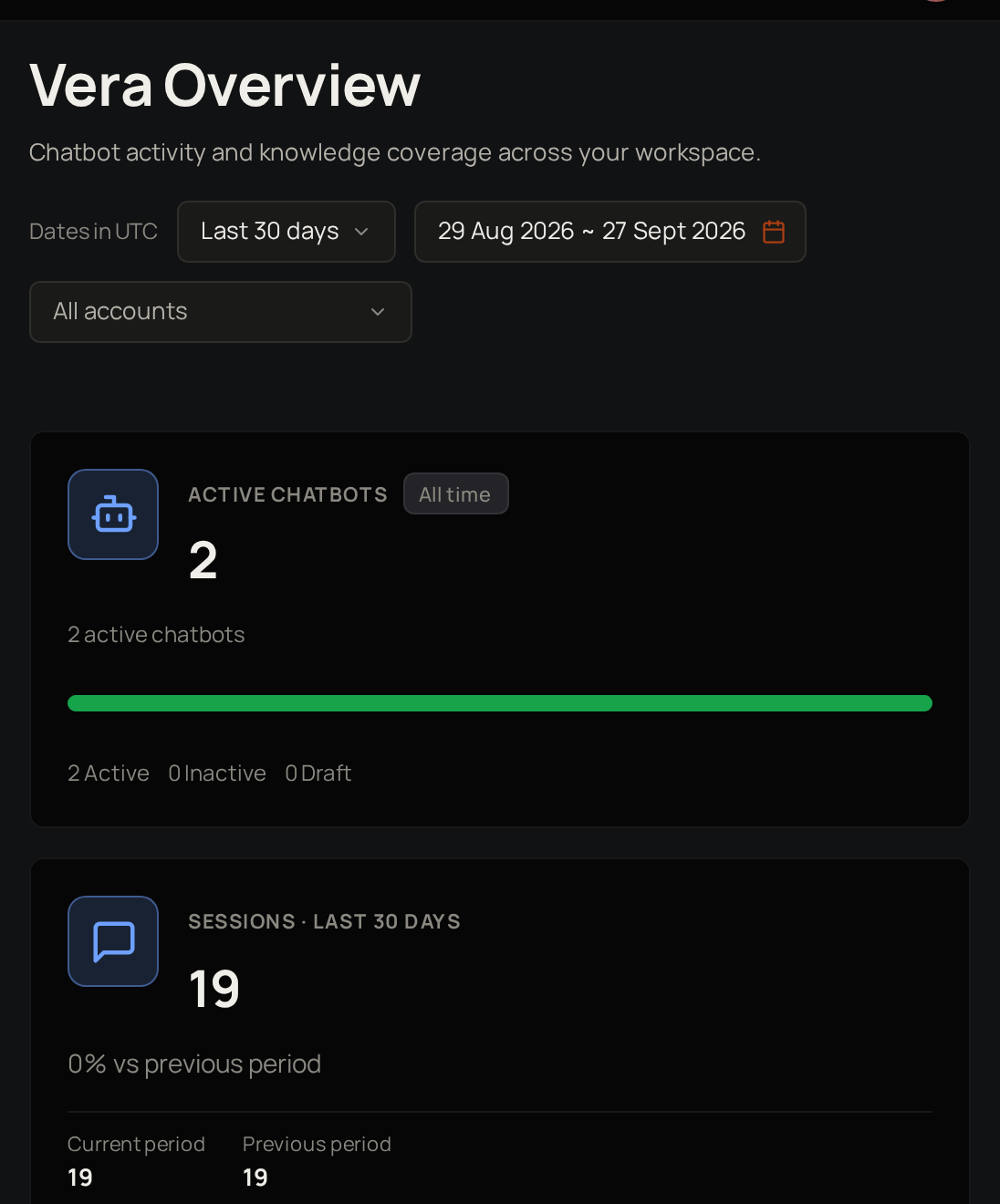 | Area | What you do there |
| --------- | ------------------------------------------------------------------------------- |
| Dashboard | See activity, answered rate and knowledge freshness across all your chatbots. |
| Chatbots | Create chatbots, change their settings, try them out and improve their answers. |
| Knowledge | See and manage the sources behind every chatbot in one list. |
| Sessions | Read conversations and rate the answers. |
| Analytics | Compare chatbots and look closely at one of them. |
| Accounts | See how many conversations came from each of your customer accounts. |
## Key ideas
Answers questions only from the knowledge you give it.
A file, web page or video a chatbot can answer from.
One conversation with a chatbot, from the first question to the last.
A question the chatbot could not answer from its knowledge.
An answer you write yourself, given word for word when the same question comes in.
A source that has not been read again for more than 90 days.
## A chatbot has three states
Just created, and not answering anyone yet.
Turned on and answering questions.
Can be turned on again at any time.
## A source moves through four states
Added and waiting to be read.
Vera is reading it.
The chatbot can answer from it.
Vera could not read it, and you can try again.
## Who can do what
| Task | Tenant Owner | Workspace Admin | Workspace Member |
| ----------------------------------------------------------------------------- | ------------ | --------------- | ---------------- |
| See the dashboard, sessions and analytics | Yes | Yes | Yes |
| Create a chatbot and change its settings | Yes | Yes | Yes |
| Add and remove knowledge sources | Yes | Yes | Yes |
| Rate answers and summarise conversations | Yes | Yes | Yes |
| Export conversations | Yes | Yes | Yes |
| See recommendations on the dashboard | Yes | Yes | No |
| Use the **Training** tab: chatbot health, flagged answers and curated answers | Yes | Yes | No |
Account Admins and Users do not use Vera.
## Where to start
Set one up and turn it on.
Add the files, pages and videos it answers from.
See what people asked and how the chatbot replied.
Fix answers and fill the gaps in its knowledge.
Follow activity, answered rate and unanswered questions.
## Related products
Support for your clients, with every ticket in one place.
Manage, test and improve your AI prompts.
| Area | What you do there |
| --------- | ------------------------------------------------------------------------------- |
| Dashboard | See activity, answered rate and knowledge freshness across all your chatbots. |
| Chatbots | Create chatbots, change their settings, try them out and improve their answers. |
| Knowledge | See and manage the sources behind every chatbot in one list. |
| Sessions | Read conversations and rate the answers. |
| Analytics | Compare chatbots and look closely at one of them. |
| Accounts | See how many conversations came from each of your customer accounts. |
## Key ideas
Answers questions only from the knowledge you give it.
A file, web page or video a chatbot can answer from.
One conversation with a chatbot, from the first question to the last.
A question the chatbot could not answer from its knowledge.
An answer you write yourself, given word for word when the same question comes in.
A source that has not been read again for more than 90 days.
## A chatbot has three states
Just created, and not answering anyone yet.
Turned on and answering questions.
Can be turned on again at any time.
## A source moves through four states
Added and waiting to be read.
Vera is reading it.
The chatbot can answer from it.
Vera could not read it, and you can try again.
## Who can do what
| Task | Tenant Owner | Workspace Admin | Workspace Member |
| ----------------------------------------------------------------------------- | ------------ | --------------- | ---------------- |
| See the dashboard, sessions and analytics | Yes | Yes | Yes |
| Create a chatbot and change its settings | Yes | Yes | Yes |
| Add and remove knowledge sources | Yes | Yes | Yes |
| Rate answers and summarise conversations | Yes | Yes | Yes |
| Export conversations | Yes | Yes | Yes |
| See recommendations on the dashboard | Yes | Yes | No |
| Use the **Training** tab: chatbot health, flagged answers and curated answers | Yes | Yes | No |
Account Admins and Users do not use Vera.
## Where to start
Set one up and turn it on.
Add the files, pages and videos it answers from.
See what people asked and how the chatbot replied.
Fix answers and fill the gaps in its knowledge.
Follow activity, answered rate and unanswered questions.
## Related products
Support for your clients, with every ticket in one place.
Manage, test and improve your AI prompts.