> ## Documentation Index
> Fetch the complete documentation index at: https://docs.intellikon.ai/llms.txt
> Use this file to discover all available pages before exploring further.
# Dashboard and analytics
> See how your chatbots are doing, find the questions they could not answer, and see activity by customer account.
Vera's reports show how much your chatbots are used and how often they find an answer. The **Dashboard** gives the headline figures for the whole workspace. **Analytics** compares your chatbots and lets you look closely at one, including the questions it could not answer. **Accounts** shows how many conversations came from each of your customer accounts. Every report uses UTC dates.
## Before you start
Tenant Owners, Workspace Admins and Workspace Members can see all three. Only Tenant Owners and Workspace Admins see **Recommendations** on the dashboard.
## Read the dashboard
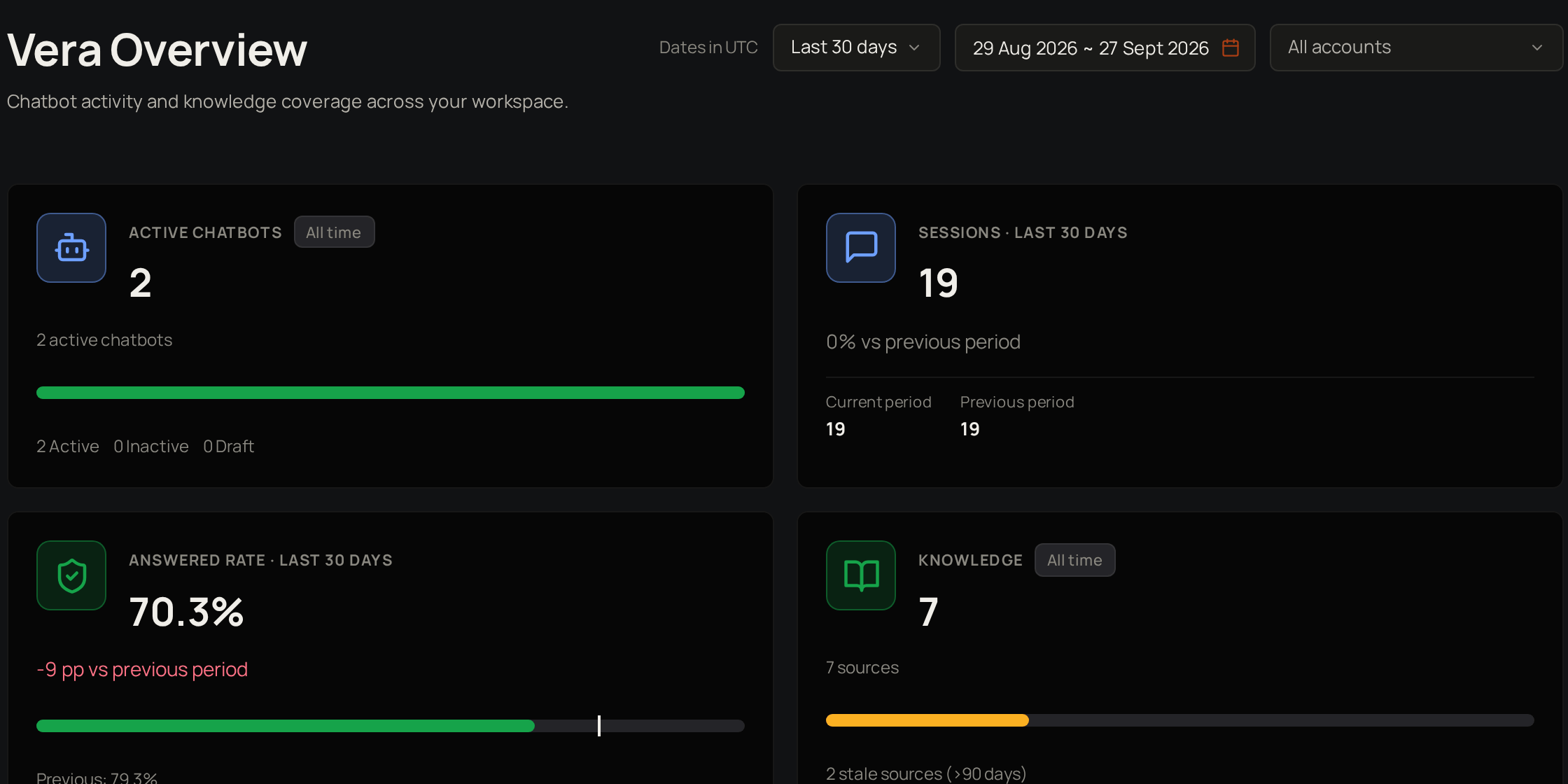 Select **Dashboard**. At the top, choose a period and, if you want, an account under **Account**. Vera shows "Scoped to the chatbots this account has sessions with. Recommendations stay workspace-wide." and narrows every figure and list below to that account, except **Recommendations**. Select **Clear** to see all accounts again.
| Figure | What it shows |
| ------------------- | ------------------------------------------------------------------------------------------------------------------------------------------------------- |
| **Active chatbots** | How many chatbots are turned on now. |
| **Sessions** | How many conversations started in the period, compared with the period before. |
| **Answered rate** | The share of questions the chatbots answered. A question counts as not answered when nothing in the knowledge matched it or it could not be translated. |
| **Knowledge** | How many sources your chatbots have, and how many are stale. |
Below the figures, **Top unanswered questions** lists the questions asked most often in the last 90 days that your chatbots could not answer. **Knowledge freshness** shows how many sources are ready, stale, waiting, being read or failed.
**Recommendations** suggests what to fix, such as stale sources or questions that keep going unanswered. Rate a recommendation with **Helpful** or **Not helpful**, or select **Dismiss** to remove it. Next, [compare your chatbots](#compare-your-chatbots).
## Compare your chatbots
Select **Analytics**. Choose an account under **Account**, if you want, to narrow the totals and the trend to that account. The figures show your chatbots, sessions, messages and any sources that failed to load in the period. **Chatbot Activity** lists each chatbot's sessions and messages, and **Top user languages** shows the languages people wrote in.
Select **Chart interval** to change how a chart groups the dates, such as **Daily** or **Weekly**. Next, [look closely at one chatbot](#look-closely-at-one-chatbot).
## Look closely at one chatbot
Select **Analytics**, then open **Chatbot deep-dive** at the top and choose a chatbot. Check **Sessions**, **User messages**, **Avg. per session** and **Fallback rate**. The fallback rate is the share of questions it could not answer. Read **Top questions** for what people ask most, and **Unanswered questions** for what it could not answer.
Select **Overview** at the top to go back to all chatbots. Next, [work through the unanswered questions](#review-unanswered-questions).
## Review unanswered questions
On a chatbot's deep-dive, **Unanswered questions** lists each question the chatbot could not answer, with how many times it was asked. Use **Search questions** and **Review status** to find one.
When you have dealt with a question, for example by [adding a source](/products/vera/knowledge) or a [curated answer](/products/vera/training#add-a-curated-answer), select **Mark reviewed**, the tick next to it. The question now shows as **Reviewed**, with the date under **Last reviewed**. Next, [see activity by account](#see-activity-by-account).
## The weekly email
Each Monday, if a chatbot had questions it could not answer in the past seven days, Vera emails a Tenant Owner of the workspace, or a Workspace Admin if there is no Tenant Owner. The email names the chatbot, gives the number of unanswered questions and lists up to five of the most common ones.
## See activity by account
Select **Accounts**. The list shows each customer account linked to your workspace, with its industry, domain, the date it was added and how many sessions came from it. Search or sort the list to find one.
Accounts are view only in Vera. Select **Manage in Settings →** to open **Accounts** in Studio settings. Tenant Owners and Workspace Admins can add and change accounts there. Next, go back to the [Vera overview](/products/vera/overview).
## Troubleshooting
No chatbot has had a question it could not answer in the last 90 days, or no one has chatted with them yet.
Only Tenant Owners and Workspace Admins see them.
Weekly needs a period of at least 14 days, and Monthly at least 60. Choose a longer period at the top to see more options.
Select **Dashboard**. At the top, choose a period and, if you want, an account under **Account**. Vera shows "Scoped to the chatbots this account has sessions with. Recommendations stay workspace-wide." and narrows every figure and list below to that account, except **Recommendations**. Select **Clear** to see all accounts again.
| Figure | What it shows |
| ------------------- | ------------------------------------------------------------------------------------------------------------------------------------------------------- |
| **Active chatbots** | How many chatbots are turned on now. |
| **Sessions** | How many conversations started in the period, compared with the period before. |
| **Answered rate** | The share of questions the chatbots answered. A question counts as not answered when nothing in the knowledge matched it or it could not be translated. |
| **Knowledge** | How many sources your chatbots have, and how many are stale. |
Below the figures, **Top unanswered questions** lists the questions asked most often in the last 90 days that your chatbots could not answer. **Knowledge freshness** shows how many sources are ready, stale, waiting, being read or failed.
**Recommendations** suggests what to fix, such as stale sources or questions that keep going unanswered. Rate a recommendation with **Helpful** or **Not helpful**, or select **Dismiss** to remove it. Next, [compare your chatbots](#compare-your-chatbots).
## Compare your chatbots
Select **Analytics**. Choose an account under **Account**, if you want, to narrow the totals and the trend to that account. The figures show your chatbots, sessions, messages and any sources that failed to load in the period. **Chatbot Activity** lists each chatbot's sessions and messages, and **Top user languages** shows the languages people wrote in.
Select **Chart interval** to change how a chart groups the dates, such as **Daily** or **Weekly**. Next, [look closely at one chatbot](#look-closely-at-one-chatbot).
## Look closely at one chatbot
Select **Analytics**, then open **Chatbot deep-dive** at the top and choose a chatbot. Check **Sessions**, **User messages**, **Avg. per session** and **Fallback rate**. The fallback rate is the share of questions it could not answer. Read **Top questions** for what people ask most, and **Unanswered questions** for what it could not answer.
Select **Overview** at the top to go back to all chatbots. Next, [work through the unanswered questions](#review-unanswered-questions).
## Review unanswered questions
On a chatbot's deep-dive, **Unanswered questions** lists each question the chatbot could not answer, with how many times it was asked. Use **Search questions** and **Review status** to find one.
When you have dealt with a question, for example by [adding a source](/products/vera/knowledge) or a [curated answer](/products/vera/training#add-a-curated-answer), select **Mark reviewed**, the tick next to it. The question now shows as **Reviewed**, with the date under **Last reviewed**. Next, [see activity by account](#see-activity-by-account).
## The weekly email
Each Monday, if a chatbot had questions it could not answer in the past seven days, Vera emails a Tenant Owner of the workspace, or a Workspace Admin if there is no Tenant Owner. The email names the chatbot, gives the number of unanswered questions and lists up to five of the most common ones.
## See activity by account
Select **Accounts**. The list shows each customer account linked to your workspace, with its industry, domain, the date it was added and how many sessions came from it. Search or sort the list to find one.
Accounts are view only in Vera. Select **Manage in Settings →** to open **Accounts** in Studio settings. Tenant Owners and Workspace Admins can add and change accounts there. Next, go back to the [Vera overview](/products/vera/overview).
## Troubleshooting
No chatbot has had a question it could not answer in the last 90 days, or no one has chatted with them yet.
Only Tenant Owners and Workspace Admins see them.
Weekly needs a period of at least 14 days, and Monthly at least 60. Choose a longer period at the top to see more options.