> ## Documentation Index
> Fetch the complete documentation index at: https://docs.intellikon.ai/llms.txt
> Use this file to discover all available pages before exploring further.
# Sessions
> Read conversations with your chatbots, rate the answers, and export them.
A session is one conversation with a chatbot, from the first question to the last. **Sessions** keeps every conversation, including the ones you have in **Live Preview**, so you can see what people ask and how each chatbot replied. You can rate any answer, ask Vera to summarise a conversation, and see the themes that come up across a chatbot's conversations.
## Before you start
Tenant Owners, Workspace Admins and Workspace Members can read sessions, rate answers and export conversations.
## Read a conversation
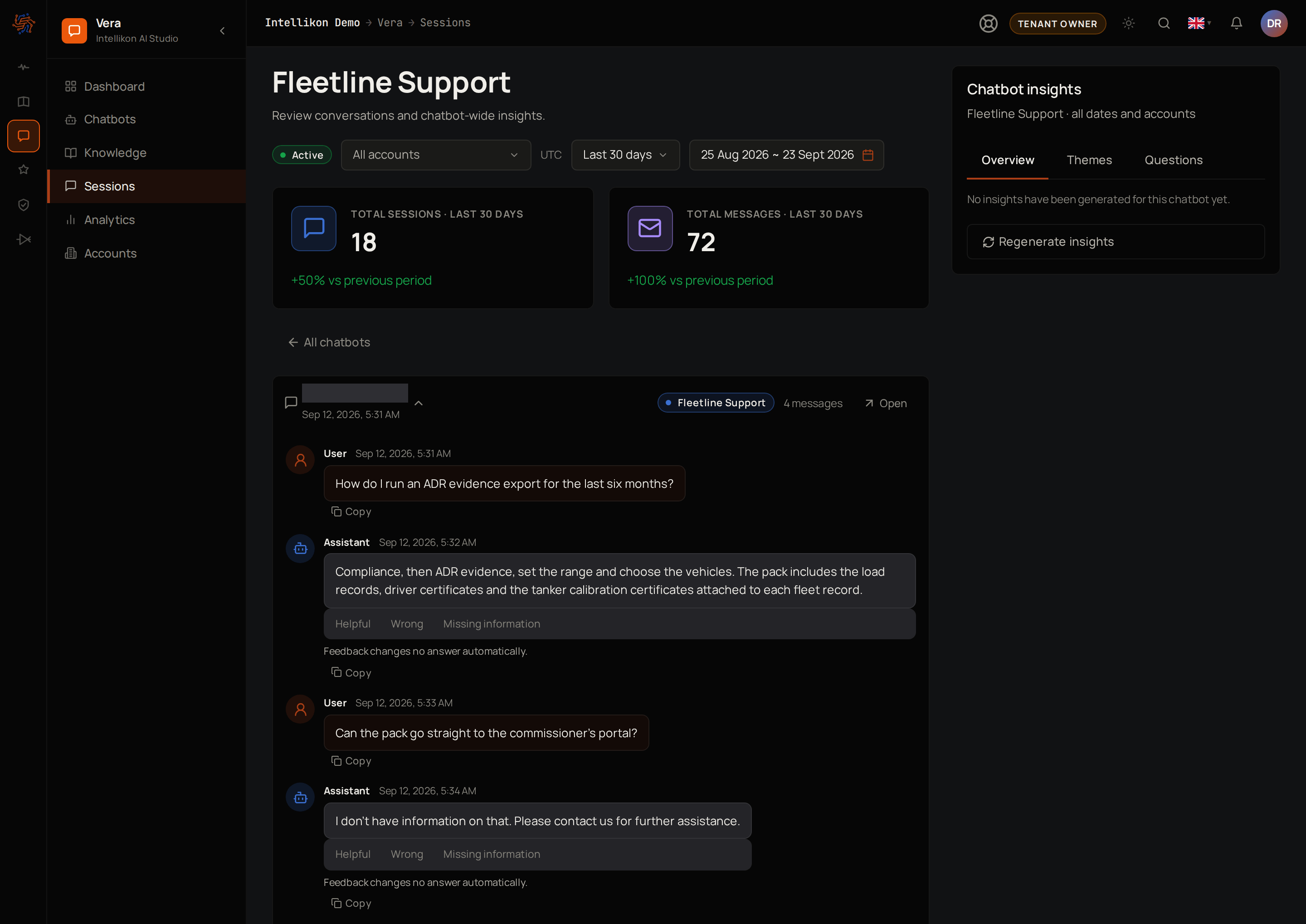 Select **Sessions**. The page shows how many sessions each chatbot had in the period chosen at the top. Choose a period, and pick an account under **Account** to see only the conversations linked to that customer account.
Under **All chatbots**, select **Open** on the chatbot, then select a session to expand it. Each question is marked **User** and each reply **Assistant**. Select **Open** on the session to see it alone, with the other sessions listed beside it.
Select **Back to sessions** to return to the list, or **All chatbots** to pick another chatbot. Next, [rate an answer](#rate-an-answer).
## Rate an answer
Under any reply from the chatbot, select **Helpful**, **Wrong** or **Missing information**. Each person has one rating per answer, and you can change yours at any time by selecting another.
Ratings do not change any answer on their own. Answers rated **Wrong** or **Missing information** appear under **Flagged answers** on the chatbot's **Training** tab, where Tenant Owners and Workspace Admins can [fix them](/products/vera/training#review-flagged-answers). Next, [summarise a conversation](#summarise-a-conversation).
## Summarise a conversation
Expand a session.
Under **Conversation summary**, select **Generate summary**.
Vera writes a short summary of that conversation. Select **Regenerate summary** to write it again, for example after more messages. Next, [see themes across conversations](#see-themes-across-conversations).
## See themes across conversations
**Chatbot insights**, beside a chatbot's sessions, sums up its conversations across all dates and accounts. **Overview** shows the top themes, the questions left unresolved and suggested actions. **Themes** and **Questions** show the first two on their own.
Insights are built from conversation summaries, so [summarise some conversations](#summarise-a-conversation) first. Then select **Regenerate insights**. The panel shows how many sessions the insights are based on. Next, [export conversations](#export-conversations).
## Export conversations
Select **Sessions**. The page shows how many sessions each chatbot had in the period chosen at the top. Choose a period, and pick an account under **Account** to see only the conversations linked to that customer account.
Under **All chatbots**, select **Open** on the chatbot, then select a session to expand it. Each question is marked **User** and each reply **Assistant**. Select **Open** on the session to see it alone, with the other sessions listed beside it.
Select **Back to sessions** to return to the list, or **All chatbots** to pick another chatbot. Next, [rate an answer](#rate-an-answer).
## Rate an answer
Under any reply from the chatbot, select **Helpful**, **Wrong** or **Missing information**. Each person has one rating per answer, and you can change yours at any time by selecting another.
Ratings do not change any answer on their own. Answers rated **Wrong** or **Missing information** appear under **Flagged answers** on the chatbot's **Training** tab, where Tenant Owners and Workspace Admins can [fix them](/products/vera/training#review-flagged-answers). Next, [summarise a conversation](#summarise-a-conversation).
## Summarise a conversation
Expand a session.
Under **Conversation summary**, select **Generate summary**.
Vera writes a short summary of that conversation. Select **Regenerate summary** to write it again, for example after more messages. Next, [see themes across conversations](#see-themes-across-conversations).
## See themes across conversations
**Chatbot insights**, beside a chatbot's sessions, sums up its conversations across all dates and accounts. **Overview** shows the top themes, the questions left unresolved and suggested actions. **Themes** and **Questions** show the first two on their own.
Insights are built from conversation summaries, so [summarise some conversations](#summarise-a-conversation) first. Then select **Regenerate insights**. The panel shows how many sessions the insights are based on. Next, [export conversations](#export-conversations).
## Export conversations
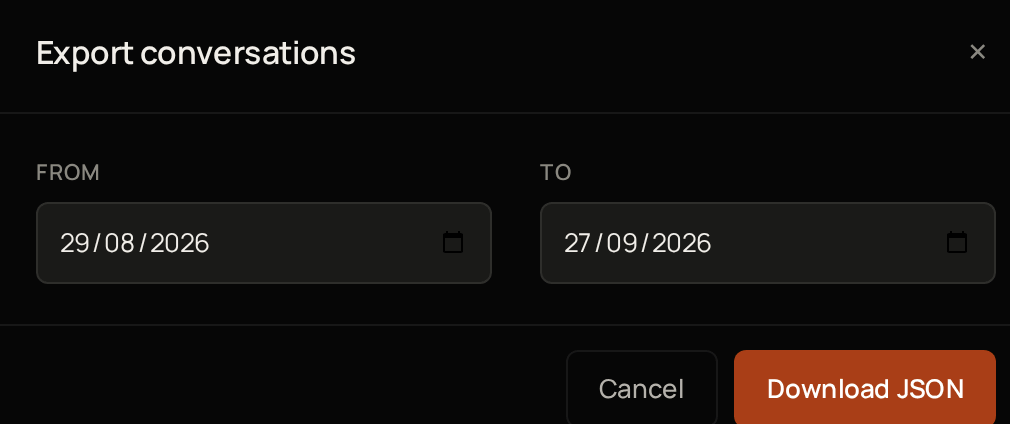 Select **Chatbots**, then **Open** on the chatbot.
Select **Export conversations**.
Set **From**.
Set **To**.
Select **Download JSON**.
Your browser saves a file with every session started between those dates, and all of its messages. Next, [see how your chatbots are doing](/products/vera/reports).
## Troubleshooting
Generate a summary for at least one of the chatbot's conversations, then select **Regenerate insights** again.
Choose a longer period at the top, or set **Account** back to **All accounts**.
Make sure **From** is on or before **To**.
Select **Chatbots**, then **Open** on the chatbot.
Select **Export conversations**.
Set **From**.
Set **To**.
Select **Download JSON**.
Your browser saves a file with every session started between those dates, and all of its messages. Next, [see how your chatbots are doing](/products/vera/reports).
## Troubleshooting
Generate a summary for at least one of the chatbot's conversations, then select **Regenerate insights** again.
Choose a longer period at the top, or set **Account** back to **All accounts**.
Make sure **From** is on or before **To**.