> ## Documentation Index
> Fetch the complete documentation index at: https://docs.intellikon.ai/llms.txt
> Use this file to discover all available pages before exploring further.
# Improve answers
> See how a chatbot is doing, review the answers people flagged, and write answers it gives word for word.
The **Training** tab on a chatbot's page shows how well it is answering and helps you fix what goes wrong. **Chatbot health** counts the questions it answered and the ones it could not. **Flagged answers** lists answers someone marked as wrong or missing information. **Curated answers** are answers you write yourself; when someone asks the same question, the chatbot gives your answer exactly as written instead of writing its own.
## Before you start
Tenant Owners and Workspace Admins can use the **Training** tab. Answers are flagged when someone rates them **Wrong** or **Missing information** in [Sessions](/products/vera/sessions#rate-an-answer) or in **Live Preview**.
## Check a chatbot's health
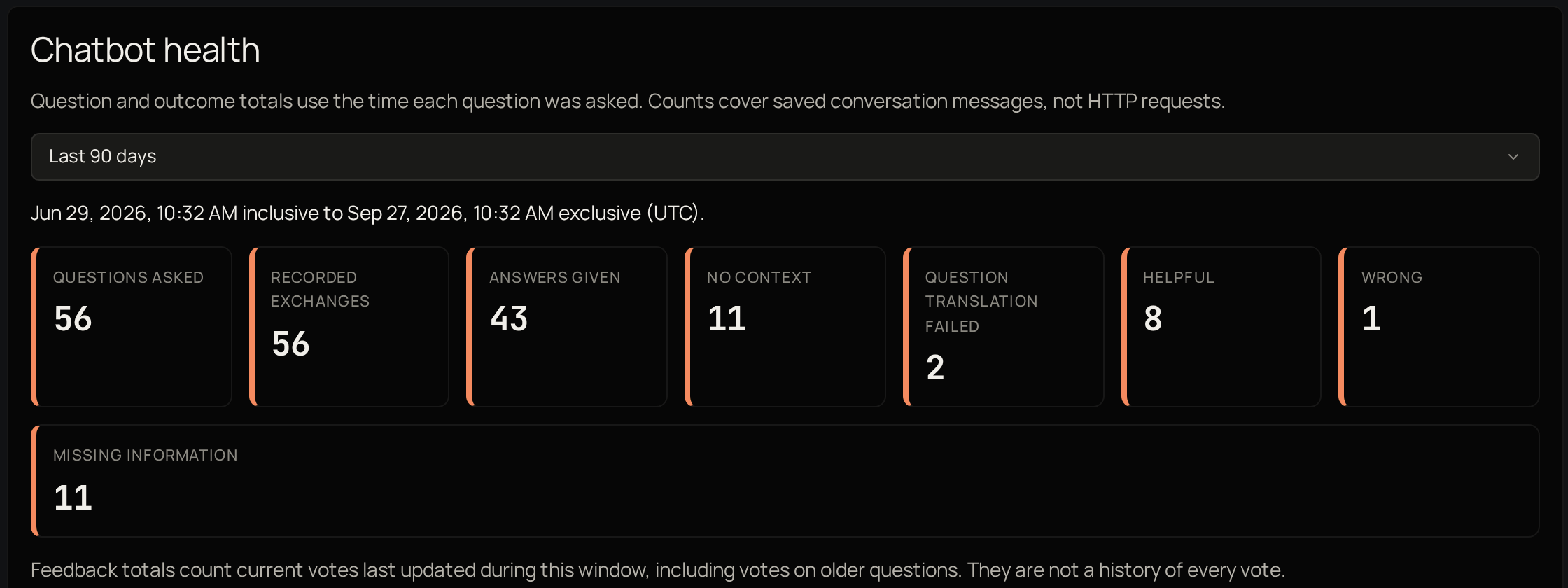 Select **Chatbots**, then **Open** on the chatbot, and select the **Training** tab. Under **Chatbot health**, choose **Last 7 days**, **Last 30 days** or **Last 90 days**. Under **Recorded exchanges**, keep the filter on **Needs attention** to list the questions it could not answer and the answers marked wrong.
The figures show how many questions were asked, how many got an answer, and how many had **No context**, which means nothing in the chatbot's knowledge matched. **Source health** below shows whether each source is ready and, for web pages, when it was last read. Next, [review flagged answers](#review-flagged-answers).
## Review flagged answers
On the **Training** tab, look under **Flagged answers**. The newest feedback is at the top. Select **View evidence** to see which parts of the chatbot's knowledge it used for that answer, then **Add a curated answer** to write the right answer for that question.
Evidence is kept for 90 days. After that, **View evidence** says it is unavailable.
The **Create curated answer** form opens with the question filled in. Carry on from **Write the answer** in [add a curated answer](#add-a-curated-answer). Feedback on its own does not change any answer. If the answer was missing because the knowledge does not cover it, [add a source](/products/vera/knowledge) instead.
## Add a curated answer
A curated answer is given only when a question is almost exactly the same as the one you wrote. A question worded differently is answered from the chatbot's knowledge as usual.
On the **Training** tab, under **Curated answers**, select **Create curated answer**.
Under **Question**, type the question as people ask it.
Under **Answer as written**, type the answer exactly as you want it given.
Under **Authored answer language**, choose the language you wrote the answer in. The chatbot gives it in this language, whatever language the question comes in.
Under **Optional source to cite**, choose one of the chatbot's sources to show with the answer.
Select **Create curated answer**.
The answer appears in the **Curated answers** list as revision 1. Next, try it in [Live Preview](/products/vera/chatbots#try-it-in-live-preview) by asking the same question.
## Change a curated answer
Select **Chatbots**, then **Open** on the chatbot, and select the **Training** tab. Under **Chatbot health**, choose **Last 7 days**, **Last 30 days** or **Last 90 days**. Under **Recorded exchanges**, keep the filter on **Needs attention** to list the questions it could not answer and the answers marked wrong.
The figures show how many questions were asked, how many got an answer, and how many had **No context**, which means nothing in the chatbot's knowledge matched. **Source health** below shows whether each source is ready and, for web pages, when it was last read. Next, [review flagged answers](#review-flagged-answers).
## Review flagged answers
On the **Training** tab, look under **Flagged answers**. The newest feedback is at the top. Select **View evidence** to see which parts of the chatbot's knowledge it used for that answer, then **Add a curated answer** to write the right answer for that question.
Evidence is kept for 90 days. After that, **View evidence** says it is unavailable.
The **Create curated answer** form opens with the question filled in. Carry on from **Write the answer** in [add a curated answer](#add-a-curated-answer). Feedback on its own does not change any answer. If the answer was missing because the knowledge does not cover it, [add a source](/products/vera/knowledge) instead.
## Add a curated answer
A curated answer is given only when a question is almost exactly the same as the one you wrote. A question worded differently is answered from the chatbot's knowledge as usual.
On the **Training** tab, under **Curated answers**, select **Create curated answer**.
Under **Question**, type the question as people ask it.
Under **Answer as written**, type the answer exactly as you want it given.
Under **Authored answer language**, choose the language you wrote the answer in. The chatbot gives it in this language, whatever language the question comes in.
Under **Optional source to cite**, choose one of the chatbot's sources to show with the answer.
Select **Create curated answer**.
The answer appears in the **Curated answers** list as revision 1. Next, try it in [Live Preview](/products/vera/chatbots#try-it-in-live-preview) by asking the same question.
## Change a curated answer
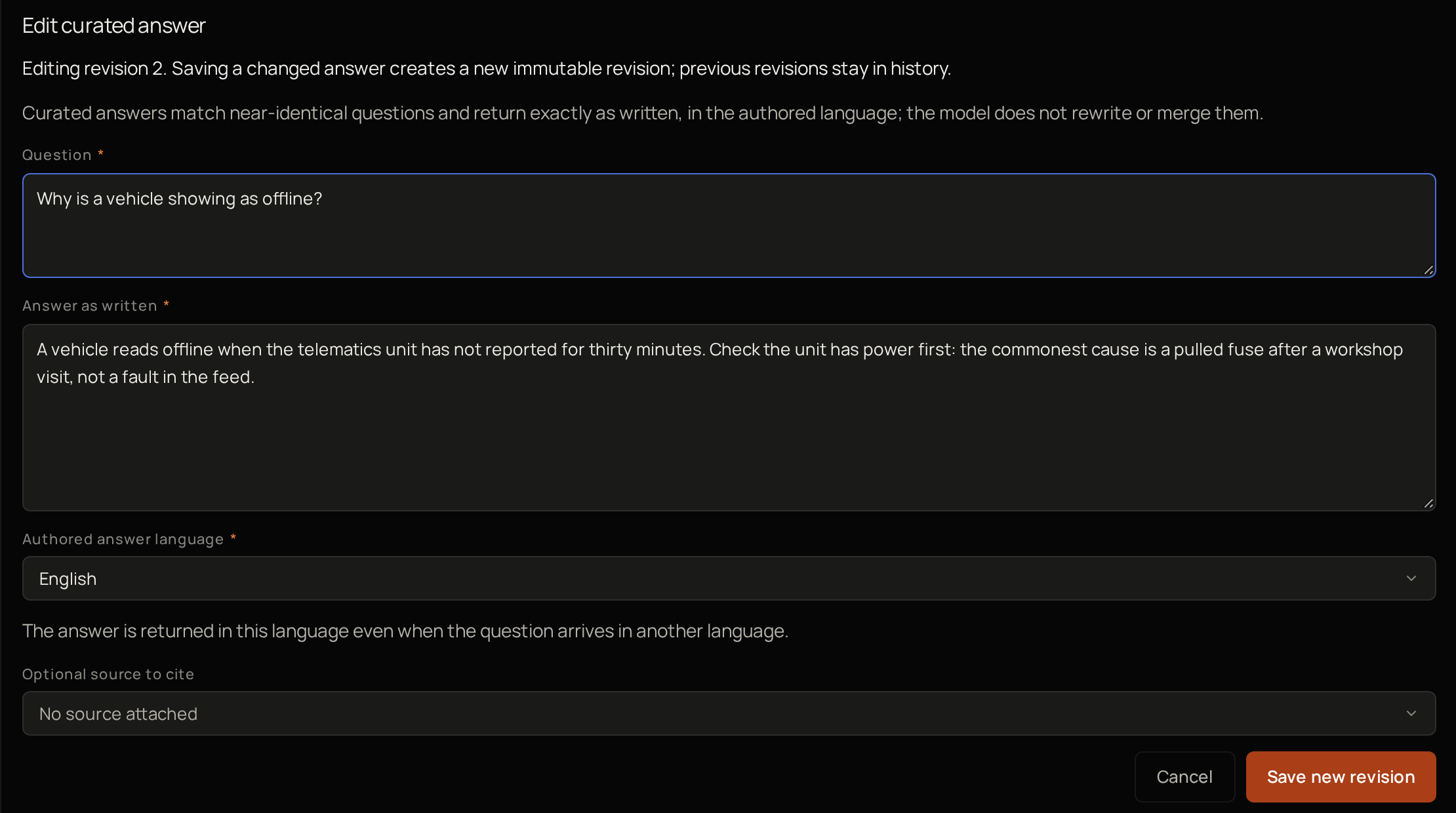 Select **Edit curated answer** on the answer.
Make your changes.
Select **Save new revision**.
Each save keeps the earlier version. Select **Revision history** to see every version and who saved it, or **View answer** to read the current one. Next, go back to the [Vera overview](/products/vera/overview).
## Troubleshooting
Fill in **Question** and **Answer as written**, keep each within the space the box allows, and choose an **Authored answer language**.
Someone else saved the answer while you were editing it. Your text is kept. Select **Review latest revision** and read it. Then confirm you have reviewed it and want to keep your draft, and select **Save new revision** again.
A chatbot can have up to 100 curated answers. The count is shown above the list.
Select **Edit curated answer** on the answer.
Make your changes.
Select **Save new revision**.
Each save keeps the earlier version. Select **Revision history** to see every version and who saved it, or **View answer** to read the current one. Next, go back to the [Vera overview](/products/vera/overview).
## Troubleshooting
Fill in **Question** and **Answer as written**, keep each within the space the box allows, and choose an **Authored answer language**.
Someone else saved the answer while you were editing it. Your text is kept. Select **Review latest revision** and read it. Then confirm you have reviewed it and want to keep your draft, and select **Save new revision** again.
A chatbot can have up to 100 curated answers. The count is shown above the list.