

 Pulse
Pulse Lexis
Lexis Vera
Vera Aegis
Aegis Prism
Prism Nucleus
Before you start
Tenant Owners, Workspace Admins and Workspace Members can see Aegis settings. Only Tenant Owners and Workspace Admins can change them.Set reply times
1
Find the targets
Go to Response-time SLA targets.
2
Set the P1 time
For P1, enter how many minutes your team has to reply. Aegis shows each time in hours and minutes underneath.
3
Set the P2 time
For P2, enter how many minutes your team has to reply.
4
Set the P3 time
For P3, enter how many minutes your team has to reply.
5
Save
Select Save settings.
Add a category
Customers choose one of these categories when they raise a ticket, and your team can change it on the ticket later. Category changes save straight away.1
Name a new category
Under Categories, type in New category name.
2
Add it
Select Add.
Rename a category
1
Start renaming
Select the pencil next to a category.
2
Change the name
Change the name.
3
Save the name
Select Save.
Hide a category
Select Disable to hide a category from customers. The category now shows as Inactive, and its button reads Enable. Next, bring a category back.Bring a category back
If you want a hidden category back, select Enable. The category shows as Active again. Next, change the order of categories.Change the order of categories
Drag a category by its handle to where you want it. The list keeps the new order. Next, decide how questions are answered.Answer questions before they become tickets
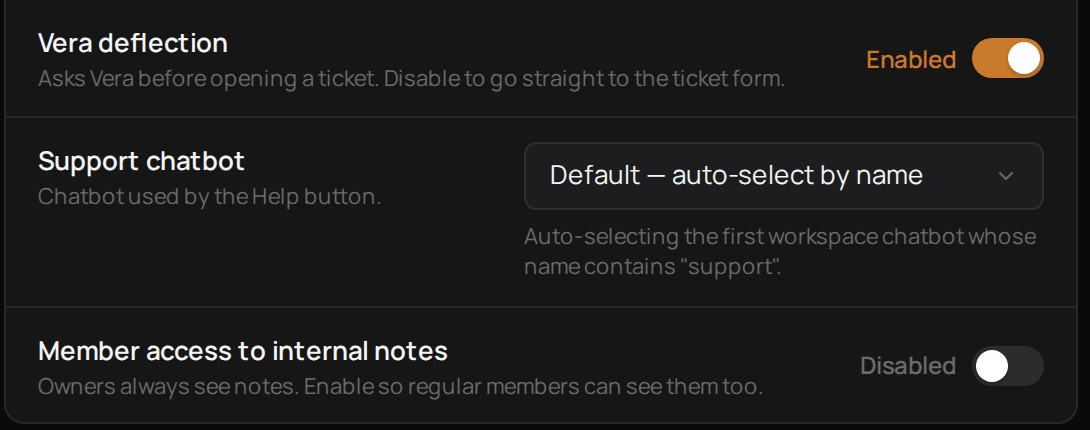
1
Turn it on or off
Use the switch next to Vera deflection. When it is off, a question goes straight to the ticket form.
2
Choose the chatbot
Under Support chatbot, pick the Vera chatbot that answers. Default lets Aegis choose, starting with any chatbot that has “support” in its name.
3
Save
Select Save settings to keep the switch. The chatbot you pick is saved as soon as you choose it.
Let Workspace Members read internal notes
Tenant Owners and Workspace Admins always see internal notes. You can let Workspace Members read them too.1
Turn on access
Turn on Member access to internal notes.
2
Save
Select Save settings.
Troubleshooting
If the settings say they are read-only for your role
If the settings say they are read-only for your role
Ask a Tenant Owner or Workspace Admin to make the change.
If Support chatbot is greyed out
If Support chatbot is greyed out
Turn on Vera deflection first. The chatbot can only be chosen while it is on.
If Aegis says the chatbot has no knowledge base
If Aegis says the chatbot has no knowledge base
That chatbot cannot answer yet, so questions go straight to the ticket form. Add knowledge to it in Vera, or choose another chatbot.