

 Pulse
Pulse Lexis
Lexis Vera
Vera Aegis
Aegis Prism
Prism Nucleus
Before you start
Tenant Owners, Workspace Admins and Workspace Members can promote to dev and staging. Only Tenant Owners and Workspace Admins can promote to production. Promotion goes most smoothly when the version has passed an automatic evaluation. To have every new version evaluated when you save it, turn on automatic evaluation.Promote a version
1
Open the prompt
Select Prompts, then the prompt. Promote works on the newest version.
2
Start
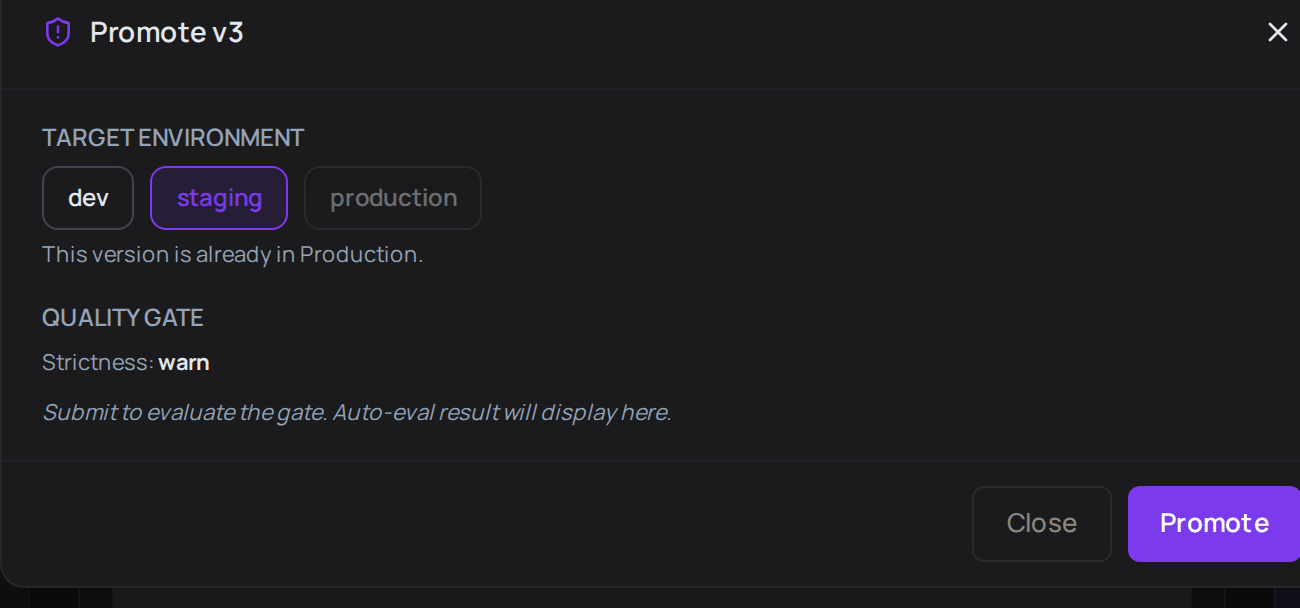
Select Promote.
3
Choose the environment
Under Target environment, choose dev, staging or production.
4
Promote
Select Promote.
5
Give a reason if asked
If an Override reason box appears, the version has no passing automatic evaluation. Write why it should go ahead anyway.
6
Promote again
If you gave a reason, select Promote again.
7
Close
When the dialog shows Promoted to and the environment, select Close.
See past promotions
On the prompt, select the Promotions tab. It lists promotions of this prompt, with when it happened, the version, the change of environment, who asked for it and any notes. Status shows Auto-approved when the version passed its evaluation, and Override (warn) when someone gave a reason instead. Next, set the prompt’s release policy.Set a prompt’s release policy
1
Open the policy
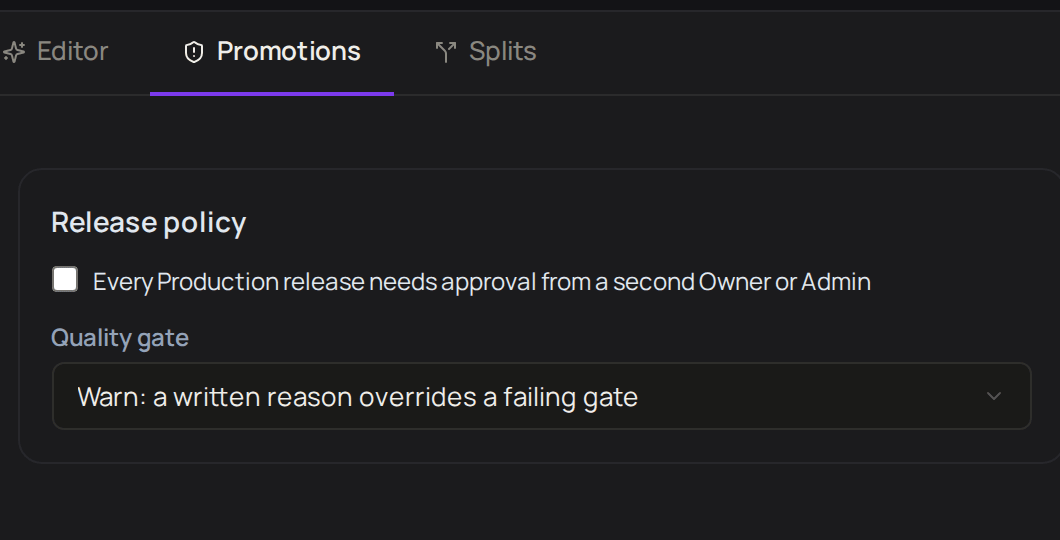
On the prompt, select the Promotions tab. Release policy is at the top.
2
Ask for a second approval if you want one
Tick Every Production release needs approval from a second Owner or Admin.
3
Choose how strict the check is
Under Quality gate, choose Off, Warn or Block.
- Off never stops a release.
- Warn lets a version that has not passed go ahead once someone writes a reason.
- Block stops it unless a Tenant Owner or Workspace Admin writes a reason.
Troubleshooting
The production option is greyed out
The production option is greyed out
If the dialog says This version is already in Production, there is nothing to promote. Save a new version and promote that. Otherwise, only Tenant Owners and Workspace Admins can promote to production, so ask one of them.
The dialog says "No auto-eval has run on this version yet"
The dialog says "No auto-eval has run on this version yet"
Give an Override reason, or turn on automatic evaluation and save a new version so it is evaluated first.
Promote is greyed out
Promote is greyed out
You are looking at an older version. Select the newest version in Version history, then select Promote.