
Every prompt in Nucleus is filed under a product and a type. A product is a group, such as Pulse or Aegis, and a type is a kind of prompt within it, such as an outreach draft or a ticket triage. You choose both when you create a prompt, and you can filter Prompts by them. Nucleus settings is where you add and change them.

Before you start

Nucleus settings is for Tenant Owners and Workspace Admins. Open it from Settings at the bottom of the Nucleus sidebar. It has two tabs, Products and Types.

Add a product

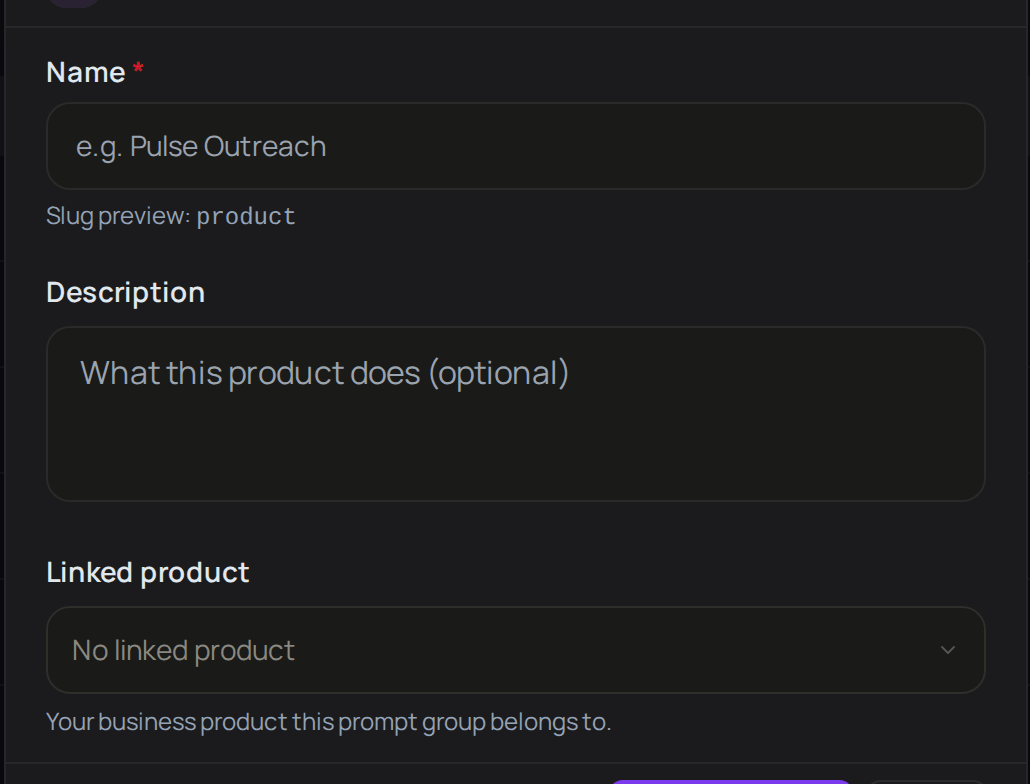
The New Product window, with Name and its slug preview, Description and Linked product.
1

Start a product

Select Settings, then Add Product.
2

Name it

Enter a Name. Nucleus shows the slug it will use underneath.
3

Describe it

Add a Description if you want one.
4

Create it

Select Create Product.
The product now appears on the Products tab with no types yet. Next, add a type to it.

Add a type

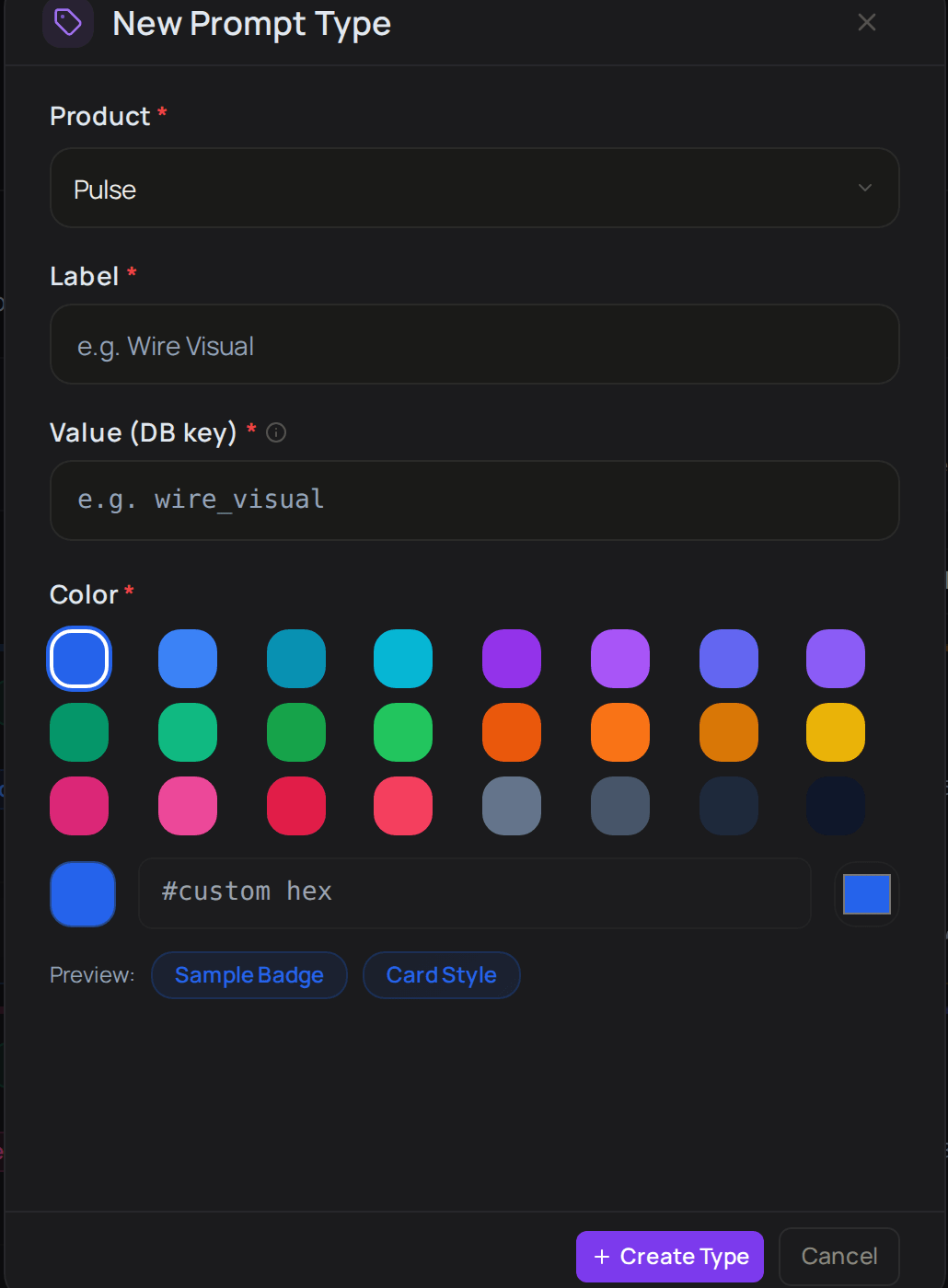
The New Prompt Type window, with Product, Label, Value (DB key), Color with a preview, Create Type and Cancel.
1

Start a type

Select Settings, the Types tab, then Add Type.
2

Choose the product

Pick the Product the type belongs to.
3

Name it

Enter a Label, such as “Renewal reminder”.
4

Pick a colour

Choose a Color. The preview shows how the type’s badge will look.
5

Create it

Select Create Type.
The type now appears on the Types tab, and the product’s count of types goes up by one. When someone creates a prompt and chooses this product, the type is in the Type list. Next, create a prompt with it.

Change a product or type

1

Open it

On Products, select Edit product on the row, or on Types, select Edit on the type.
2

Make your change

Make your change.
3

Save

Select Save Changes.
The new name shows straight away in the list. Next, create a prompt.

Troubleshooting

Nucleus settings is for Tenant Owners and Workspace Admins. Ask one of them to add the product or type you need.