

 Pulse
Pulse Lexis
Lexis Vera
Vera Aegis
Aegis Prism
Prism Nucleus
Before you start
Tenant Owners and Workspace Admins can change the workspace’s certificate settings. Workspace Members see them as view only. Anyone who builds modules can change a module’s own certificate settings.Set up certificates for your workspace
1
Open the settings
Select Settings in the Lexis sidebar and find Certification.
2
Turn certificates on
Turn on Enable certification.
3
Name the issuer
Enter an Issuer display name if certificates should carry a brand other than your workspace name.
4
Choose how long it lasts
Under Certificate validity period, choose Indefinite, 6 months, 1 year or 2 years.
5
Save
Select Save at the bottom of the section.
Choose how certificates look
1
Open the settings
Select Settings in the Lexis sidebar and find Certification.
2
Add skill tags
Add Default skill tags if you want them on every certificate.
3
Choose the design
Under Certificate template, choose Default, Formal, Minimal or Branded.
4
Set a colour
Set a Certificate accent colour if you want your own.
5
Add a logo
Add a Logo if you want your own.
6
Add a signature
Add Signature text if you want it on every certificate.
7
Save
Select Save at the bottom of the section.
Email learners their certificates
Select Settings in the Lexis sidebar and find Enrolment. Check that Email on certification is on. It is on unless someone has turned it off. If it is off, turn it back on and select Save. Each learner then gets an email when they earn a certificate, with a link to check it. Next, give a module its own certificate settings if it needs them.Give a module its own certificate settings
1
Open the module
Select Modules, then select the module.
2
Open its certificate settings
At the top of the module, select Certificate.
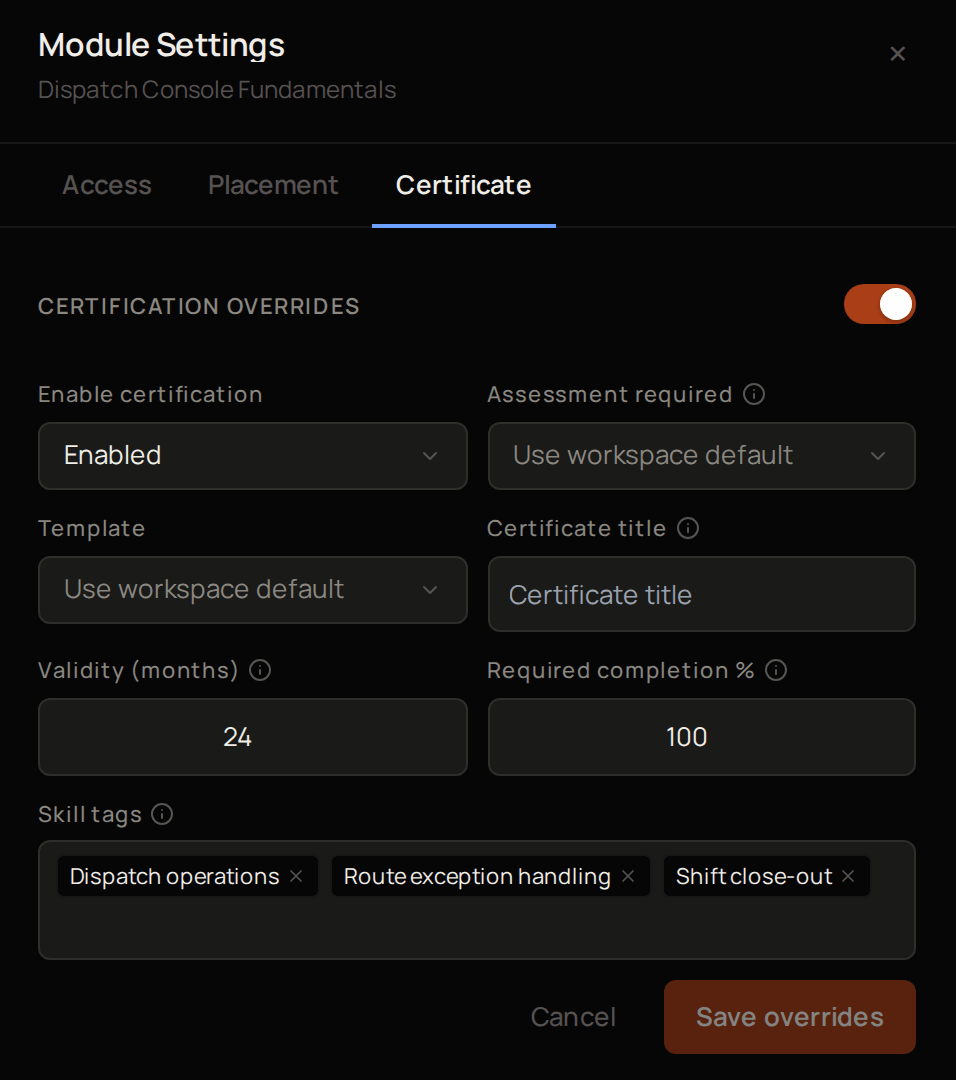
3
Override the defaults
Turn on the switch next to Certification overrides. If it is already on, select Edit.
4
Change what differs
Set Enable certification, Template, Certificate title, Validity (months) or Skill tags for this module wherever it differs. Anything you leave at Use workspace default or blank follows your workspace settings.
5
Save
Select Save overrides.
Stop issuing certificates for a while
1
Open the settings
Select Settings in the Lexis sidebar and find Certification.
2
Suspend certificates
Turn on Suspend all certification.
3
Save
Select Save.
See issued certificates
Select Certifications to see every certificate issued in your workspace. A certificate appears here as soon as a learner earns it. Next, see what your customer sees when someone checks a certificate.What your customer sees
Every certificate carries a code and a link that anyone can use to check it. A person checking a certificate, such as the learner’s employer, opens the link, or enters the code on the Find a certificate page and selects Verify.Troubleshooting
A learner finished a module but has no certificate
A learner finished a module but has no certificate
Check that Suspend all certification is off and Enable certification is on. Then open the module and check that its Certification overrides do not turn certificates off.
Validity (months) says Must be between 1 and 240
Validity (months) says Must be between 1 and 240
Enter a whole number of months from 1 to 240, or leave it blank to use your workspace setting.
The settings say View-only
The settings say View-only
Only Tenant Owners and Workspace Admins can change them. Ask one of them to make the change.