

 Pulse
Pulse Lexis
Lexis Vera
Vera Aegis
Aegis Prism
Prism Nucleus
Before you start
The learner’s company must already be an account in Studio. Accounts are managed in Studio settings under Accounts.Invite a learner
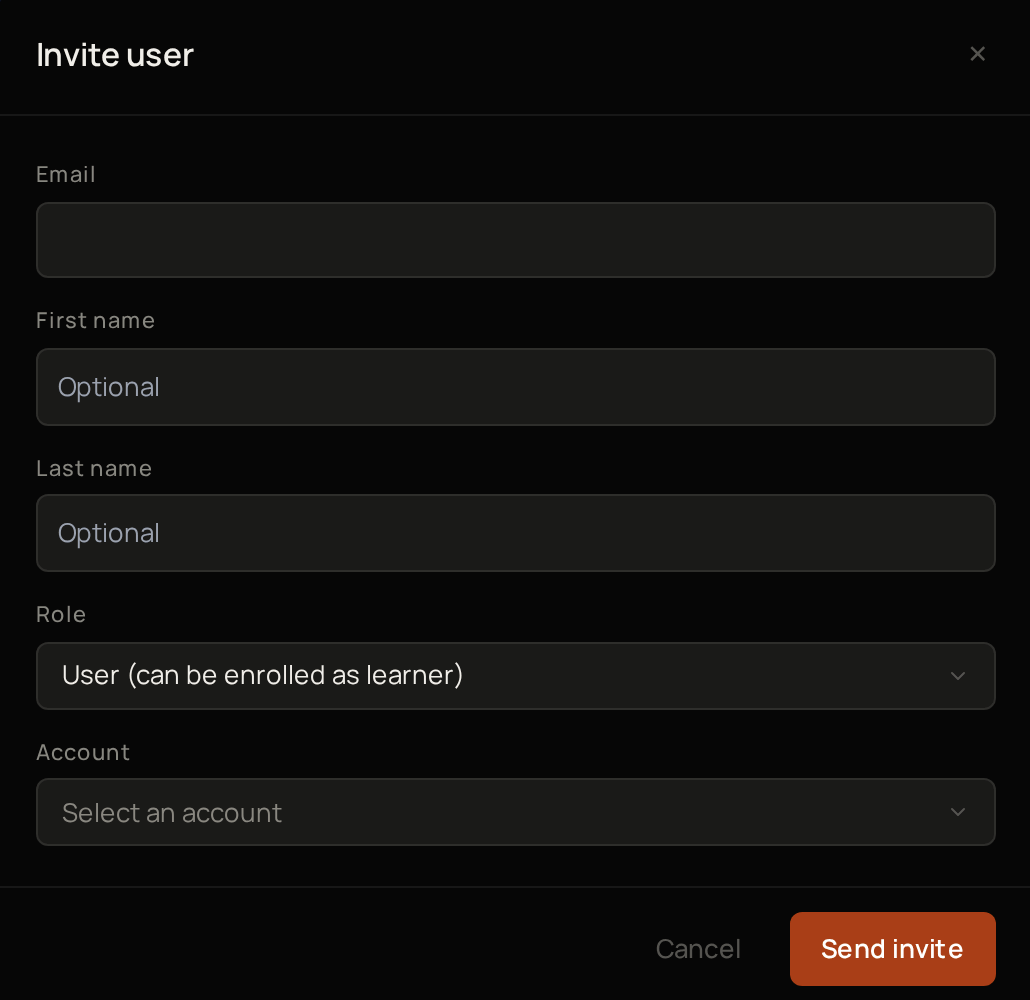
1
Open the form
Select Learners, then + Invite user.
2
Enter their email
Enter their Email.
3
Add their first name
Enter their First name if you want.
4
Add their last name
Enter their Last name if you want.
5
Choose their role
Under Role, keep User (can be enrolled as learner), or choose Account Admin.
6
Choose their account
Under Account, choose the company they work for.
7
Send it
Select Send invite.
Enrol a learner in a module
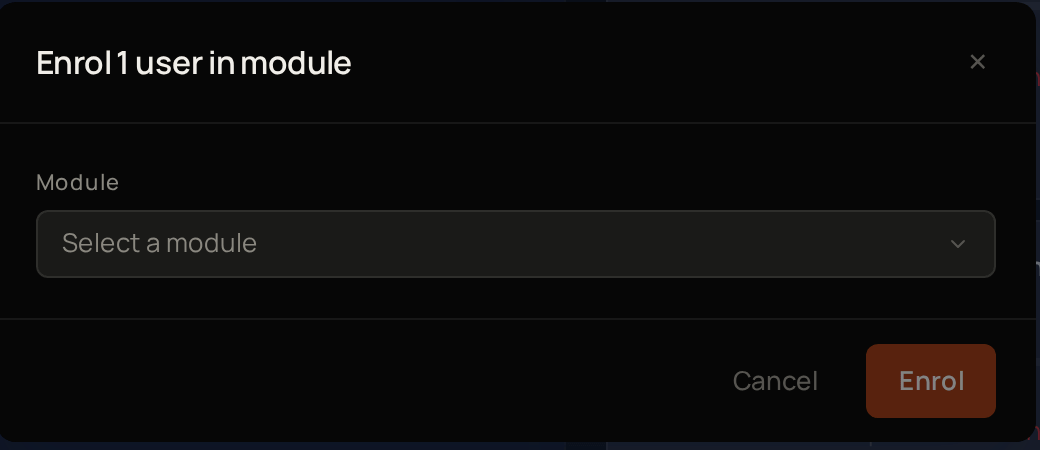
1
Open the learner
Select Learners, then select the learner’s name.
2
Start the enrolment
Select Enrol in module.
3
Choose the module
Under Module, choose the module.
4
Enrol them
Select Enrol.
1
Choose the learners
In Learners, tick each learner in the list.
2
Start the enrolment
Select Enrol in module in the bar that appears.
Enrol everyone in an account
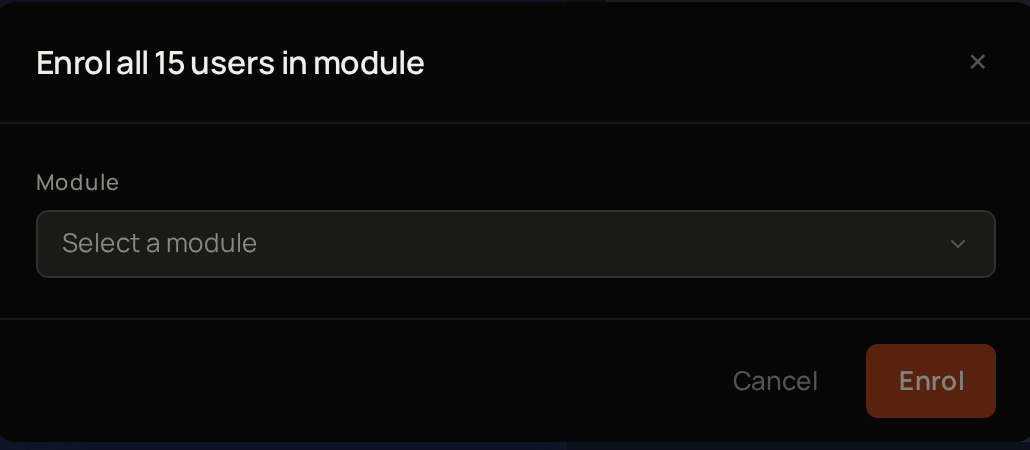
1
Open the account
Select Accounts, then select the account.
2
Start the enrolment
Select Bulk enrol all.
3
Choose the module
Under Module, choose the module.
4
Enrol them
Select Enrol.
Reset, complete or remove a module
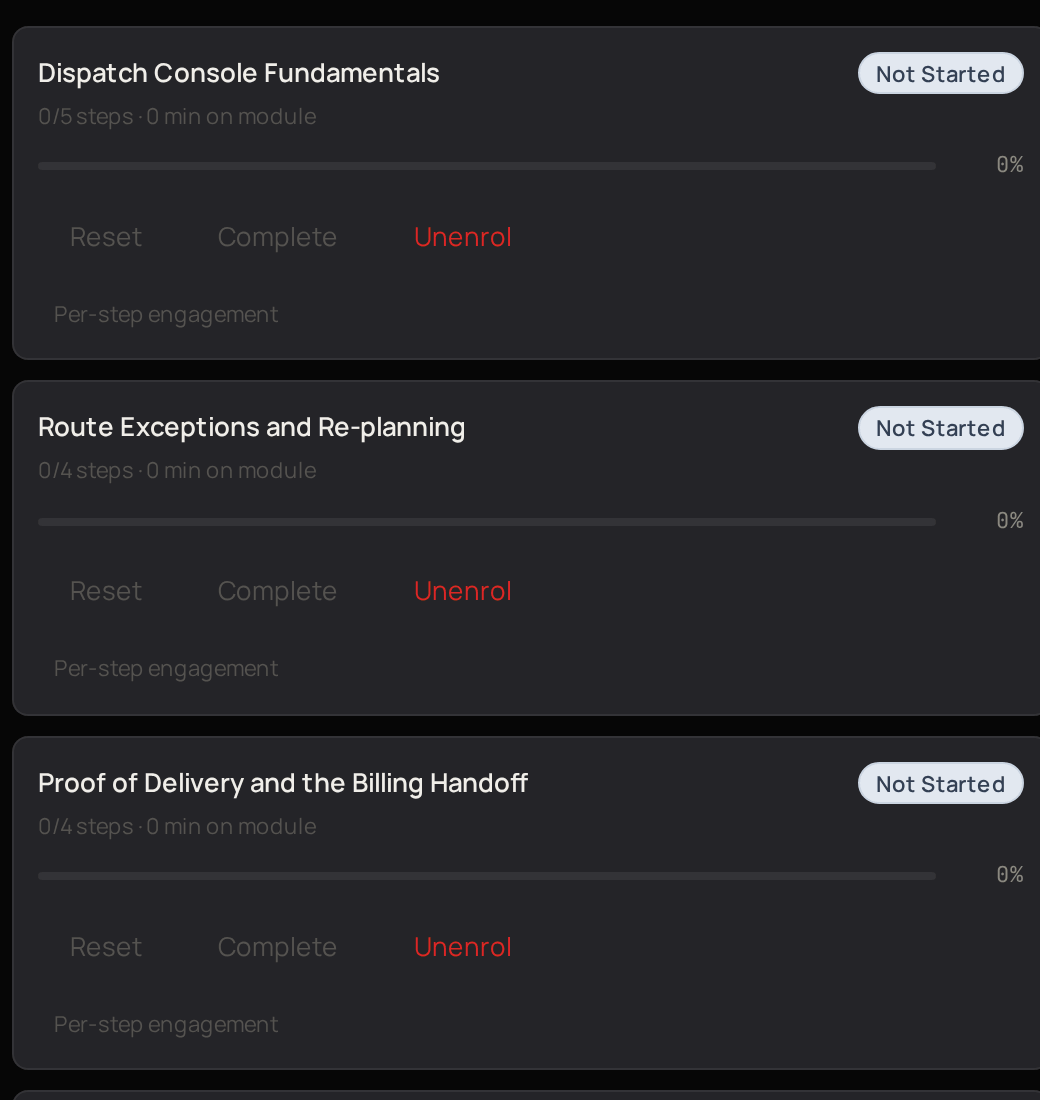
- Reset clears their progress in that module, so they start it again.
- Complete marks every step in the module as done.
- Unenrol takes them out of the module and hides it from them.
1
Open the learner
Open a learner from Learners.
2
Choose what to do
On their Modules tab, select Reset, Complete or Unenrol on the module.
See how learners are doing
- Dashboard shows enrolment and progress across your workspace. Use Customers, Team or Partners at the top to switch between your customers’ learners, your own team and your partners.
- Learners shows each learner’s account, status, modules and progress. Use the filters above the list to narrow it by account, role or progress, and the search box to find someone by name or email.
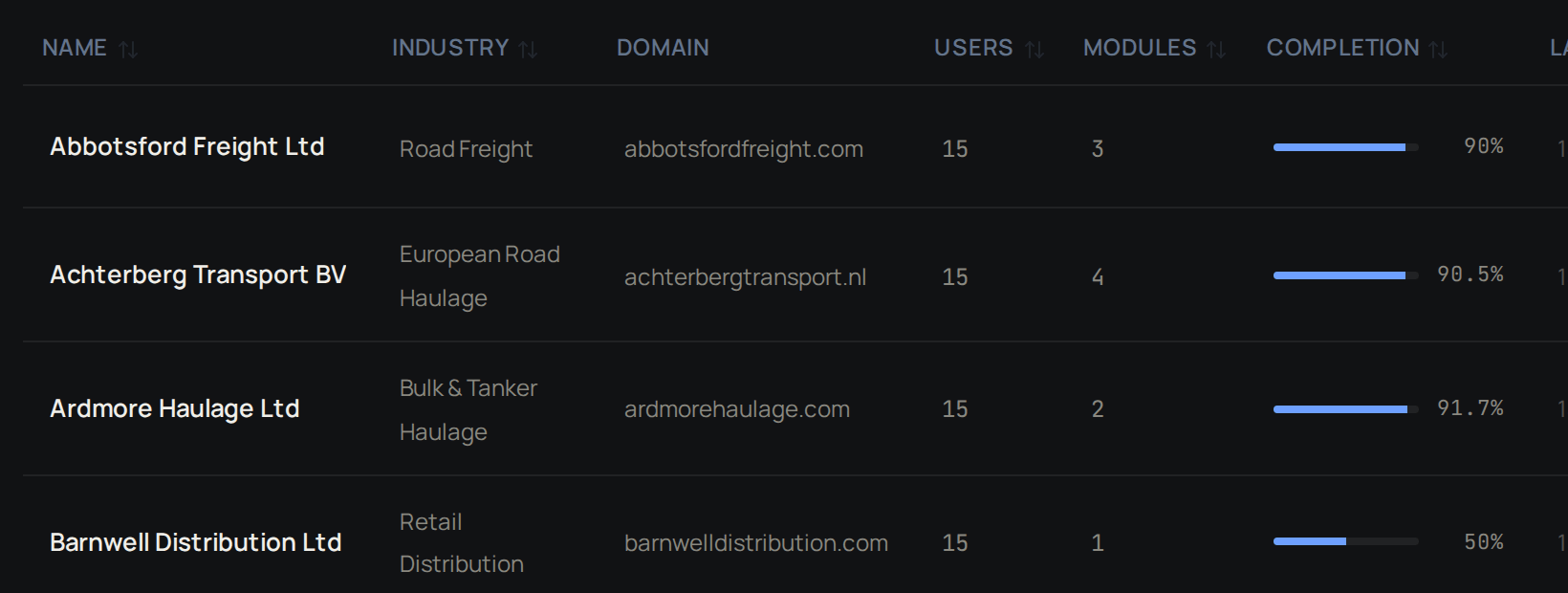
- Accounts shows each customer account with its number of learners, modules and overall completion. Select an account to see its learners.
- Analytics breaks progress down by learner, by step and by module. Its Feedback tab shows how learners have rated each step. Tenant Owners and Workspace Admins can open it.
1
Choose the learners
Tick the learners you want.
2
Export them
Select Export CSV.
See what an account’s learners see
1
Open the accounts
Select Accounts.
2
Start the preview
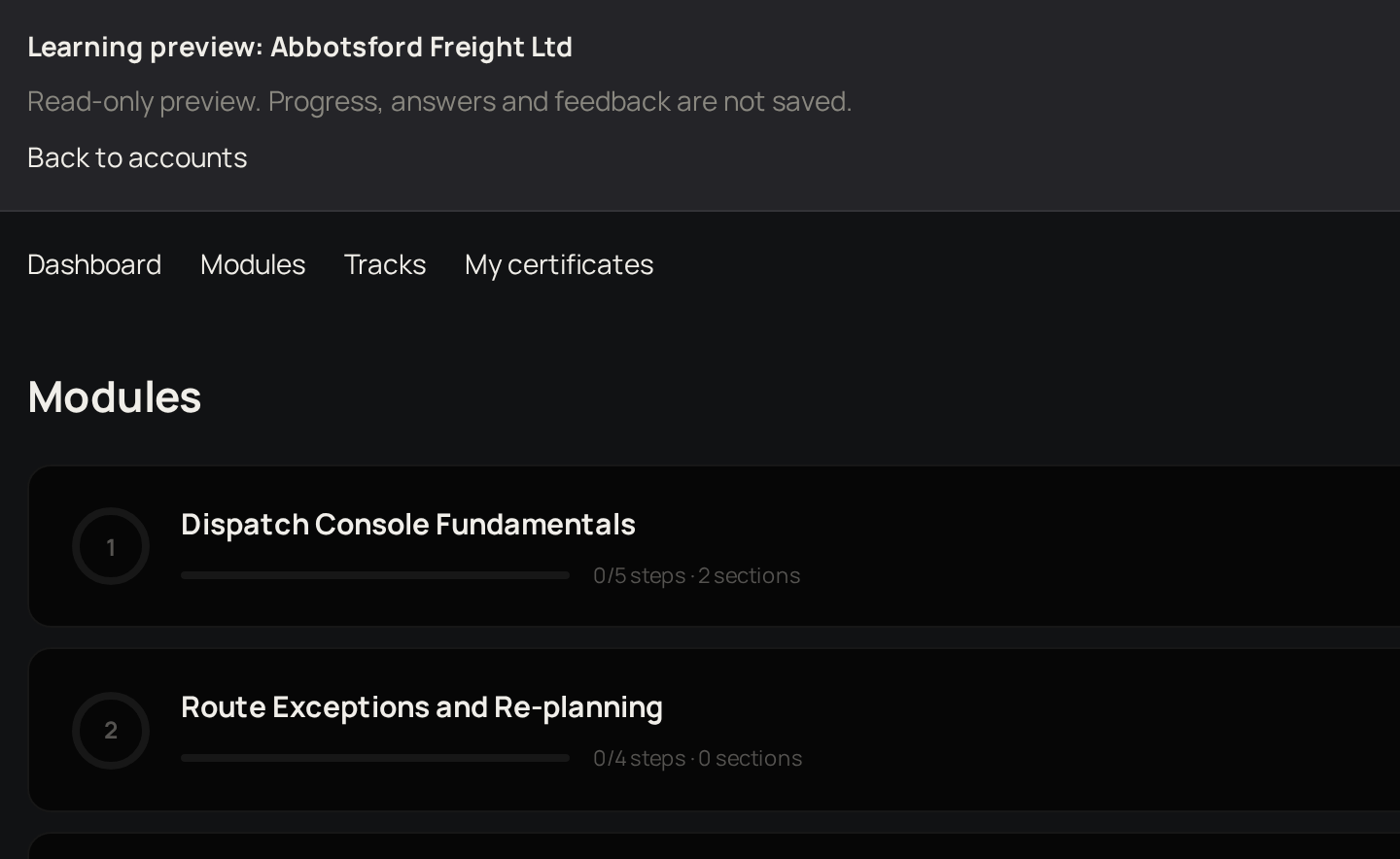
Select Preview learning on the account’s row.
3
Look around
Use Dashboard, Modules, Tracks and My certificates at the top to see each part as the account’s learners do.
4
Finish
Select Back to accounts.
Take training yourself
1
Open your profile
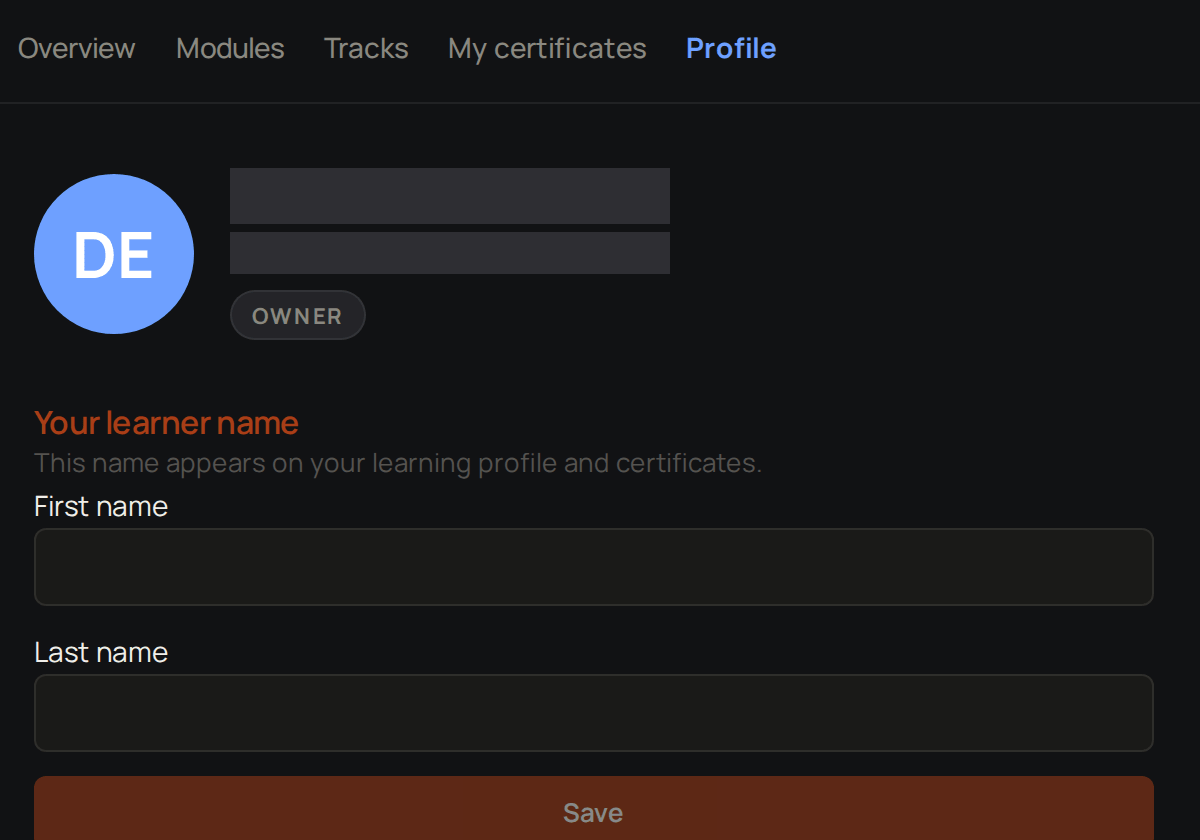
Select My Learning, then Profile.
2
Enter your name
Under Your learner name, enter your First name and Last name.
3
Save
Select Save.
Troubleshooting
Lexis says some learners were skipped
Lexis says some learners were skipped
The module is not open to their account. Change the module’s Organisation Access, or enrol them in another module.
The invite form says Please select an account
The invite form says Please select an account
Choose the learner’s company under Account. If it is not listed, ask a Tenant Owner or Workspace Admin to add it in Studio settings under Accounts.