

 Pulse
Pulse Lexis
Lexis Vera
Vera Aegis
Aegis Prism
Prism Nucleus
Before you start
Tenant Owners and Workspace Admins can create policies and try them out. Workspace Members can see Governance but not change it.Choose what a policy covers
1
Start
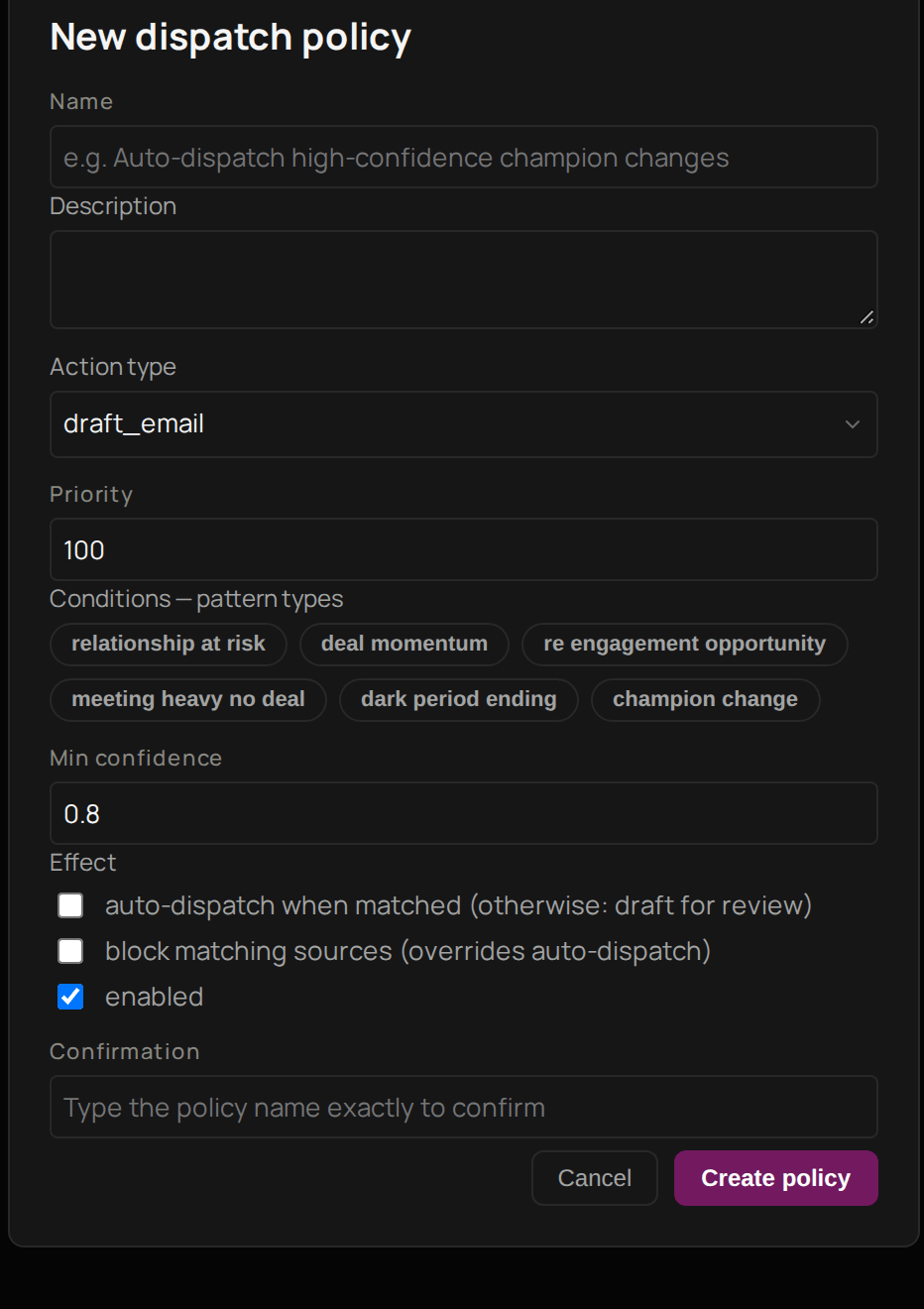
Select Governance. On Policies, select + New policy.
2
Name it
Give it a Name that says what it allows.
3
Describe it
Give it a Description for your team.
4
Choose the action
Under Action type, choose the action the policy covers.
5
Choose which patterns
Select the pattern types it applies to.
6
Set the priority
Enter a Priority. When more than one policy matches, the one with the higher number decides.
Set what a policy does
Carry on in the same form.1
Let Prism act
To let Prism act by itself, tick auto-dispatch when matched (otherwise: draft for review).
2
Stop it acting
To stop it acting instead, tick block matching sources (overrides auto-dispatch).
3
Keep it enabled
Leave enabled ticked.
4
Confirm the name
Type the policy’s name under Confirmation.
5
Create it
Select Create policy.
Try a policy on past patterns
1
Choose the policy
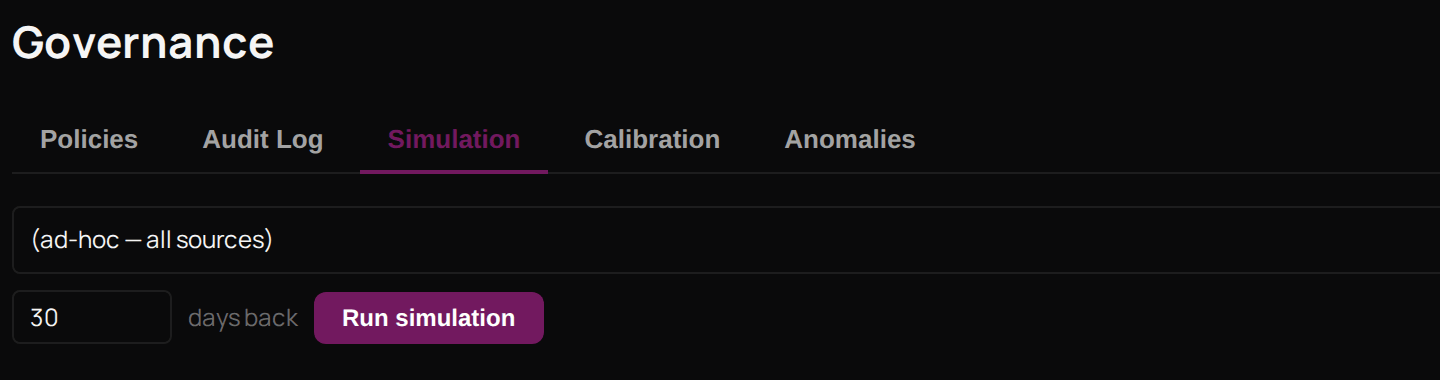
On Simulation, choose one of your policies.
2
Choose how far back
Choose how many days back to look.
3
Run it
Select Run simulation.
Check what Prism decided
Select Audit Log. Each time Prism checks a pattern or an alert against your policies, it is recorded here, including when no policy matched. Use all decisions, all action types and all sources to narrow the list. Tenant Owners and Workspace Admins can select Export CSV to download it. Next, look at the Feed to see what is still waiting.Troubleshooting
Prism says the confirmation must match the policy name
Prism says the confirmation must match the policy name
Type the name exactly as it appears in Name, with the same capitals and spaces, then select Create policy again.