

 Pulse
Pulse Lexis
Lexis Vera
Vera Aegis
Aegis Prism
Prism Nucleus
Draft
Being worked on, and not yet offered to reports or monitors.
Approved
Ready to use, and its formula and unit can no longer change.
Archived
No longer offered for new work; anything already using it keeps working.
Before you start
You need a data source with confirmed columns. Tenant Owners, Workspace Admins and Workspace Members can create metrics. Only Tenant Owners and Workspace Admins can approve or archive one.Create a metric
1
Start
Select Metrics, then + New metric.
2
Name it
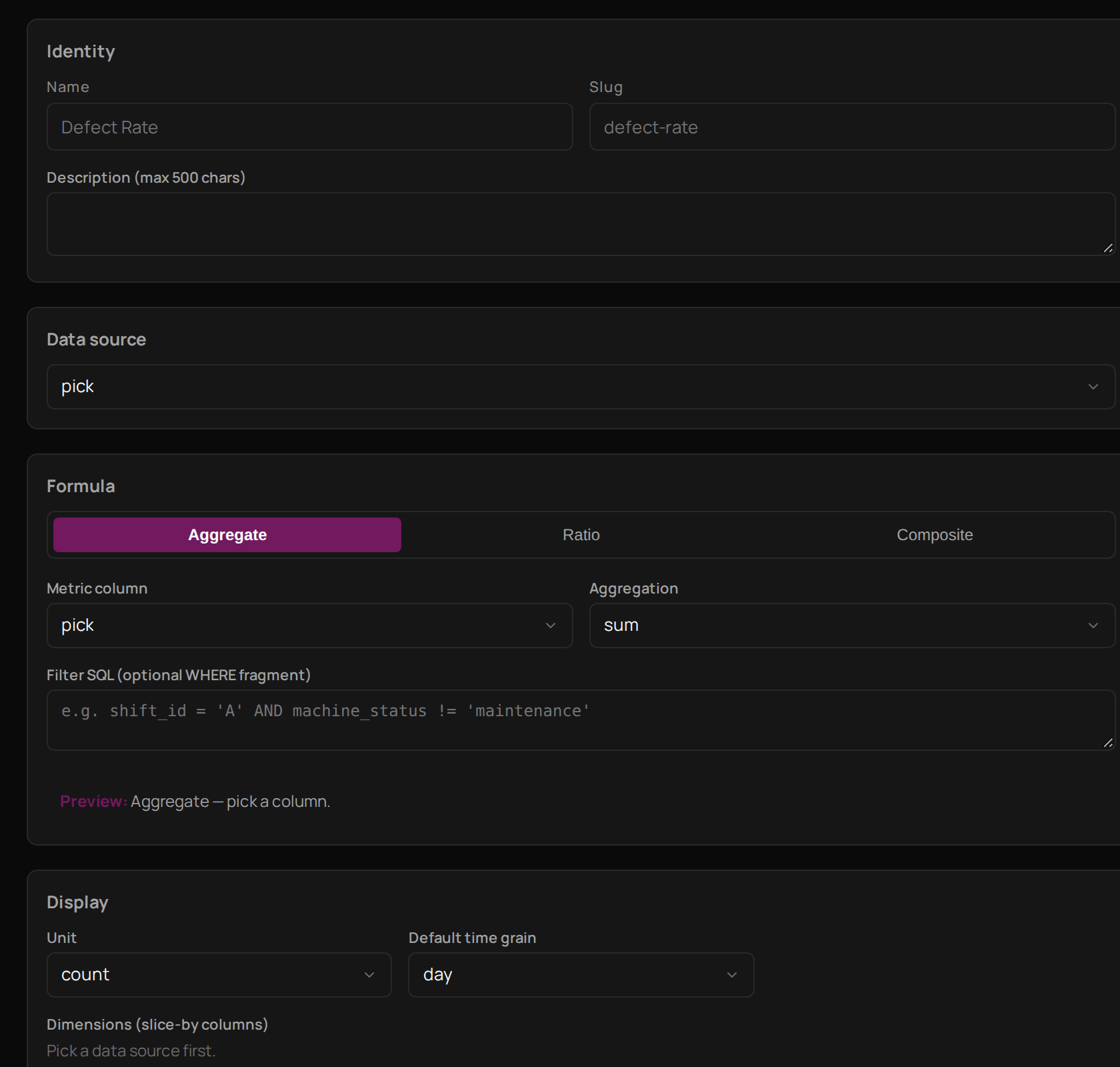
Under Identity, enter a Name.
3
Describe it
Enter a Description so others know what it measures.
4
Choose the data
Under Data source, choose the source it is worked out from.
5
Build the formula
Under Formula, choose Aggregate to add up, average or count one column, Ratio to divide one column by another, or Composite to write your own expression.
6
Choose how it shows
Under Display, choose the Unit, such as percentage or currency.
7
Save
Select Save as draft.
Find a metric
Select Metrics. Search by name, or use All data sources and All governance to show one source or one state, such as Approved. Next, set rules for what Prism may do.Troubleshooting
Save as draft stays greyed out
Save as draft stays greyed out
Enter a Name, choose a Data source and finish the formula. All three are needed.
A metric is not offered when you build a report or monitor
A metric is not offered when you build a report or monitor
Only approved metrics are offered, and only for their own data source. Ask a Tenant Owner or Workspace Admin to approve it.