

 Pulse
Pulse Lexis
Lexis Vera
Vera Aegis
Aegis Prism
Prism Nucleus
Before you start
Tenant Owners, Workspace Admins and Workspace Members can read sessions, rate answers and export conversations.Read a conversation
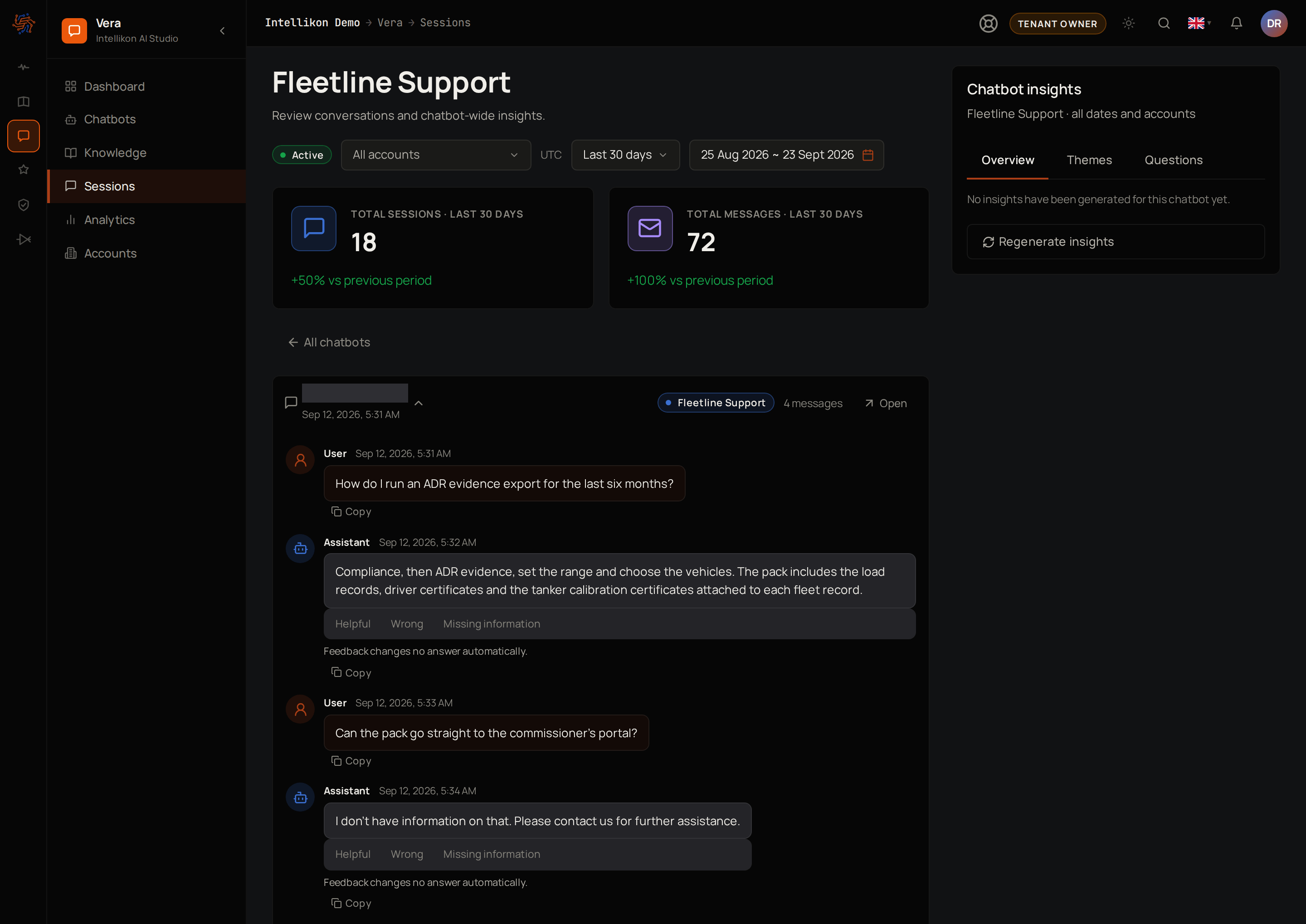
Rate an answer
Under any reply from the chatbot, select Helpful, Wrong or Missing information. Each person has one rating per answer, and you can change yours at any time by selecting another. Ratings do not change any answer on their own. Answers rated Wrong or Missing information appear under Flagged answers on the chatbot’s Training tab, where Tenant Owners and Workspace Admins can fix them. Next, summarise a conversation.Summarise a conversation
1
Open the session
Expand a session.
2
Ask for a summary
Under Conversation summary, select Generate summary.
See themes across conversations
Chatbot insights, beside a chatbot’s sessions, sums up its conversations across all dates and accounts. Overview shows the top themes, the questions left unresolved and suggested actions. Themes and Questions show the first two on their own. Insights are built from conversation summaries, so summarise some conversations first. Then select Regenerate insights. The panel shows how many sessions the insights are based on. Next, export conversations.Export conversations
1
Open the chatbot
Select Chatbots, then Open on the chatbot.
2
Start the export
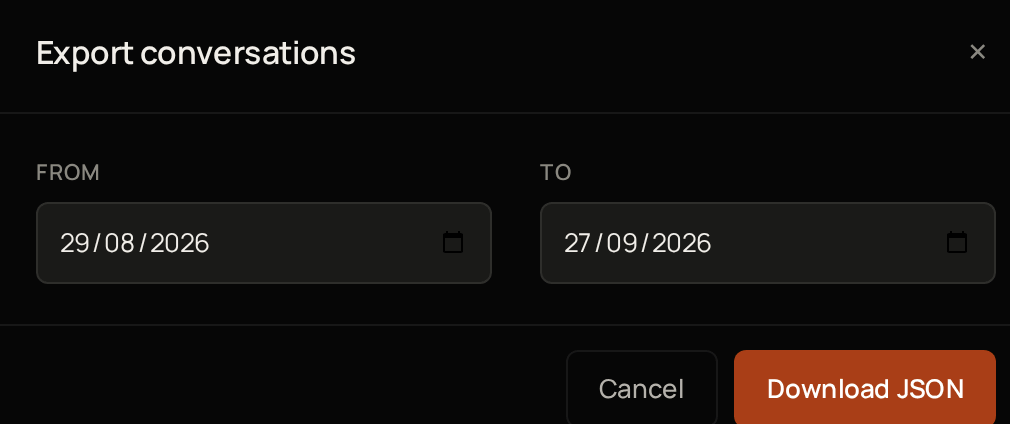
Select Export conversations.
3
Choose the start date
Set From.
4
Choose the end date
Set To.
5
Download
Select Download JSON.
Troubleshooting
Chatbot insights says "Generate a conversation summary first"
Chatbot insights says "Generate a conversation summary first"
Generate a summary for at least one of the chatbot’s conversations, then select Regenerate insights again.
The list says "No sessions match these filters."
The list says "No sessions match these filters."
Choose a longer period at the top, or set Account back to All accounts.
Download JSON is greyed out
Download JSON is greyed out
Make sure From is on or before To.