

 Pulse
Pulse Lexis
Lexis Vera
Vera Aegis
Aegis Prism
Prism Nucleus
Before you start
Tenant Owners and Workspace Admins can use the Training tab. Answers are flagged when someone rates them Wrong or Missing information in Sessions or in Live Preview.Check a chatbot’s health
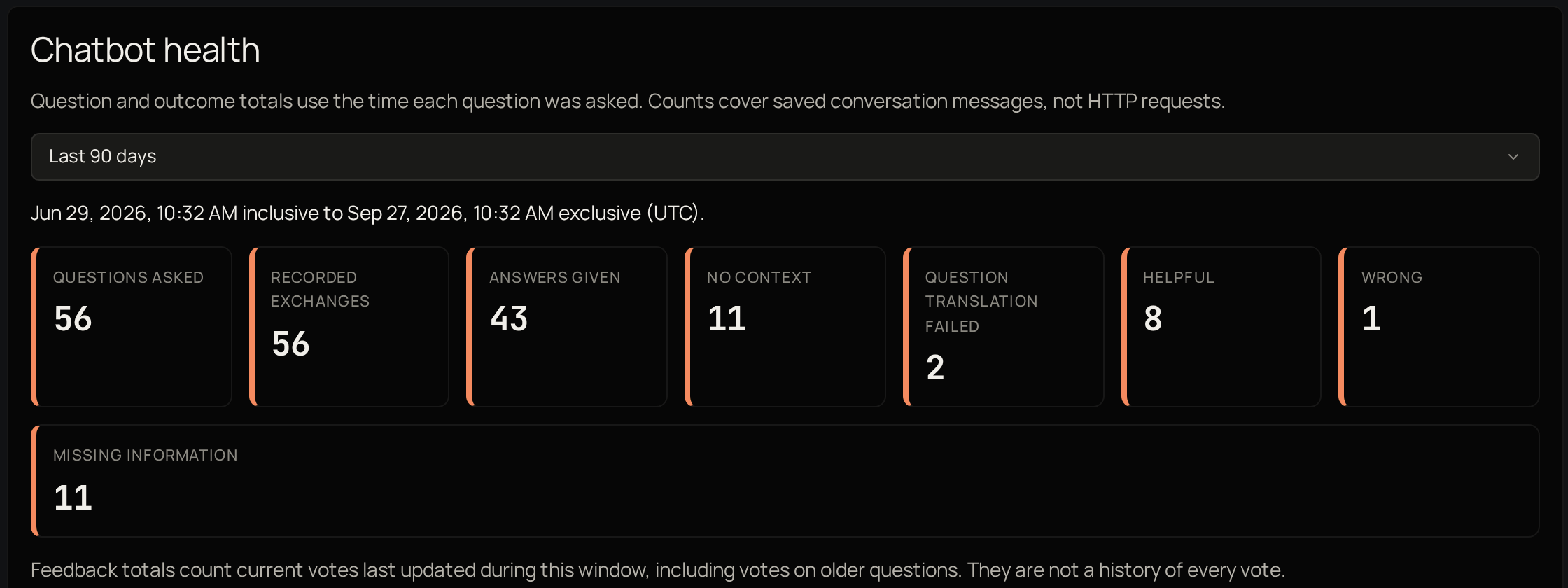
Review flagged answers
On the Training tab, look under Flagged answers. The newest feedback is at the top. Select View evidence to see which parts of the chatbot’s knowledge it used for that answer, then Add a curated answer to write the right answer for that question. Evidence is kept for 90 days. After that, View evidence says it is unavailable. The Create curated answer form opens with the question filled in. Carry on from Write the answer in add a curated answer. Feedback on its own does not change any answer. If the answer was missing because the knowledge does not cover it, add a source instead.Add a curated answer
A curated answer is given only when a question is almost exactly the same as the one you wrote. A question worded differently is answered from the chatbot’s knowledge as usual.1
Start the answer
On the Training tab, under Curated answers, select Create curated answer.
2
Enter the question
Under Question, type the question as people ask it.
3
Write the answer
Under Answer as written, type the answer exactly as you want it given.
4
Choose its language
Under Authored answer language, choose the language you wrote the answer in. The chatbot gives it in this language, whatever language the question comes in.
5
Cite a source if you want
Under Optional source to cite, choose one of the chatbot’s sources to show with the answer.
6
Save it
Select Create curated answer.
Change a curated answer
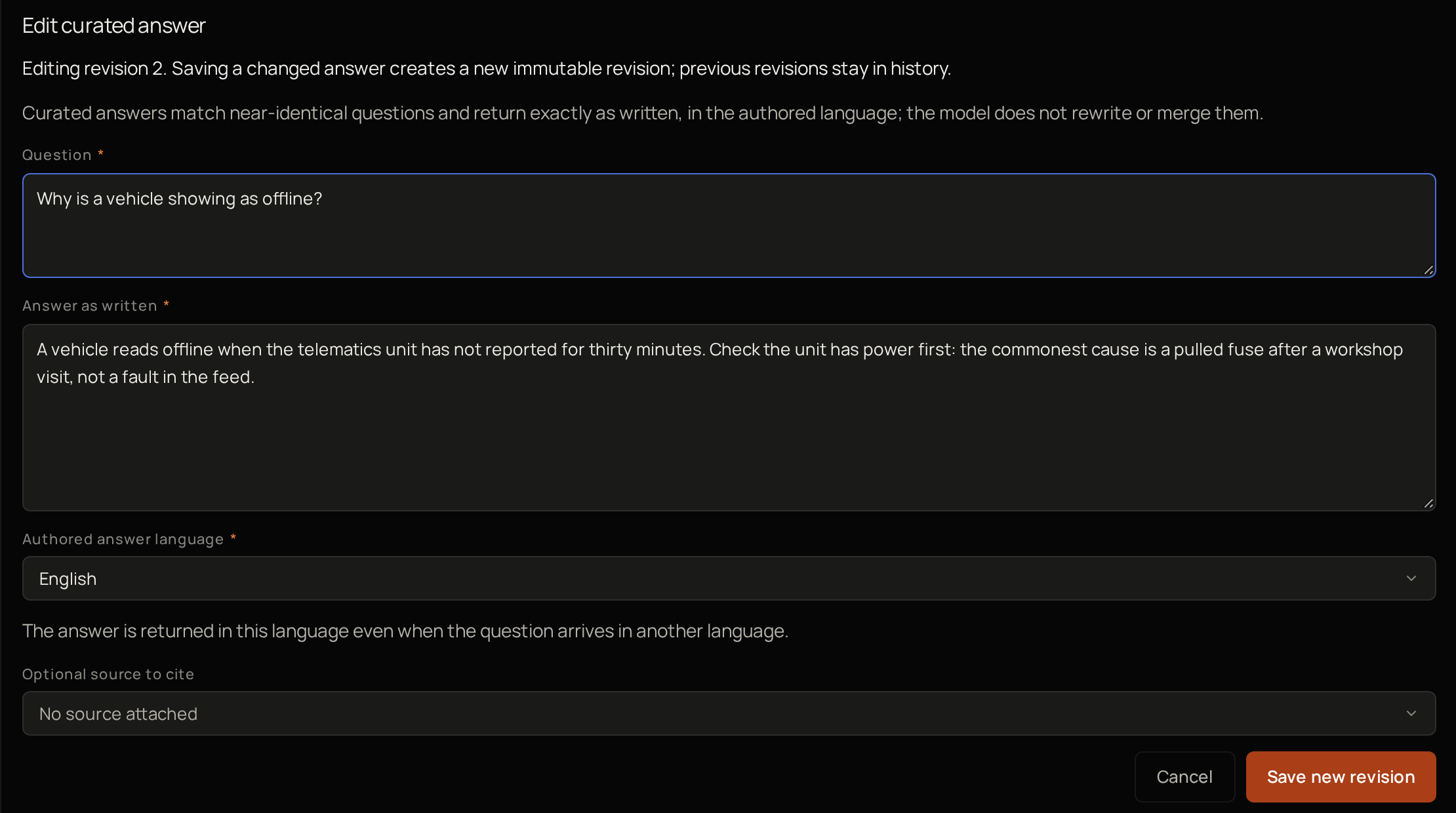
1
Open the answer
Select Edit curated answer on the answer.
2
Make your changes
Make your changes.
3
Save
Select Save new revision.
Troubleshooting
Vera says "Enter a non-blank question and answer"
Vera says "Enter a non-blank question and answer"
Fill in Question and Answer as written, keep each within the space the box allows, and choose an Authored answer language.
Vera says "A newer revision exists"
Vera says "A newer revision exists"
Someone else saved the answer while you were editing it. Your text is kept. Select Review latest revision and read it. Then confirm you have reviewed it and want to keep your draft, and select Save new revision again.
You cannot add another curated answer
You cannot add another curated answer
A chatbot can have up to 100 curated answers. The count is shown above the list.