

 Pulse
Pulse Lexis
Lexis Vera
Vera Aegis
Aegis Prism
Prism Nucleus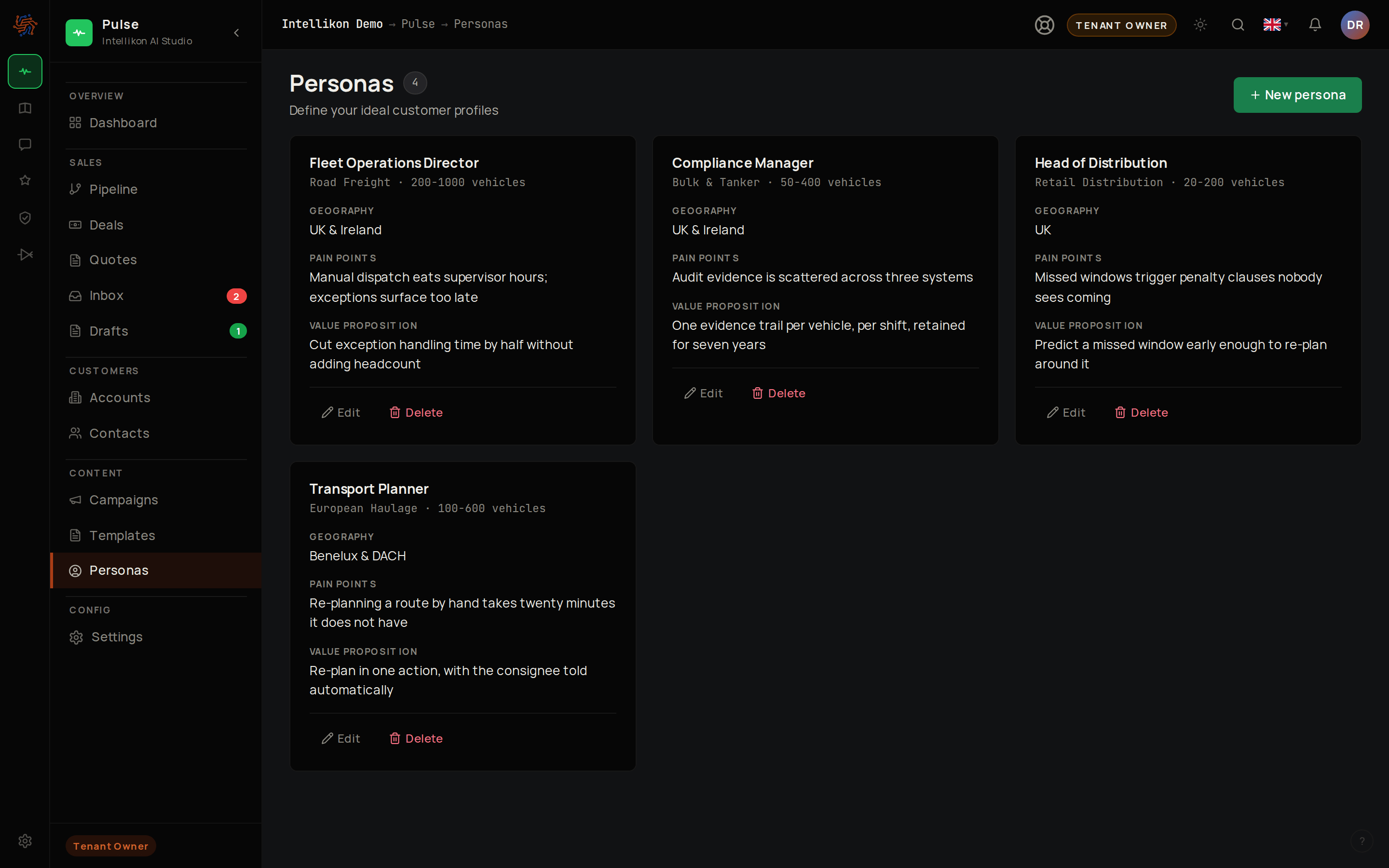
Create a persona
1
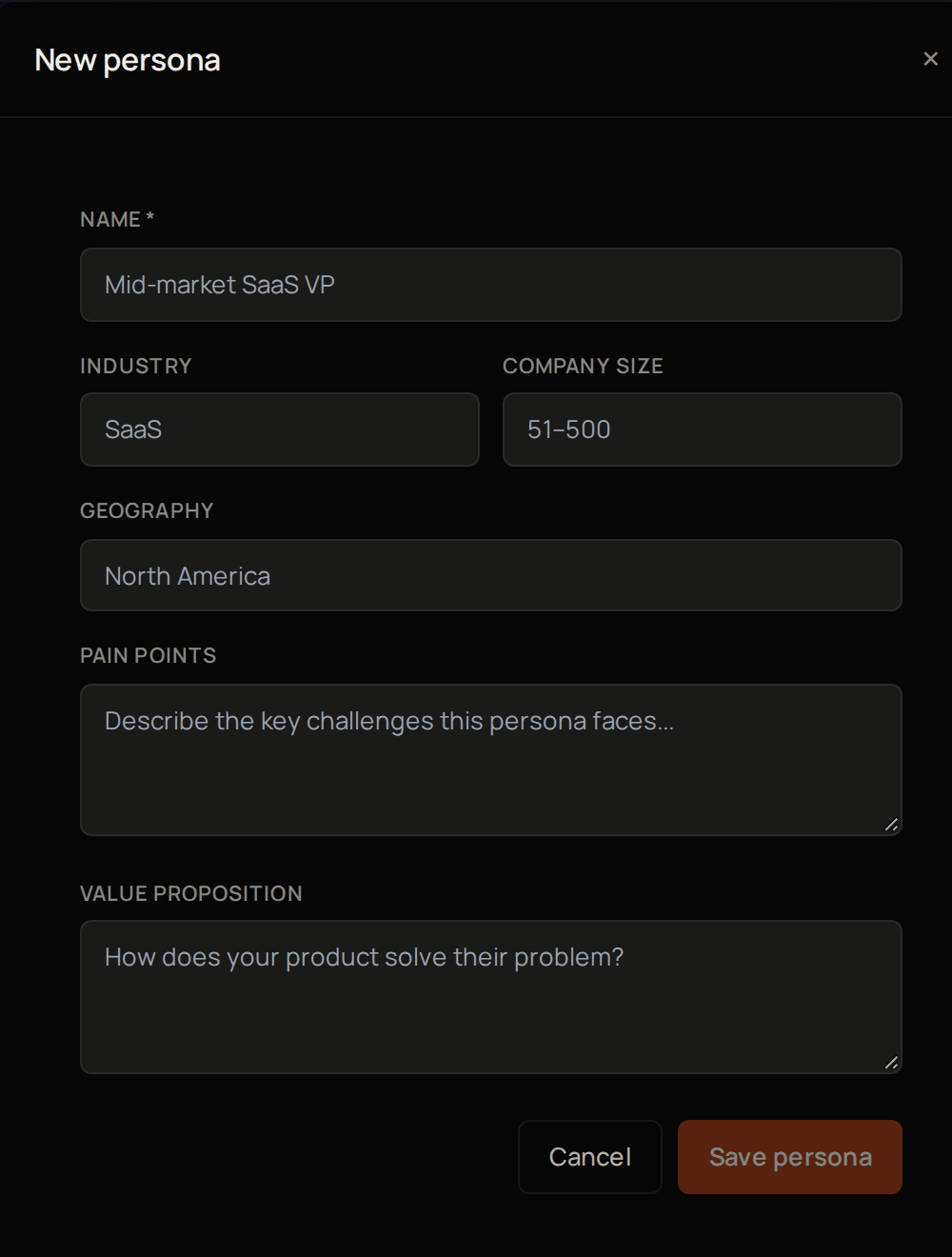
Start a persona
Select Personas, then New persona.
2
Name it
Use a Name your team will recognise, such as the job title you are targeting.
3
Add their industry
Fill in Industry.
4
Add their company size
Fill in Company size.
5
Add where they are
Fill in Geography.
6
Say what matters to them
Under Pain points, describe their problems in their own words.
7
Say how you help
Under Value proposition, say how you solve them.
8
Save
Select Save persona.
Channel
A subject line and a full message.
Create a template
1
Start a template
Select Templates, then New template.
2
Name it
Give it a Name.
3
Keep the channel
Leave Channel at Email.
4
Choose a default persona if you want one
If you want a Default persona, pick one.
5
Go on to the message
Select Next.
6
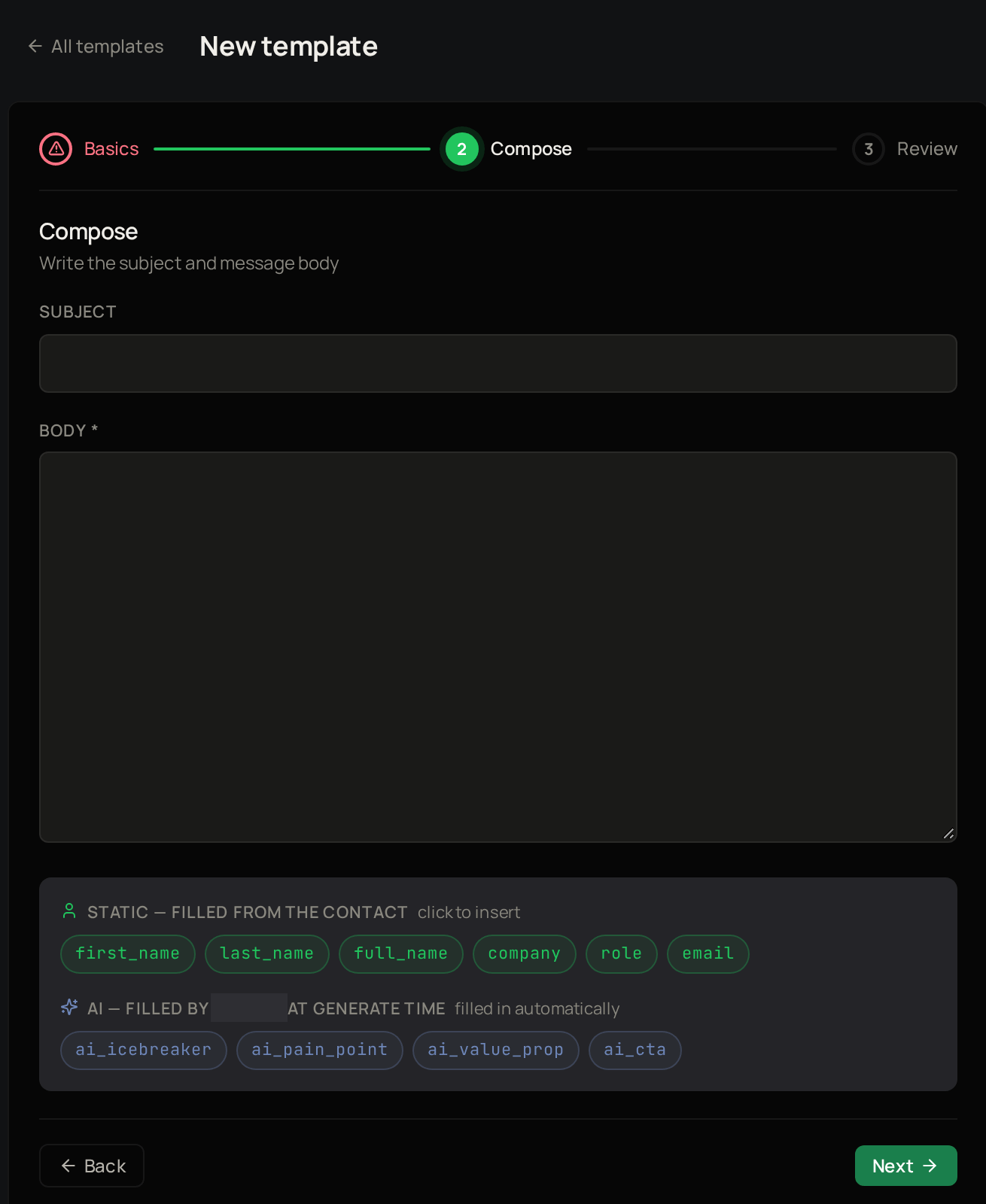
Add a subject
Enter a Subject.
7
Write the message
Enter the Body.
8
Insert a contact variable
Click a contact variable below the editor to insert it.
Preview the template and create it
1
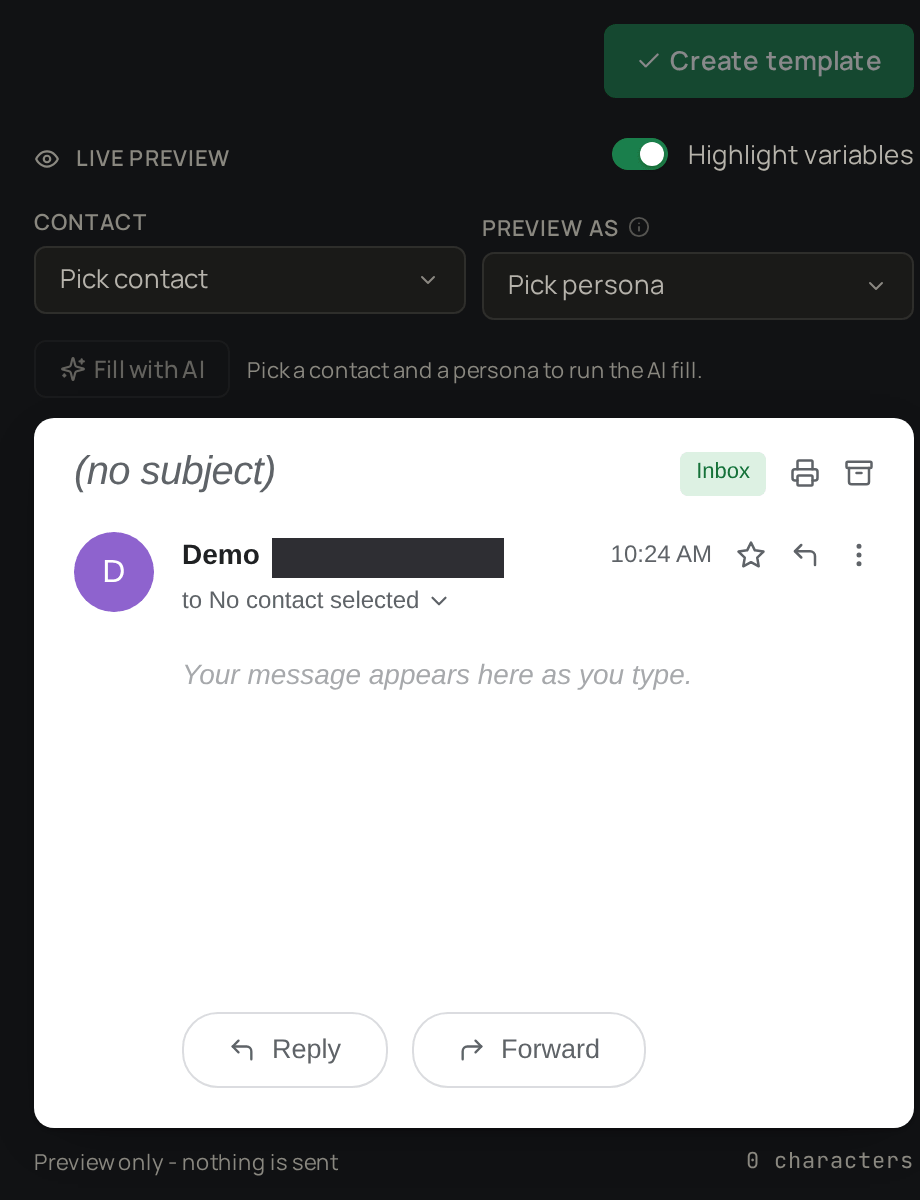
Pick a contact
Under Live preview, pick a contact.
2
Pick a persona
Pick a persona to see the message filled in.
3
See what Pulse would write
Select Fill with AI to see what Pulse would write. Nothing is sent from the preview.
4
Check it
Check the Review step.
5
Create it
Select Create template.
Variables
Contact details are filled in from the contact’s record:{{first_name}}, {{last_name}}, {{full_name}}, {{company}}, {{role}} and {{email}}.
AI variables are written fresh for each contact when their message is drafted: {{ai_icebreaker}} for an opening line, {{ai_pain_point}} for the problem you are addressing, {{ai_value_prop}} for how you help, and {{ai_cta}} for the ask at the end. Type these into the body yourself; only contact variables can be clicked in.