

 Pulse
Pulse Lexis
Lexis Vera
Vera Aegis
Aegis Prism
Prism Nucleus
Before you start
Each quote needs an account and a contact. If either is not in Pulse yet, you can create it from the quote form. A workspace also needs a quote template before quotes can be sent; Tenant Owners and Workspace Admins set these up in Studio settings under Quote Templates. Tenant Owners, Workspace Admins and Workspace Members can build a quote. Only Tenant Owners and Workspace Admins can send it.Create a quote
1
Start a quote
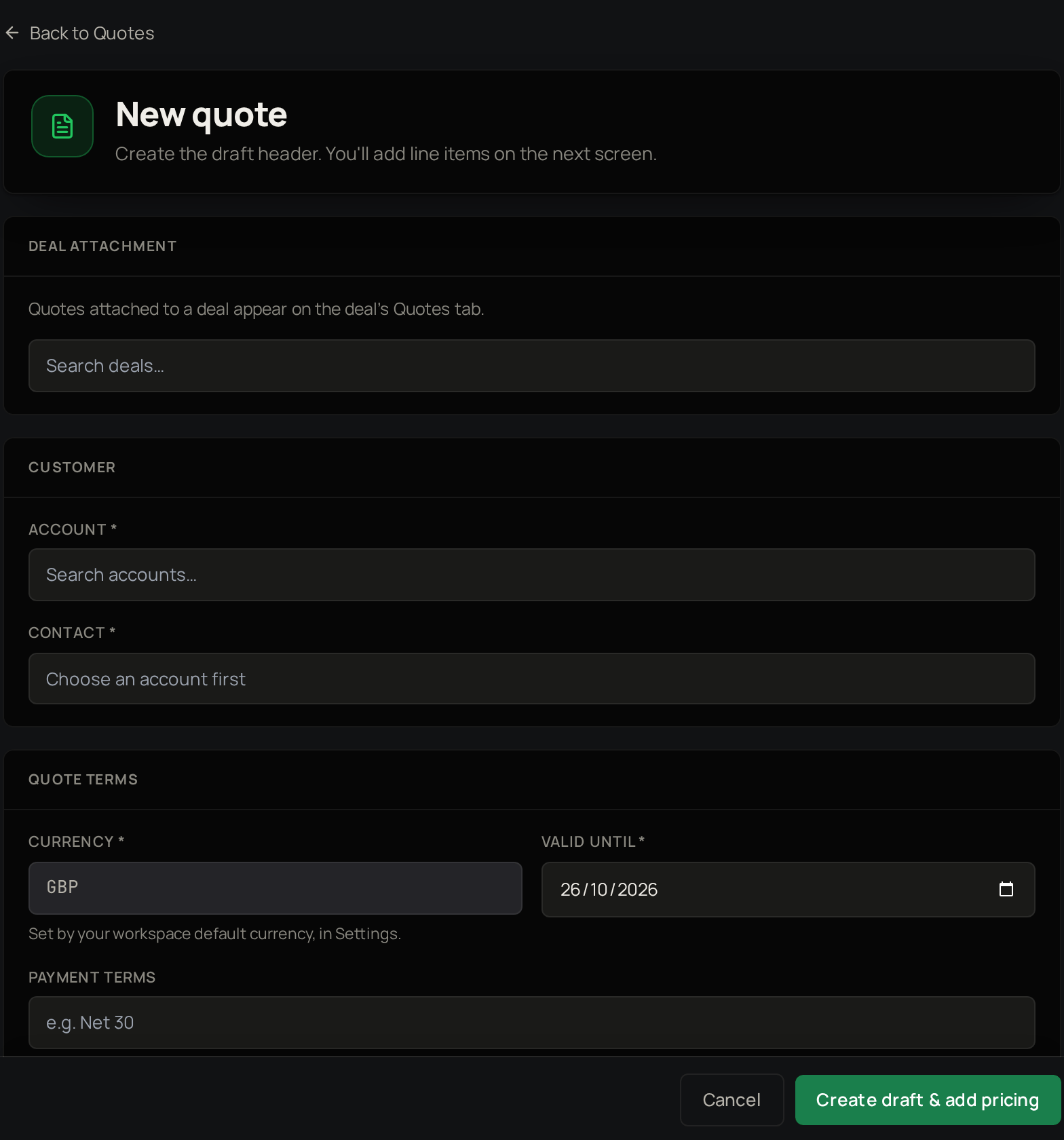
Select Quotes, then New Quote.
2
Attach a deal
If the quote belongs to a deal, find it under Deal attachment.
3
Choose the account
Select the Account.
4
Choose the contact
Select the Contact.
5
Check the terms
Valid until is filled in from your Pulse settings; change it if you need to. The currency is your workspace default.
6
Create the draft
Select Create draft & add pricing.
Add line items
1
Open the panel
On the draft, select Add line item.
2
Pick the item
On Catalogue, choose a product.
3
Discount the line if needed
Open Apply line discount to reduce this line only.
4
Add it
Select Add line.
Add a custom line item
1
Open the panel
On the draft, select Add line item.
2
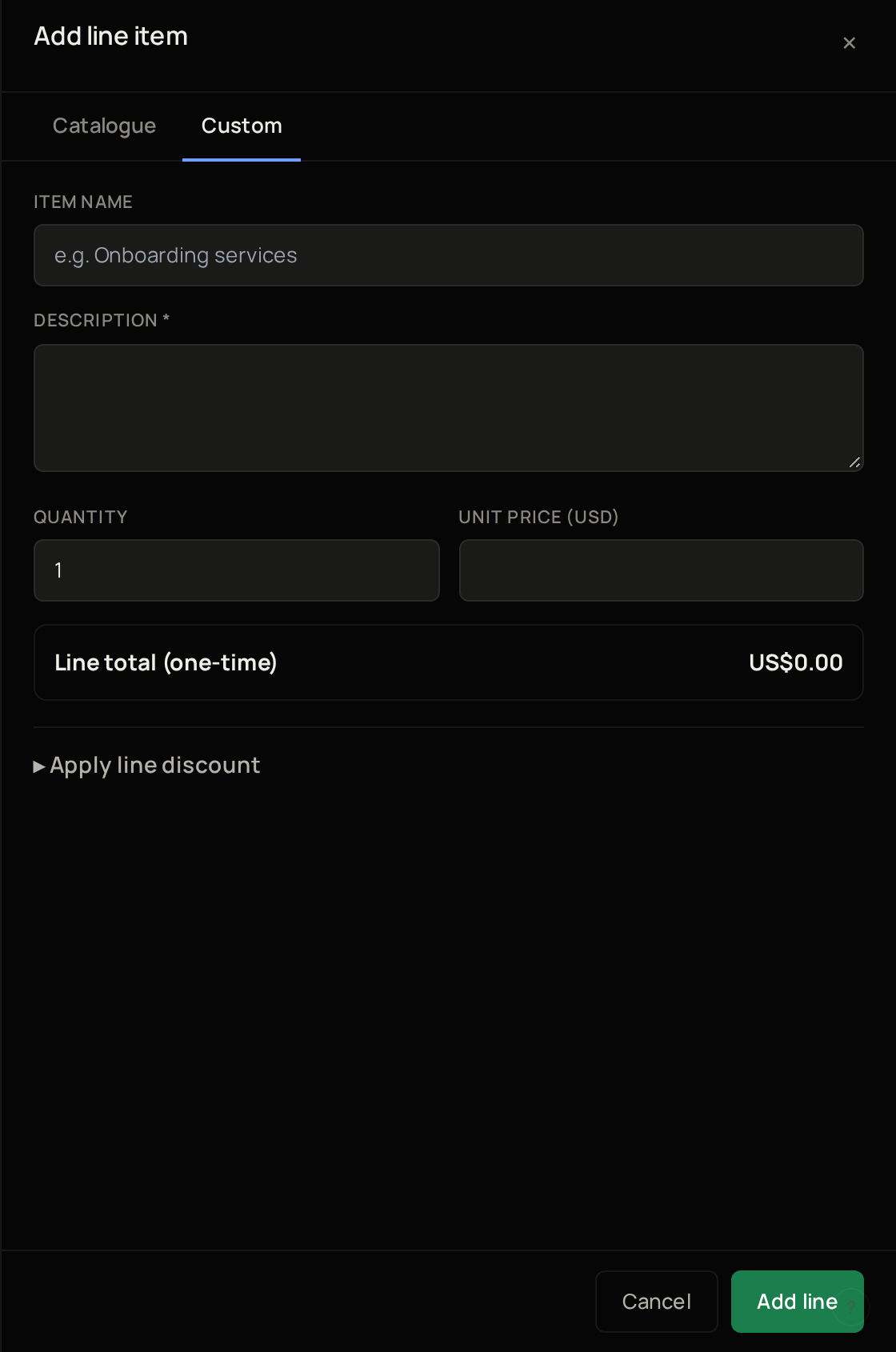
Switch to Custom
Select Custom.
3
Name the item
Enter an Item name.
4
Describe it
Enter a Description.
5
Set the quantity
Enter the Quantity.
6
Set the price
Enter the Unit price.
7
Discount the line if needed
Open Apply line discount to reduce this line only.
8
Add it
Select Add line.
Discount the whole quote
1
Choose the kind of discount
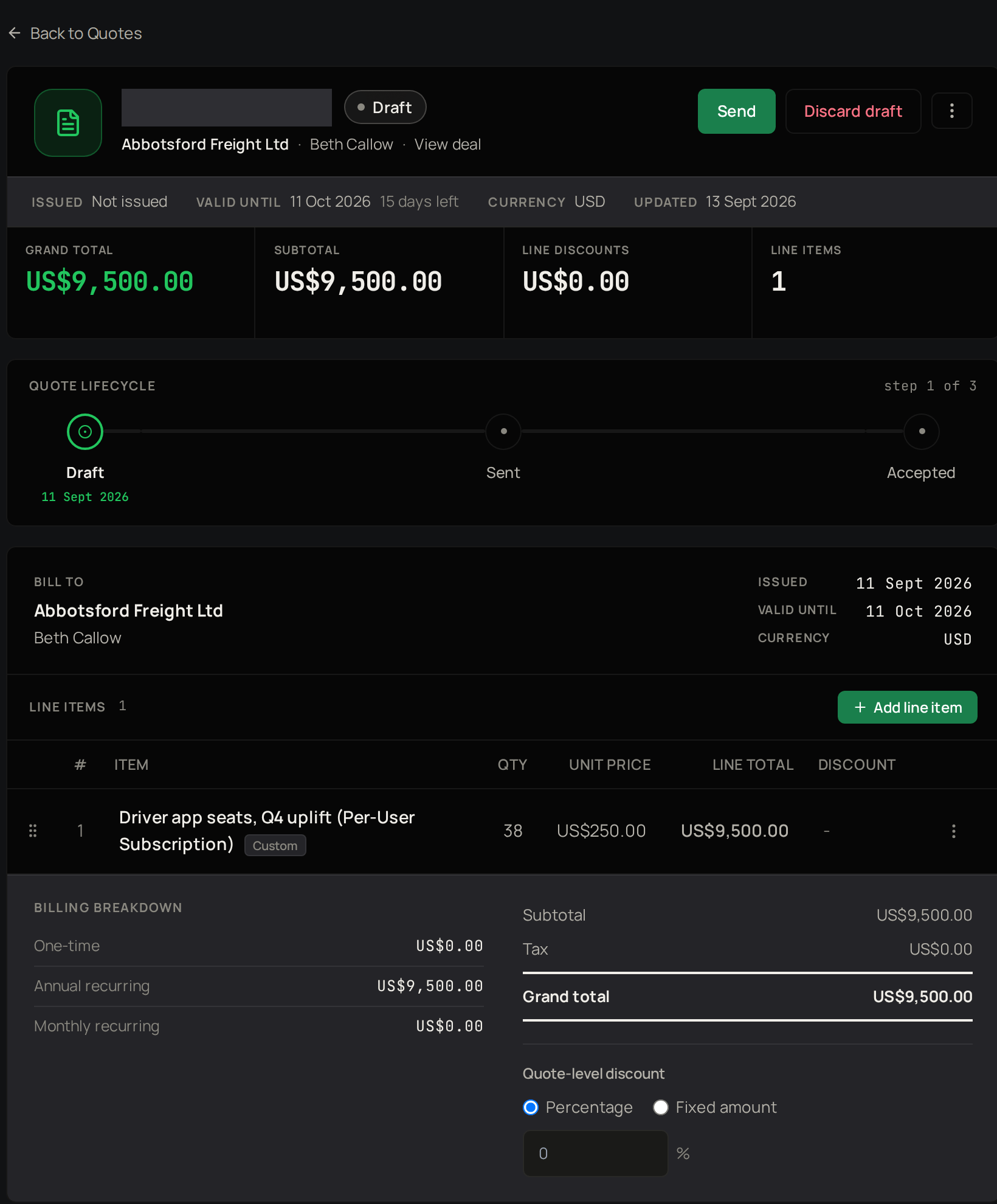
Under Quote-level discount, choose Percentage or Fixed amount.
2
Enter the amount
Enter the value.
Check it before it goes
Send it
1
Open the send options
Select Send.
2
Choose how it reaches your customer
Choose Manual to send the PDF yourself, or Hosted link to share a secure link.
3
Download the PDF
If you chose Manual, download the PDF.
4
Send the PDF
If you chose Manual, send the PDF yourself.
5
Confirm you sent it
If you chose Manual, tick the box to confirm you have sent it.
6
Send the quote
Select Send quote.
7
Copy the link
If you chose Hosted link, copy it from the quote page straight away, because Pulse shows the link only once.
8
Share the link
If you chose Hosted link, send it to your customer.